
How to prepare final Lightroom exports for AI Gallery

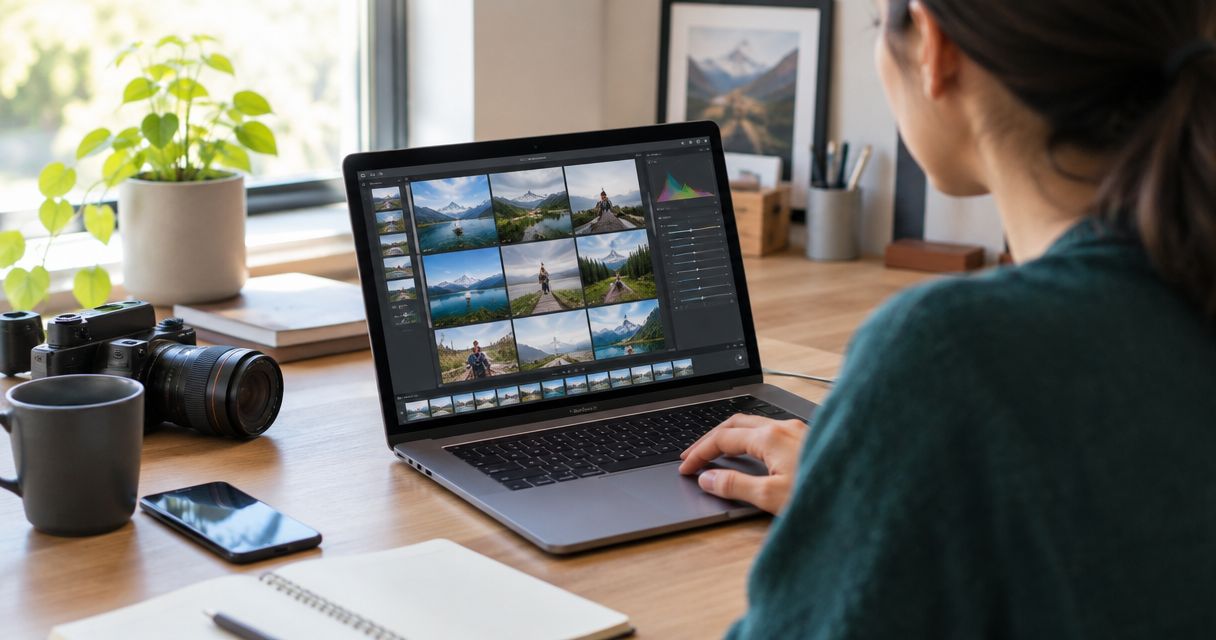
Instead of manually rebuilding export settings for every delivery, prepare Lightroom exports for client gallery uploads with a saved JPEG preset, a dedicated delivery folder and a gallery check before sharing. This guide uses Lightroom Classic to prepare finished photographs for Fotoowl AI Gallery without assuming a direct sync connection.
TL;DR
- Prepare lightroom exports for client gallery delivery as sRGB JPEGs, then inspect the uploaded results.
- Fotoowl AI Gallery suits professional event photographers delivering finished photographs through face-recognition galleries.
- Keep full-resolution delivery files separate from resized previews; each serves a different client requirement.
- Lightroom edits do not change previously exported JPEGs: export and upload revised files deliberately.
Why this matters
A gallery upload is a delivery step, not an editing checkpoint. Wrong crops, unfinished retouching and inconsistent filenames travel with the exported files. A polished Lightroom preview does not prove that the uploaded photograph is correct.
For an Indian wedding studio, the handoff also needs to preserve the distinction between mehendi, sangeet, ceremony and reception photographs. Exporting everything into an unstructured folder creates extra sorting work at delivery.
Fotoowl AI Gallery is best for professional wedding and event photographers delivering finished photographs with face recognition. Its role starts after you decide which photographs are ready. Keep editing decisions and delivery checks under your studio's control.
For the broader handoff, read how to integrate Lightroom with an event photo gallery. The workflow below focuses specifically on preparing the files.
Before you start
- Prepare your source files. Use Lightroom Classic with the original photographs available, completed edits and a clearly identified final selection. Reconnect an external drive before starting if it holds your originals.
- Prepare your destination. Have access to your Fotoowl AI Gallery account, the intended event gallery and a local delivery folder. Confirm the deliverable with your client: viewing previews, downloadable finished photographs or a separate print handoff.
- Catch the hidden gotcha. A saved export preset remembers settings, not your delivery intent. Check the destination, resizing and watermark choices every time; an old preview preset can produce the wrong final files.
These instructions use Lightroom Classic's English desktop labels. Lightroom's cloud-based application has a different export interface; do not look for the same panels there.
Final selection and delivery folders
- Open the event in the Library module. Select only the photographs approved for delivery, rather than exporting the entire import.
- Review crops, rotation, retouching and colour consistency. Inspect faces and important details at 100% magnification; fit-to-screen viewing can hide missed focus and retouching edges.
- Confirm that Lightroom can access the originals. Resolve missing-file warnings before exporting rather than relying on the appearance of cached previews.
- Create a dedicated delivery folder outside your source-image folders. Use a descriptive name such as
2026_Sharma_Wedding_Final, with separate folders for functions when your delivery structure requires them. - Decide how exported filenames will map back to your originals. Retain the original filename or include it in a delivery naming pattern so your team can locate a requested correction.
Expected result: you have an approved selection, accessible originals and an unambiguous destination for finished exports.
Avoid renumbering each function into an identical sequence without another identifier. Two folders can contain different photographs with the same filename, which makes later requests harder to trace.
For a multi-function wedding, settle the event structure before exporting. The guide to organising photos for multi-function Indian weddings covers that planning step.
JPEG format and colour settings
- With the final photographs selected, choose File > Export. Set Export To to Hard Drive.
- Under Export Location, set Export To to Specific folder. Click Choose and select your delivery folder. Check Put in Subfolder only when you intentionally want another folder level.
- Under File Naming, leave Rename To unchecked to preserve source filenames, or enable it and choose the naming template your studio uses consistently.
- Under File Settings, choose JPEG for Image Format and sRGB for Color Space. JPEG exports are rendered, 8-bit files; keep your originals and catalogue separately for future editing.
- Set Quality after inspecting representative exports. Avoid enabling Limit File Size To without a defined delivery requirement: a file-size target can force stronger compression.
- Under Metadata, choose Copyright Only if that matches your handoff. If you retain broader metadata, inspect location and other embedded details before sharing.
Expected result: your export produces finished JPEGs with an sRGB colour profile and a deliberate metadata policy.
Use sRGB for a predictable general-purpose client-gallery handoff. It is the standard starting point for web delivery, not a promise that every phone will display identical colour. Screen calibration, brightness and viewing conditions still affect appearance.
Do not treat the highest JPEG quality setting as an automatic requirement. Inspect skin, gradients and fine detail, then use a setting that preserves the result your client needs. Larger files also take longer to transfer over the same connection.
Image dimensions and output treatment
Choose dimensions according to the promised deliverable, not an assumed gallery rule. This 2026 workflow separates two export variants so your team does not confuse viewing copies with finished downloads.
| Export variant | Best for | Benefit | Limitation |
|---|---|---|---|
| Full-resolution JPEG | Clients receiving finished files for varied uses | Preserves the edited image's available pixel dimensions | Larger files require more transfer and storage capacity |
| Resized JPEG | A separately agreed viewing-preview delivery | Reduces dimensions and usually reduces file size | Does not retain the same enlargement flexibility |
- Under Image Sizing, leave Resize to Fit unchecked for a full-resolution export. This preserves the available dimensions after cropping; it cannot restore pixels removed by a crop.
- For an agreed preview delivery, enable Resize to Fit and choose Long Edge. Enter the pixel dimension required by your studio's delivery specification, and enable Don't Enlarge to avoid upscaling smaller photographs.
- Treat Resolution separately from pixel dimensions. Entering 300 pixels per inch does not add detail when Resize to Fit is unchecked; the pixel dimensions remain unchanged.
- Under Output Sharpening, use Sharpen For: Screen only when preparing screen-viewing output. Inspect a test export before applying that choice across the delivery.
- Under Watermarking, enable Watermark only for a deliverable that requires it. Keep clean final files separate from watermarked previews.
Expected result: the exported dimensions, sharpening and watermark match the actual client handoff.
Full-resolution export is the stronger default when the agreement includes finished downloadable photographs. Resized exports suit a distinct preview requirement, not an undisclosed substitute for the agreed final delivery. Keep both variants in separate folders if your studio needs both.
Export preset and gallery verification
- Review every export panel, then click Add beneath Preset. Give the preset a purpose-led name such as
2026_Client_Gallery_sRGB; include a clear preview or full-resolution distinction if you save both variants. - Export a small representative selection first. Include a close portrait, a group photograph, a heavily cropped frame and an image with fine detail.
- Open the exported JPEGs outside Lightroom. Check the crop, orientation, colour, filename and pixel dimensions rather than judging only the Lightroom preview.
- When the samples pass, export the complete approved selection. Compare the intended selection count with the files in the delivery folder and investigate discrepancies.
- Upload that folder's finished photographs to the intended Fotoowl AI Gallery event. Use the account's current upload controls; this handoff does not depend on a Lightroom publishing plug-in.
- Inspect the uploaded photographs through the viewing access you intend to share. Where downloads form part of delivery, download a sample and inspect the actual file too.
Expected result: the local exports and gallery delivery agree, and the client receives the intended event rather than an unchecked upload.
The sequence is deliberately simple: Final selection, JPEG export, Local check, Gallery upload, Delivery check. Keep the local check before the upload so an export error does not become a gallery-wide correction.
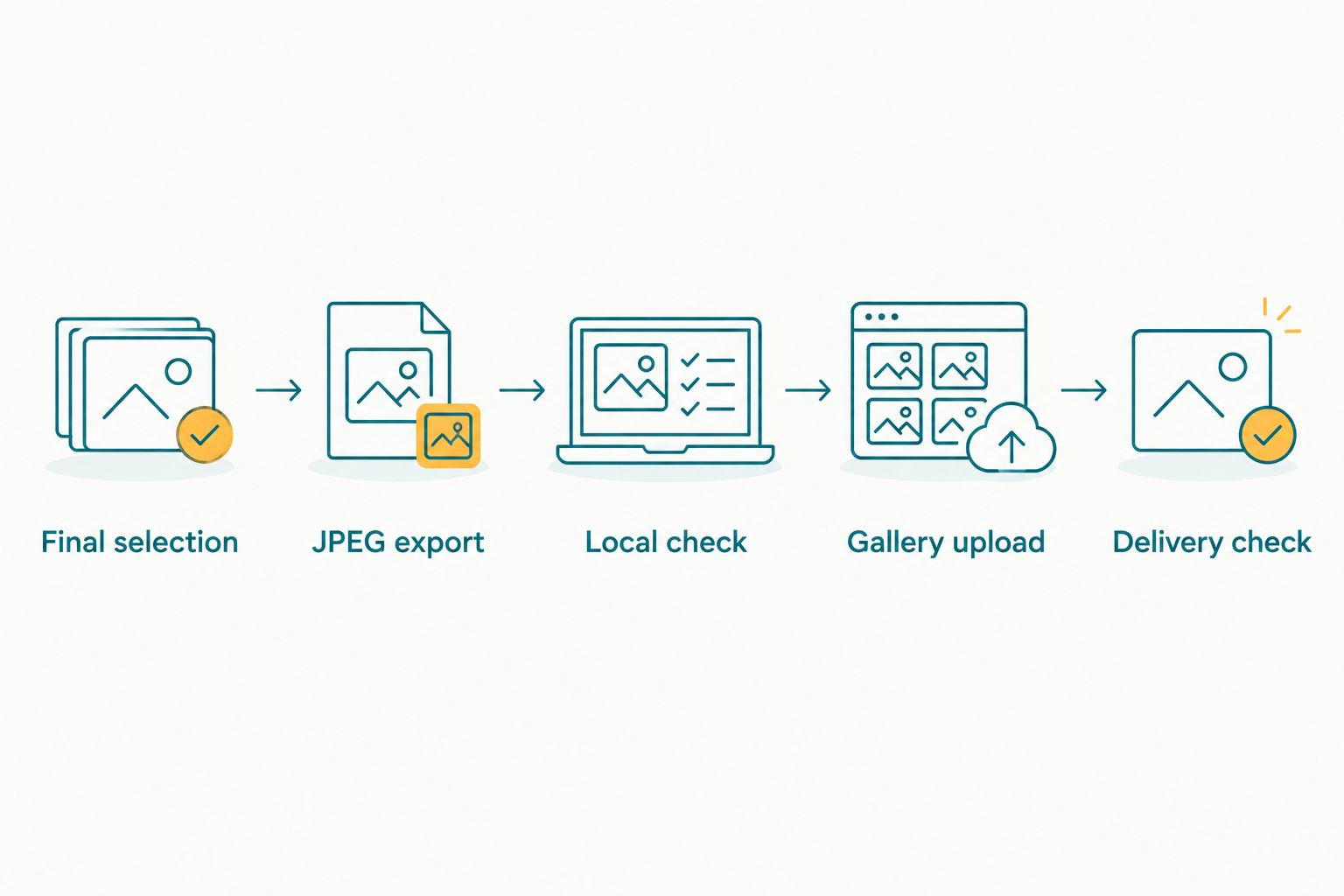
Inspect the exported files locally before checking the uploaded delivery.
Record which preset and export folder produced the delivered batch. That small handoff note lets another editor reproduce the output without guessing, especially when different team members handle editing and delivery.
Revised exports whenever a client requests changes
A client asks for a different crop or a corrected skin tone after delivery. Change the Lightroom edit, then create a new export; the existing JPEG does not update itself.
- Locate the original photograph using its filename. Apply the requested change in Lightroom and review the surrounding images if consistency is affected.
- Select only the revised photographs. Reuse the approved export preset, but send the files to a separate revision folder so they cannot be mixed accidentally with the first delivery.
- Open the new JPEGs and compare them with the change request. Confirm that the correction survived the export and that no unrelated setting changed.
- Check the gallery's current handling of repeated filenames before uploading a revised batch. Do not assume that a new upload replaces an existing photograph.
- Remove or replace superseded files through the available gallery controls as appropriate. Inspect the client-facing result before confirming completion.
For a 2026 wedding delivery, a folder such as 2026_Sharma_Wedding_Revision makes the local batch explicit. Keep the client-facing gallery equally clear: two competing versions invite another round of questions.
This workflow supports controlled revisions, not automatic synchronisation. The benefit is a reviewable handoff; the limitation is that your team must verify each upload and any removal of older files.
Troubleshooting
Exported colours differ from the Lightroom view
Check Color Space in File Settings and inspect the exported file in a colour-managed application. If it matches there but differs on another display, investigate that display and viewing conditions before changing the edit. Converting to sRGB does not calibrate a client's screen.
Final photographs look soft or too small
Check Resize to Fit, the selected dimension and the original crop. A tightly cropped photograph has fewer available pixels, and an earlier preview preset can reduce dimensions again. Re-export from the original edit with the intended sizing settings; enlarging the small JPEG does not recover lost detail.
The upload contains old and revised photographs
Compare the local export folder, filenames and gallery contents. Separate revisions locally and inspect the platform's repeated-filename behaviour before retrying. Delete or replace only the superseded versions you have identified, then check the client-facing result.
Lightroom refuses to export some originals
Check that the source drive is connected and that Lightroom's file references point to the correct location. Relink missing photographs within Lightroom instead of re-importing a second copy and creating a parallel editing record. Retry the affected selection after resolving access.
Uploads stop before the delivery is complete
Preserve the local delivery folder and identify which files reached the gallery before restarting. Resume with the remaining files through the available controls, then reconcile the gallery against the intended batch. A completed local export does not prove a completed upload.
Customize your workflow
Turn the approved handoff into a studio procedure: final selection, named preset, representative export check, upload and delivery review. In your 2026 procedure, assign responsibility for each checkpoint rather than leaving final approval to whoever finishes exporting.
Fotoowl AI Gallery handles delivery and face-recognition galleries; it does not replace your final image review. Keep expressions, retouching, duplicates and client restrictions in that review. Finding a photograph and approving it for delivery are different tasks.
For multi-editor jobs, agree on filename handling before editing begins. For multi-function weddings, keep folders aligned with the delivery structure. For revisions, record the affected filenames and the requested changes so another team member can verify completion.
Recheck saved presets whenever your deliverable changes. A useful 2026 preset is a repeatable starting point, not permission to skip the export dialogue.
FAQ
What is the best format for Lightroom exports for a client gallery?
sRGB JPEG is the practical starting point for finished client-gallery photographs. Export rendered files from the approved edits, then inspect the uploaded result and any downloadable sample.
Should I export full-resolution photographs or smaller previews?
Export full-resolution JPEGs when your agreement includes finished downloadable photographs. Use resized files for a separately agreed preview delivery, and keep the two batches distinct.
Does setting Lightroom exports to 300 pixels per inch improve gallery quality?
No. Changing the resolution value alone does not add image detail when resizing is disabled. Pixel dimensions and the quality of the source photograph determine the available image information.
Does editing a photograph in Lightroom update the gallery automatically?
Not in this file-export workflow. Re-export the changed photograph, check the new JPEG and deliberately update the gallery while verifying how older versions are handled.
Can I use the same export preset for every wedding function?
Yes, when the deliverable is the same across functions. Check the destination folder, filenames, sizing and watermark before each export so the preset does not send the right settings to the wrong batch.
Should final client photographs include a watermark?
Include a watermark only when the agreed deliverable requires it. Keep watermarked previews separate from clean final photographs, and inspect placement before exporting the complete batch.
Is face recognition a substitute for checking my finished exports?
No. Face recognition helps people find photographs; it does not approve crops, retouching or delivery choices. A photographer must review the finished files before sharing them.
One last thing
Check the downloaded file, not just the gallery thumbnail. A thumbnail cannot confirm the delivered pixel dimensions, embedded metadata or final filename. Make that final download check part of your 2026 handoff before sending the client a completion message.