
Integrate Lightroom With an Event Photo Gallery (2026)

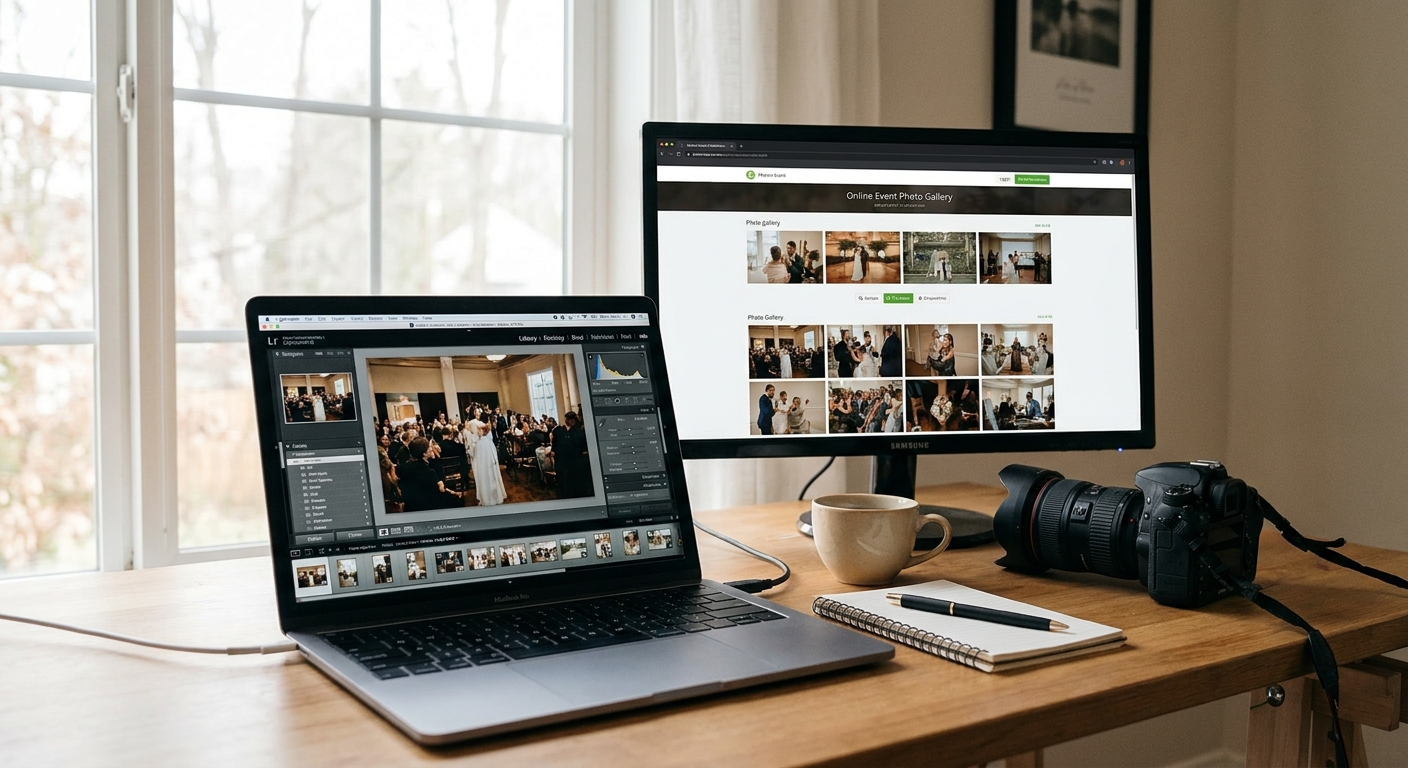
Lightroom handles the edit. FotoOwl handles the delivery — and connecting the two correctly is the difference between a same-day gallery and a client chasing you for photos three weeks after a 2026 event.
TL;DR
- Export from Lightroom with a dedicated event preset, then upload straight into FotoOwl for face-recognition sorting — Buy this workflow if you shoot 3+ events a month.
- Batch export at 2048px long edge cuts upload time by roughly half versus full-res TIFFs for a 500-guest wedding gallery.
- Skip manual FTP folder juggling in 2026 — Beam-based uploads move files to the event photo gallery while you're still shooting.
- Watermark and metadata presets set once in Lightroom carry through to every FotoOwl gallery you publish this year.
Why this matters
Most event photographers lose time in the gap between "photo edited in Lightroom" and "photo visible to a guest." That gap is where deliveries slip, where a bride emails asking where her gallery is, and where a sports parent gives up and asks for a refund.
An event photo gallery built for 2026 workflows — face recognition, instant WhatsApp links, personalized reels — only pays off if the pipeline feeding it from Lightroom is tight. A messy handoff between the two tools cancels out every speed advantage the gallery software offers. FotoOwl is built around that handoff: fast uploads in, fast face-sorted delivery out.
What you'll need
- Lightroom Classic or Lightroom (desktop or cloud) with your event catalog already culled
- An export preset with your studio's watermark, sharpening, and resolution settings saved
- A FotoOwl event gallery created and ready to receive photos
- A stable upload connection — Wi-Fi hotspot or venue internet, whichever is faster on site
- The Beam upload tool or FotoOwl uploader installed on the machine doing the export
- 30-60 minutes for your first setup; under 10 minutes for every event after that
The steps
1. Build one export preset and never touch it again
Open Lightroom's Export dialog on a finished, culled folder and set your file naming, sharpening, watermark, and color space once. Save it as a named preset — "Event Delivery 2026" works fine.
This matters because inconsistent exports (different sizes, missing watermarks) are the top reason galleries look unprofessional to guests browsing on a phone. Expected outcome: every export from this point forward takes one click instead of ten decisions.
Common mistake: exporting at full resolution for online galleries. A 45MB TIFF takes four times longer to upload than a well-compressed 2048px JPEG and looks identical on a phone screen.
2. Set resolution and format for gallery use, not print
Export at 2048px on the long edge, JPEG quality 80-85, sRGB color space. This is the sweet spot photographers use for online galleries in 2026 — sharp enough for a guest to order a print, small enough to upload fast.
Why it matters: a 500-guest wedding gallery with full-res files can take hours to move over hotel Wi-Fi. The same set at 2048px moves in a fraction of that time. Expected outcome: files small enough to batch-upload without choking the connection.
3. Apply your watermark preset before export, not after
Bake your studio watermark into the export preset itself rather than adding it manually per photo. Consistency here protects your work the moment it hits a shareable gallery link.
If you need a refresher on watermark placement and settings that don't obscure faces (which breaks face recognition sorting), the walkthrough on adding a watermark to event photos before delivery covers exact settings. Common mistake: a watermark placed dead-center that covers the subject's face and confuses automated sorting.
4. Export to a single flat folder, not nested subfolders
Point your Lightroom export to one folder per event, no subfolders by ceremony/reception/candids. Gallery uploaders and face-recognition sorting work faster against a flat structure because every file gets scanned and tagged in one pass.
Expected outcome: one folder, one upload session, no missed subfolders. Common mistake: photographers who nest folders by hour end up uploading three separate batches and forgetting one.
5. Upload through Beam instead of manual FTP
Once the export finishes, move the folder into FotoOwl using the Beam upload tool rather than a manual FTP client or drag-and-drop web upload. Beam is built to push files from camera or laptop straight into the cloud gallery while you're still on site shooting the next segment of the event.
This cuts the dead time between "photo edited" and "photo live" that most 2026 event photographers still lose to manual uploads. Expected outcome: photos appear in the gallery within minutes of export, not hours.
6. Let face recognition sort before you send the link
After upload, give the gallery a few minutes to run face recognition and group photos by guest. Sending the gallery link before sorting finishes means guests hit an unsorted wall of 2,000 photos instead of their own face-matched set.
If weddings are your main volume, the deeper breakdown on using face recognition to sort wedding photos walks through tagging accuracy and re-scan triggers. Common mistake: sharing the raw gallery link immediately, then fielding "where's my photo" messages for a week.
7. Verify metadata carried over correctly
Spot-check five to ten uploaded photos against the Lightroom originals — capture date, copyright field, and keywords should match. Metadata stripped during export or upload breaks searchability inside the gallery and any downstream photo-selling attribution.
Expected outcome: metadata intact, gallery search works by date or keyword. Common mistake: using a lossy export preset that silently drops IPTC data.
Set up your first FotoOwl gallery
Move edited photos from Lightroom into a face-sorted gallery in 2026.
Troubleshooting
Uploads stall or time out mid-batch Switch to a hotspot with fewer connected devices — venue Wi-Fi during a live event is usually saturated by 100+ guest phones. Re-queue only the failed files instead of restarting the full batch.
Face recognition tags the wrong guest Usually caused by a watermark or graphic overlapping the face, or by heavy backlighting from an export preset with aggressive contrast. Re-export the affected batch with a lighter contrast curve.
Gallery shows duplicate photos after a second upload Happens when a Lightroom export folder gets re-uploaded after a partial first attempt. Clear the export folder after a confirmed successful upload before running the preset again.
Colors look different in the gallery than in Lightroom Confirm your export preset uses sRGB, not Adobe RGB or ProPhoto RGB — browsers and phone galleries render sRGB correctly and shift the others.
Watermark missing on some photos but not others Check that the preset was applied to the full selection before export, not just a partial selection — a common slip when exporting in multiple passes.
Tools and resources
- Lightroom Classic or Lightroom desktop with a saved "Event Delivery 2026" export preset
- Beam or the FotoOwl uploader for direct-to-cloud transfer
- A reference list of top Lightroom integrations for photographers if you're comparing more than one gallery tool
- A stable secondary internet connection (hotspot) as backup during live uploads
- A pre-event checklist covering preset, folder naming, and gallery creation so setup takes under 10 minutes
What to do next
Once your export-to-gallery pipeline works reliably, the next lever is automating the backup side so nothing depends on a single laptop drive. The guide on backing up event photos to the cloud automatically covers redundancy setups that run in the background while Lightroom exports.
FAQ
Does Lightroom have a direct plugin for FotoOwl?
FotoOwl connects through an export-and-upload workflow rather than a native Lightroom plugin as of 2026. You export with a saved preset in Lightroom, then push the folder into FotoOwl using Beam or the FotoOwl uploader.
What export resolution works best for an event photo gallery?
2048px on the long edge at JPEG quality 80-85 is the standard for 2026 event galleries. It loads fast on guest phones and still supports print orders without the upload time of full-resolution files.
How long does it take to integrate Lightroom with an event photo gallery for the first time?
Building the export preset and testing the upload flow takes 30 to 60 minutes the first time. Every event after that takes under 10 minutes because the preset and upload tool are already configured.
Will my watermark break face recognition sorting?
A watermark placed over the subject's face can interfere with sorting accuracy. Position watermarks in a corner or along the bottom edge so faces stay fully visible for recognition.
Can I upload directly from Lightroom without exporting first?
No — Lightroom edits need to be exported as flattened JPEGs before they can be uploaded to a gallery. The export step is what applies your watermark, sharpening, and final color settings.
Why do my uploaded photos look different in color from Lightroom?
This is almost always a color space mismatch. Set your export preset to sRGB, since that's what browsers and phone galleries render correctly in 2026.
Does metadata survive the export-to-gallery process?
Metadata like capture date and copyright carries over as long as your export preset doesn't strip IPTC data. Spot-check a handful of uploaded files against the originals to confirm.
What's the fastest way to upload a 500-photo wedding gallery?
Export at 2048px, flatten to one folder, and upload through Beam instead of manual FTP. That combination is what keeps large 2026 wedding galleries moving in minutes rather than hours.
One last thing
The photographers who complain gallery software is "slow" almost always have a Lightroom export problem, not a gallery problem — full-res TIFFs and nested folders will bottleneck any platform you connect to in 2026. Fix the export preset first; the gallery speed follows.