
How to create Lightroom presets for consistent wedding edits

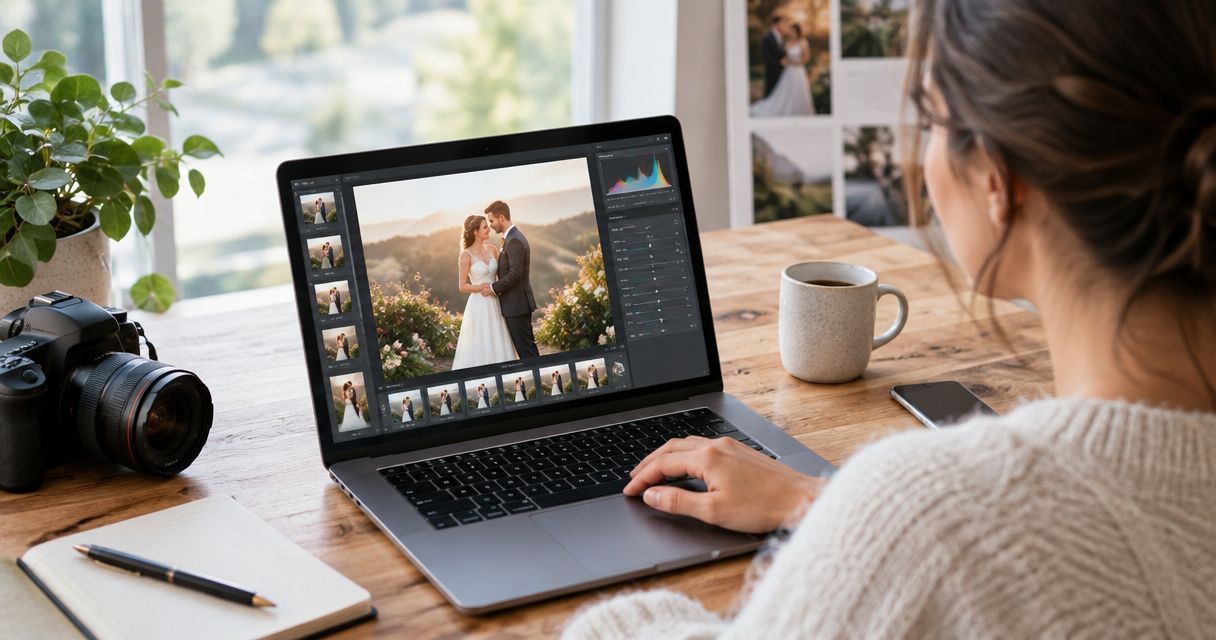
To create Lightroom presets for consistent wedding edits in 2026, edit a representative RAW photograph, save the reusable adjustments as a preset, and test it across different lighting conditions. Leave exposure, white balance and image-specific corrections out of your base preset so they do not overwrite decisions that belong to each photograph. Save the look, not the lighting correction.
TL;DR
- Learning how to create lightroom presets starts with separating reusable colour styling from photograph-specific corrections.
- Adobe Lightroom Classic saves selected Develop settings through the Presets panel and Create Preset command.
- Test wedding presets across daylight, indoor ceremonies and reception lighting before applying them to a full collection.
- Keep exposure, white balance, crops and local corrections outside your base wedding preset.
How to create Lightroom presets for consistent wedding edits
Use Lightroom Classic for the walkthrough below. The Lightroom desktop and mobile applications also support preset creation, but their controls sit in different places; do not follow Classic's panel locations in those applications.
- Choose a reference photograph. Start with a well-exposed RAW portrait showing skin, neutral fabric and a meaningful wedding colour.
- Correct the reference. Set white balance and exposure before developing the style, but keep those corrections separate from what you save.
- Build the look. Adjust the tone curve, colour treatment and other repeatable settings while watching faces and clothing.
- Create the preset. In Lightroom Classic's Develop module, open the Presets panel, select the plus button and choose Create Preset.
- Select settings deliberately. Clear unrelated checkboxes, include your styling adjustments, and leave photograph-specific corrections unchecked.
- Name and group it. Choose a recognisable name and a dedicated preset group, then select Create.
- Test before batching. Apply the preset to different wedding scenes, correct each scene, and revise anything that repeatedly damages colour or detail.
A preset belongs between selection and final review. If your editing queue still contains repeated frames, start with this culling-to-Lightroom workflow before refining the look.
Why this matters
A wedding collection needs visual continuity, not identical slider values. A daylight portrait, a warm indoor ceremony and a flash-lit reception can share a colour style while needing different exposure and white balance corrections.
For an Indian wedding, judge the result against skin, embroidered outfits, floral décor and jewellery. A treatment that makes one portrait attractive but turns a red outfit orange is not a dependable wedding preset.
For your 2026 workflow, define consistency as believable subjects and a recognisable finish across the delivered collection. Do not force every venue to look like the reference photograph.
Decide which Lightroom settings belong in your preset
The Create Preset dialogue lets you choose which adjustments the preset stores. This selection matters more than the preset's name: checked settings become instructions for the next photograph.
| Setting group | Base-preset recommendation | Benefit | Limitation |
|---|---|---|---|
| Tone curve | Include deliberately | Repeats your contrast treatment | Strong curves can lose shadow or highlight detail |
| Colour adjustments | Include after testing | Gives the collection a shared palette | Skin and clothing can shift together |
| Colour grading | Include only when intentional | Repeats a shadow or highlight tint | Neutral fabrics can pick up unwanted colour |
| Exposure | Exclude | Preserves each photograph's brightness correction | You still need scene-level adjustments |
| White balance | Exclude | Avoids imposing one light source on another | You must correct temperature and tint separately |
| Crop and local corrections | Exclude | Avoids carrying image-specific decisions forward | Composition and retouching remain manual checks |
| Sharpening and noise reduction | Save separately when needed | Separates detail treatment from colour styling | Different capture conditions need different treatment |
Start with fewer included settings. Add a setting only when you can explain why it should apply beyond the reference frame.
Also check the profile used by your reference photograph. A preset saved with a particular profile depends on that profile being applicable to the destination file; do not assume every camera or file type supports the same choices.
Build a reference edit before saving anything
Choose a photograph that represents ordinary work, not an extreme lighting rescue. A heavily underexposed dance-floor frame is a poor foundation for a general wedding colour preset.
Establish a neutral starting point
Set a believable white balance and exposure first. Use a known neutral object as a reference when available, then judge the faces; coloured stage lighting or reflected décor can make a seemingly white object misleading.
Keep fabric texture visible where the capture contains it. A preset cannot restore detail that was not recorded.
Shape contrast without sacrificing the subject
Adjust the tone curve while checking both faces and dark clothing. Lifting blacks changes the appearance of shadow tones; it does not recover missing detail.
Use colour adjustments carefully around reds, oranges and yellows. These controls can affect skin, outfits and decorations at the same time, so a pleasing background is not enough to approve the edit.
Compare with the unedited photograph
Use Lightroom's before-and-after view to check whether the treatment improves the photograph or merely changes it. Inspect a close view for skin texture and a wider view for the overall scene.
Approve the reference only when both the subject and the setting still make sense.
Save and organise your wedding preset
In Lightroom Classic, open the Create Preset dialogue from the Develop module's Presets panel. Give the preset a name that tells another editor what it does without needing a demonstration.
A practical name is Wedding Neutral — 2026. This is a suggested naming convention, not a built-in Lightroom preset.
Create a group such as Studio Wedding Looks rather than leaving every experiment together. Keep approved presets separate from tests so another editor does not apply an unfinished treatment to client work.
Before selecting Create, review the checkboxes again. Pay particular attention to exposure, white balance, crop, masking and any automatic settings you did not intend to reuse.
When you revise a preset, test the revision before replacing the approved version. Keep the previous working version available until the new treatment passes your checks.
Test presets across wedding lighting
Use a test set of 12 photographs as a starting exercise, not as a guarantee of quality. Include 4 daylight photographs, 4 indoor ceremony photographs and 4 reception photographs, with different faces, outfit colours and camera sources represented where available.
Apply the same preset, then correct exposure and white balance independently. You are testing whether the style survives normal corrections, not whether the preset finishes every photograph without intervention.
Use the following review sequence for your 2026 preset library:
- Skin tones: Check whether faces remain believable across the collection.
- Neutral fabrics: Inspect white, ivory and grey material for unwanted colour casts.
- Outfit colours: Check whether saturated clothing retains its intended colour and visible texture.
- Highlight detail: Inspect bright fabric and reflective jewellery without flattening the entire photograph.
- Shadow detail: Check dark suits, hair and backgrounds for excessive crushing or artificial lifting.
If the same colour problem appears repeatedly, revise the preset. If the problem follows one light source, correct that scene instead.
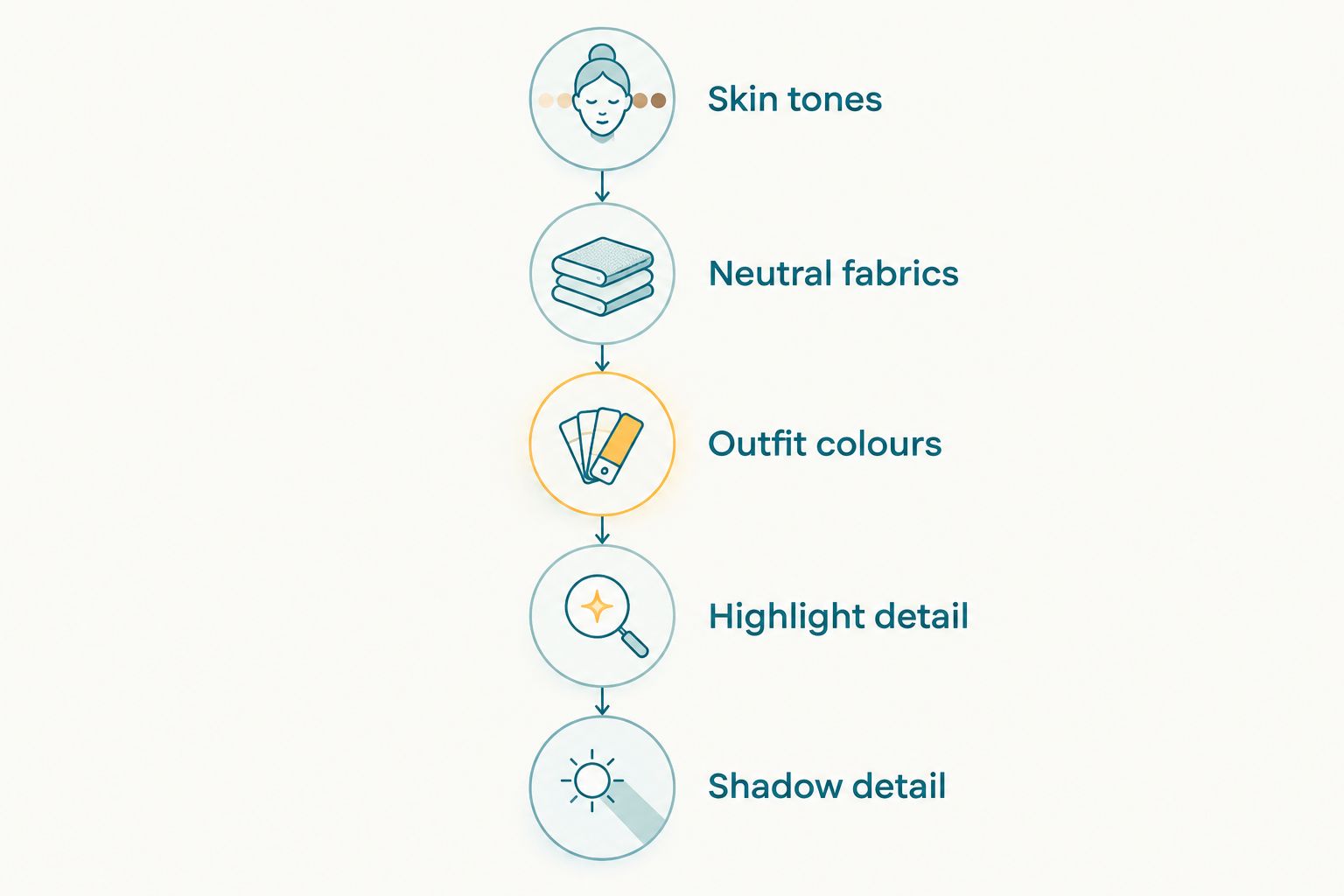
Judge the preset against the subject and clothing, not just the background.
Keep a written note of the failure beside the test image: for example, reds shift after the preset, or shaded faces become too magenta. A specific observation gives you a setting to investigate; simply calling the edit inconsistent does not.
Should you create separate wedding preset variants?
Create a variant only when a recurring editing need justifies it. Do not build a large library merely because a wedding contains several functions.
| Preset approach | Best for | Advantage | Drawback |
|---|---|---|---|
| Neutral base | A shared studio colour style | Keeps the starting point simple | Requires lighting corrections afterward |
| Lighting-specific variant | Recurring indoor or reception conditions | Reuses a tested alternative treatment | Can become too dependent on one venue |
| Black-and-white variant | An intentional monochrome sequence | Gives monochrome work its own tonal treatment | Cannot preserve colour information in the rendered result |
Neutral base
Best for: your default wedding editing starting point. Keep the colour treatment restrained enough to support daylight portraits, candid moments and family groups after individual correction.
Its strength is flexibility. Its limitation is that it will not solve mixed lighting or replace final review.
Lighting-specific variant
Best for: a repeated lighting problem that survives normal correction. Build this from several representative photographs, not a single dramatic reception frame.
A venue-specific colour cast can require local corrections rather than a global preset. Skip the variant if it fixes the background while damaging faces.
Black-and-white variant
Best for: photographs selected intentionally for monochrome delivery. Judge the black-and-white mix against skin, clothing separation and background brightness.
Do not use monochrome as an automatic repair for every difficult colour photograph. Subject visibility and tonal detail still need checking.
Why Lightroom preset results vary
A saved preset repeats adjustments, but the source photograph determines how those adjustments look. These factors explain why matching slider values do not guarantee matching results:
- Light source: Daylight, warm indoor lamps and coloured event lighting create different starting colours.
- Exposure: A curve or contrast adjustment acts on the tones already present in the capture.
- Camera profile: Profile choice affects the starting rendering before the rest of the treatment.
- File type: RAW and JPEG files offer different editing latitude, so test the files your team actually edits.
- Subject colours: Strong colour adjustments can alter skin, outfits and décor together.
- Capture conditions: Noise and fine detail vary, which makes one fixed detail treatment unsuitable for every frame.
When matching several photographers, compare reference photographs from each camera source. Establish a suitable starting rendering before deciding that the creative preset is wrong.
How do you apply a preset to a full wedding?
Apply the approved preset to selected photographs, then work in groups with similar lighting. Correct a representative frame and synchronise only the settings that genuinely belong across that group.
In Lightroom Classic, use Sync with care: select the intended source photograph and review the settings before applying them to the other selected files. Avoid carrying crops, local corrections or exposure changes across unrelated compositions and lighting.
Finish with a sequence review. Adjacent photographs should feel connected even when their settings differ; a gallery overview reveals jumps that isolated image checks miss.
Can one preset match different wedding cameras?
One preset can provide a shared style across camera sources, but it does not guarantee identical colour. Compare skin and neutral objects from each camera, then adjust the starting profile or colour correction before judging the preset.
Keep any camera-specific correction distinct from the creative look. This makes the workflow easier to maintain when a second shooter changes equipment.
Where does client delivery fit after Lightroom?
Export and review your finished photographs before placing them in a client gallery. Check the exported files, not just the Lightroom preview, and preserve the approved edit as your delivery reference.
Fotoowl is best for professional wedding and event photographers who need face-recognition gallery delivery after editing. Fotoowl's gallery workflow serves delivery; creating and testing a Lightroom preset remains an editing task.
Keep that boundary clear in your 2026 workflow. Fotoowl can support the client-facing gallery stage, but choosing a gallery does not remove the need to inspect colour, exposure and the final exported sequence.
FAQ
How do I create my own Lightroom preset?
Edit a reference photograph, then save selected settings as a new preset. In Lightroom Classic, use the plus button in the Develop module's Presets panel and choose Create Preset.
Should I include exposure in a wedding preset?
Leave exposure out of a general wedding preset so it does not overwrite photograph-specific brightness corrections. Include it only when you deliberately want that adjustment applied to the destination files.
Should I save white balance in my Lightroom preset?
Leave white balance out of a reusable wedding colour preset. Correct temperature and tint for each lighting group rather than imposing the reference photograph's light on the whole wedding.
Why does my preset make skin look orange?
An orange result can come from white balance, the starting profile or colour adjustments affecting skin. Compare the photograph before and after the preset, then inspect those settings instead of changing unrelated controls.
Can I use the same preset on RAW and JPEG photographs?
You can apply compatible presets to RAW and JPEG photographs, but the results need separate testing. A JPEG already contains a rendered appearance and does not offer the same editing latitude as a RAW file.
Can I batch-edit every photograph from an Indian wedding?
You can apply a common preset across the collection, but correct and review photographs in lighting groups. Indoor ceremonies, daylight portraits and reception scenes need independent exposure and colour decisions.
Does Fotoowl replace Lightroom preset creation?
Fotoowl provides a gallery and delivery workflow rather than the Lightroom preset-creation steps described here. Finish and review your edits before preparing the client-facing gallery.
One last thing
Test your preset on an ordinary photograph before approving it on a spectacular one. Strong light and a striking composition can hide a colour treatment's weaknesses; a routine family portrait makes skin shifts, fabric casts and harsh contrast easier to spot.
The best preset is the one you can trust on the quiet frames, not just the portfolio hero.