
How to share photos from a family function without losing quality

To share function photos without losing quality, send a download link to your approved, full-resolution files rather than asking families to save chat previews or screenshots. Export once from your edited masters, use a delivery method that preserves those files, and test a recipient’s download before sharing widely. A gallery link alone is not proof of quality: its download settings still need checking.
TL;DR
- Share function photos without losing quality by delivering verified files, not screenshots or chat previews.
- Use WhatsApp to distribute the download link; keep the approved photo files at the destination.
- Fotoowl suits professional event photographers who need face-recognition galleries for client photo delivery.
- Check downloaded pixel dimensions and image detail before releasing a family-function gallery.
Why this matters
For an Indian photographer covering a naming ceremony, griha pravesh, anniversary or family reunion, delivery is part of the assignment. Your files must work beyond the family WhatsApp group: clients also need photographs for albums, framed prints and their own archives.
Separate the message from the photograph. WhatsApp can carry the announcement and link while the delivery destination holds the files you intend the family to keep. The supporting guide to sending a photo gallery link to clients on WhatsApp covers that hand-off.
For your 2026 delivery checklist, define quality as the downloaded file meeting the agreed specification—not simply looking sharp on your phone. A small preview can look excellent on a small screen while containing too few pixels for the client’s intended print.
How do you share photos from a family function without losing quality?
Follow this sequence from the edited master to the recipient’s saved file. Each step protects a different part of delivery; none repairs detail already lost earlier.
- Prepare masters. Finish your edits and retain the edited source files separately from delivery exports. Do not rebuild the final set from photographs previously downloaded from a chat.
- Export once. Create the approved delivery files directly from those masters. Check resizing, compression, colour space and watermark settings before exporting the full collection.
- Upload files. Upload the approved exports to a gallery or file-transfer destination. Keep the local export folder until you have verified delivery.
- Test downloads. Open the recipient link, download a photograph and compare it with the file you uploaded. Use the actual download control, not a screenshot or a saved thumbnail.
- Share links. Send the tested destination to the authorised family contact with clear saving instructions. Ask that contact to forward the link rather than downloaded previews.
Keep the workflow repeatable. Record the export preset, destination and download instructions with the job so another studio team member can reproduce the delivery without guessing.
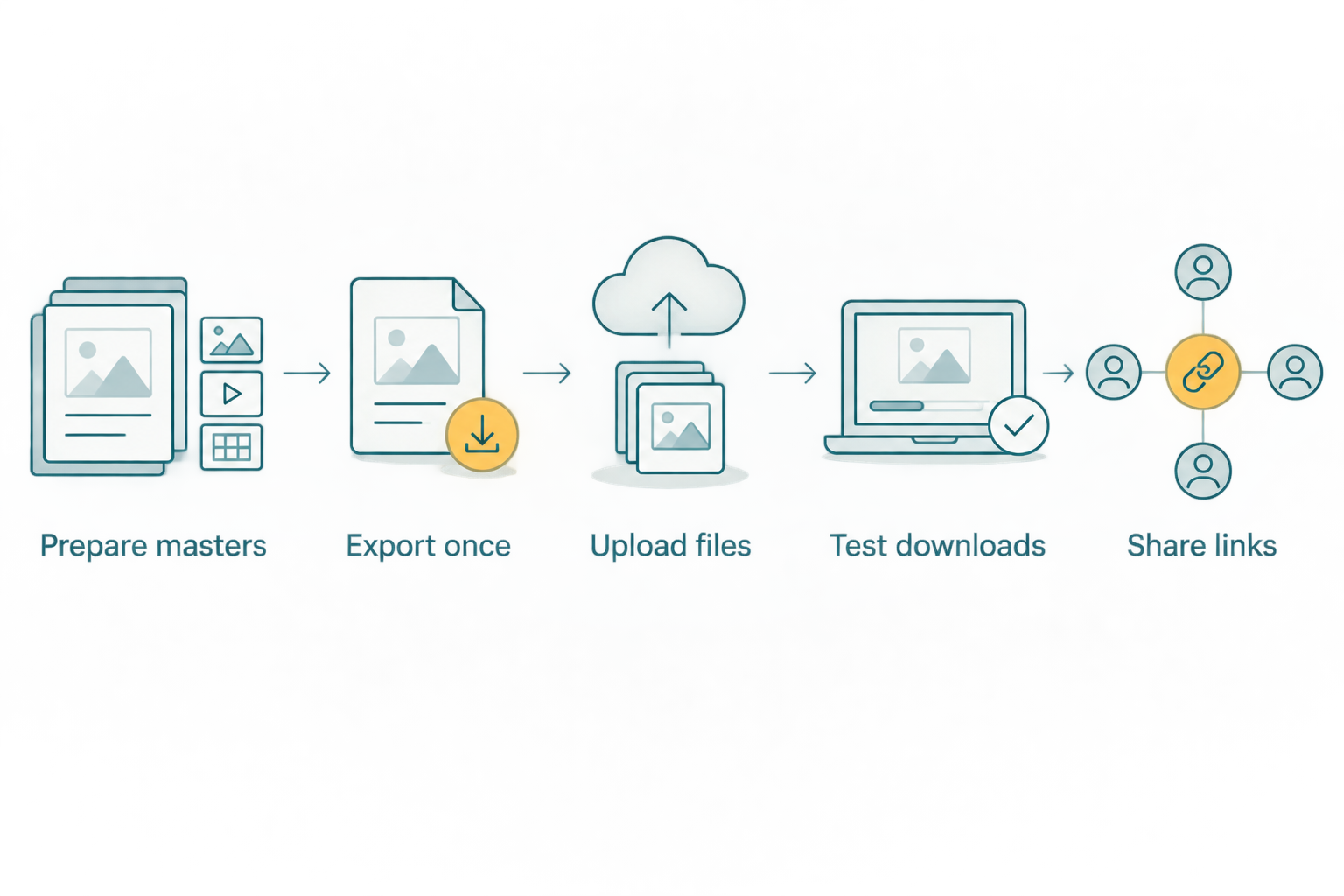
Test the downloaded file before the family receives the link.
Which sharing method fits the job?
Choose according to how the family will retrieve the photographs, not just how quickly you can send them. The table compares delivery methods rather than assuming every service offers identical download behaviour.
| Method | Best for | Main advantage | Main limitation | Quality check |
|---|---|---|---|---|
| Client gallery | Browsing a complete function | Gives recipients a visual way to find photographs | Preview and download versions can differ | Download a file and compare it with the approved export |
| Shared file folder | Handing over an organised final set | Keeps delivery centred on named files and folders | Requires clear organisation and recipient instructions | Confirm access and inspect downloaded files |
| File attachment | Sending a small, specific selection | Gives a direct route to the selected files | Becomes cumbersome for a complete function | Confirm the sending method preserves the attachment |
| Chat photo or screenshot | Informal viewing and discussion | Convenient for quick reference | Does not establish that the approved file reached the recipient | Do not treat it as the archival delivery |
Use a gallery for browsing or a file folder for a straightforward hand-over, but verify either route. Neither the word gallery nor the word cloud guarantees an unchanged download.
What should you export before sharing?
For a 2026 family-function delivery, start with the intended use: viewing, printing or both. Give the client files suited to the agreed deliverables and explain which set to retain.
Full-resolution delivery: best for the approved final collection
Export at the intended pixel dimensions without accidentally applying a smaller web-export preset. Full resolution means retaining the dimensions of your finished edit; a deliberate crop can make those dimensions smaller than the camera capture.
JPEG is a widely supported delivery format, but JPEG compression is lossy. An unchanged transfer preserves your exported JPEG; it does not make that export identical to the RAW capture. Keep that distinction clear when a client asks for original quality.
Smaller copies: best for convenient social sharing
A separate, reduced-size set gives clients files intended for casual sharing. Label it clearly so nobody mistakes those copies for the print or archive set.
The trade-off is additional explanation and another version to manage. If you deliver smaller copies, keep the full-resolution collection easy to identify and tell the family which files to send to a printer.
RAW files: not the default answer to quality concerns
RAW files preserve camera data for processing, but they are not a substitute for your finished photographs. They require suitable software and interpretation, whereas the client commissioned your edited result.
Agree on any RAW hand-over separately. For normal finished-photo delivery, focus on preserving the approved export rather than using the largest possible file as a quality claim.
Why photo quality varies after sharing
When a recipient reports soft photographs, trace the file through the workflow. These factors explain different problems and require different fixes:
- Export resizing: Reducing pixel dimensions removes image information. Uploading that smaller file elsewhere does not restore the missing detail.
- Lossy compression: JPEG encoding trades file size against image information. Repeated editing and saving can introduce further degradation.
- Preview versus download: The displayed image is not necessarily the downloadable file. Inspect the download before judging delivery quality.
- Screenshots and forwarding: A screenshot captures the display rather than transferring your approved photograph. A forwarded copy also needs verification before anyone treats it as the master.
- Display and print conditions: Screen brightness, colour management, paper and printer settings affect appearance. A colour difference alone does not establish that file transfer reduced resolution.
- Original capture quality: Missed focus, motion blur and heavy cropping begin before delivery. A lossless transfer cannot correct those limitations.
For troubleshooting in 2026, ask the recipient to send the affected filename and describe how they saved it. That gives you a traceable case instead of a vague comparison between different screens.
How do you check whether the downloaded photo lost quality?
Compare the uploaded export with the recipient download, not with the gallery preview. Start with file properties, then inspect image detail.
Check dimensions and file identity
Pixel width and height should match when you intend to deliver an unchanged file. A smaller download establishes that resizing occurred somewhere along the route.
Matching dimensions alone do not prove identical files, because recompression can retain the same dimensions. Matching file sizes are not proof either; for an exact check, compare cryptographic hashes of the uploaded and downloaded files. Matching SHA-256 hashes establish byte-for-byte identity for this practical verification.
Inspect detail at the same magnification
View both files at 100% magnification, meaning each image pixel maps to a display pixel. Compare eyelashes, fine fabric, jewellery edges and text that is actually present in the photograph.
Do not compare a fit-to-screen preview with a magnified local file. Different scaling makes that comparison unreliable, even when both originate from the same photograph.
Check the intended print separately
Print suitability depends on pixel dimensions and physical output size. As an illustrative calculation, an 8-inch edge at 300 pixels per inch requires 2,400 pixels along that edge; this is arithmetic, not a universal minimum for every print.
Changing a resolution metadata field without resampling does not add detail. Ask the print provider for its output requirements before promising that a particular file will suit a particular enlargement.
Where does a face-recognition gallery help?
Fotoowl is best suited to professional event photographers who need face-recognition galleries for client delivery. Its AI Gallery supports photo and video delivery with face recognition, making photo discovery relevant when an extended family needs to find photographs from a function.
Discovery and file quality remain separate checks. Face recognition helps locate images; it does not establish the pixel dimensions or compression of the file a recipient downloads.
The benefit of this approach is a dedicated photo-finding workflow instead of relying only on folder browsing. The limitation is that your studio still needs to check exports, recipient access and actual downloads. Do not promise unchanged-file delivery until you have tested the complete route.
What should you send in the family WhatsApp group?
Send a short delivery message containing the function name, the gallery or folder link, and instructions to use the download control. Explain that screenshots and chat copies are for viewing, not the files to retain for printing.
For a 2026 studio template, include these details:
- What is included: Identify the function and whether the collection is a preview or the approved final set.
- How to save: Describe the actual download action you tested on a phone.
- What to retain: Identify the full-resolution set if you also supplied smaller copies.
- How to report problems: Ask for the filename and saving method, not just a screenshot of the issue.
Confirm the intended audience before distributing the link. A link is a route to content, not proof that access is restricted; check the destination’s available controls and agree on sharing with the family contact.
Does WhatsApp HD mean the file is unchanged?
WhatsApp HD is not proof of an unchanged file. If preserving the approved export matters, compare the received file with the source rather than relying on a sending label.
For complete functions, sending a tested download link keeps the delivery instructions clearer. The family can return to the designated collection instead of reconstructing it from forwarded messages.
Can a QR code reduce photo quality?
A QR code containing a gallery link does not re-encode the photographs. It directs the recipient to a destination; the files and download settings at that destination determine what they receive.
Test the code and its destination before distributing it. The same download verification applies whether the family opens the link from a message or scans it from a card.
Can you restore quality after receiving a compressed copy?
You cannot recover the exact discarded image data from a compressed copy alone. Ask for the approved export or return to the edited master and create a fresh delivery file.
Sharpening or enlargement changes the image but does not prove recovery of the original detail. Replace the wrong source rather than repeatedly processing it.
FAQ
What's the best way to share function photos without losing quality?
Share a download link to your approved files and verify that the recipient download matches the intended export. Keep screenshots and chat previews separate from the final delivery.
Should I send full-resolution photographs to the whole family?
Send full-resolution photographs to the recipients authorised for that delivery. Agree on access and forwarding with the family contact before circulating the link.
Does a gallery preview show the final download quality?
A gallery preview does not establish final download quality. Download a photograph through the recipient interface and compare its properties and detail with your uploaded export.
Is Fotoowl relevant for professional family-function photographers?
Fotoowl provides face-recognition galleries for professional event photographers. Photo discovery is relevant to family-function delivery, while file quality still requires export and download checks.
Why does a downloaded photograph look different on another phone?
Different screens and display settings can change a photograph’s appearance without changing its pixel dimensions. Compare the actual files before attributing the difference to compression.
Do I need to send RAW files to preserve quality?
You do not need to send RAW files to preserve an approved delivery export. Transfer the finished files unchanged and handle any RAW-file agreement separately.
How can I prove that a photo download is unchanged?
Matching cryptographic hashes of the uploaded and downloaded files establish file identity. Pixel dimensions and visual inspection are useful checks but do not independently prove byte-for-byte equality.
One last thing
Make a recipient download—not an upload confirmation—the final checkpoint in your 2026 delivery workflow. An uploaded file proves only that you sent something to the destination; a tested download shows what the family actually receives.
Keep the approved export folder until that check is complete. If a relative later requests a print-ready copy, you can return to the verified source instead of searching through forwarded photographs.