
Can Beam upload event photos to the cloud without wifi?

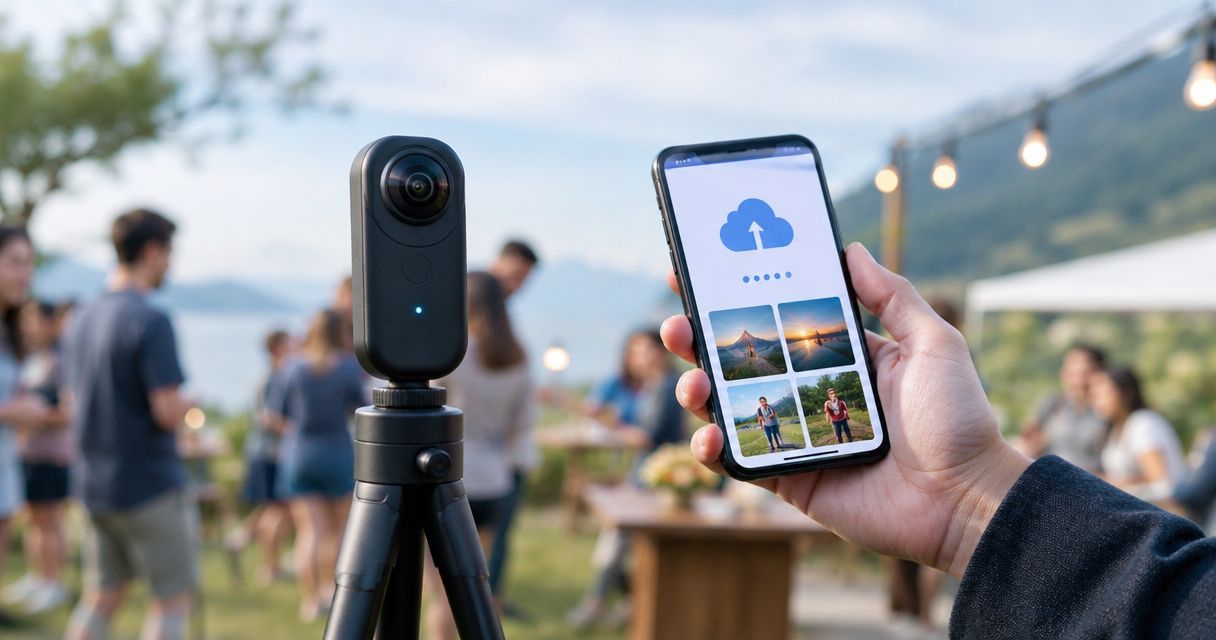
Beam cannot upload event photos to the cloud without an internet connection; the absence of venue Wi-Fi is a different problem from having no internet at all. If you plan to use another internet source, verify that your complete camera-to-cloud setup supports it and completes an actual upload before promising live delivery.
TL;DR
- Beam camera to cloud no wifi: another working internet connection is essential; completely offline cloud uploads are impossible.
- Fotoowl includes Beam camera-to-cloud FTP uploads within AI Gallery for professional wedding and event photographers.
- Test the complete camera-to-cloud FTP workflow, not just whether a phone can browse the internet.
- Keep local originals and confirm photos reach the gallery before telling clients they are ready.
Can Beam upload event photos to the cloud without Wi-Fi?
No internet means no cloud upload. No venue Wi-Fi means you need to investigate another supported internet connection. Those statements are not interchangeable, and neither a camera's wireless connection nor an upload feature creates internet access by itself.
For the setup process, start with the guide to uploading event photos directly from your camera using Beam. Then test the connection you intend to use at the venue.
| Connection situation | What it means for cloud uploads | Best for | Advantage | Limitation |
|---|---|---|---|---|
| Venue Wi-Fi with working internet | A possible internet route; verify the complete upload workflow | A tested, fixed upload position | Uses the venue's connection | Joining Wi-Fi alone does not prove uploads work |
| Another internet source | A possible alternative only when your equipment and configuration support it | Locations without usable venue internet | Avoids depending on venue Wi-Fi | Requires compatibility and on-site testing |
| Local wireless connection without internet | Does not provide a route to the cloud | Local device communication | Connects nearby devices | Cannot deliver files to an internet-hosted gallery |
| No internet connection anywhere in the workflow | Cloud uploads cannot complete | Local capture until connectivity returns | Keeps shooting separate from online delivery | Clients cannot receive newly uploaded cloud files |
The table describes network conditions, not a compatibility list. Choose a connection based on a successful transfer through your actual equipment, not on the network's name or the presence of a wireless icon.
Why this matters for event photographers
For an Indian wedding, school function or corporate event in 2026, a delivery promise needs more than a venue contact saying that Wi-Fi is available. You need a working route from the camera workflow to the cloud destination.
The distinction protects your shooting schedule. A connection problem should trigger a delivery decision, not distract the photographer from covering the event.
Promise live delivery only after a photo completes the journey to the gallery. Until then, describe the delivery plan as conditional on connectivity. This gives your team a clear decision point without treating a connection attempt as a finished upload.
What does “without Wi-Fi” actually mean?
Without venue Wi-Fi
Without venue Wi-Fi, investigate an alternative internet source and whether your upload equipment can use it. A mobile hotspot is a general way to share mobile internet, but that fact alone does not establish compatibility with your camera-to-cloud workflow.
Test the exact arrangement you intend to take to the event. A successful upload from a laptop on one network does not validate a different camera configuration on another network.
Without any wireless connection
Wi-Fi and internet access describe different things. Wi-Fi connects devices to a local network; that network needs an internet connection before it can reach a cloud service.
Other network arrangements exist, but equipment support determines which ones you can use. Do not assume a wired connection, phone connection or router will work simply because it provides internet to another device.
Without internet at all
With no internet route, photos cannot reach an internet-hosted gallery. Keep capturing locally and move the upload work to a time or place with connectivity.
Do not assume that an interrupted transfer will resume automatically or that files will wait in a particular upload queue. Check the actual transfer state and reconcile the files after reconnecting.
How should you test a no-venue-Wi-Fi workflow?
Use this sequence for your 2026 event checklist. It separates equipment compatibility, internet access and successful delivery instead of treating them as one test.
- Check compatibility. Confirm that your camera and intended transfer configuration support the required FTP workflow. Check the connection method as well as the camera model; a supported feature still needs a usable network route.
- Connect to internet. Establish the internet source you intend to use on location. If you are testing an alternative to venue Wi-Fi, avoid accidentally completing the test through the venue's network.
- Send a photo. Capture a fresh test image and send it through the intended workflow. Use a recognisable subject so you can distinguish the new file from images already in the destination.
- Verify arrival. Open the destination gallery and check that the test photo has arrived. Check the image itself, not just a connection message or an upload attempt.
- Check recovery. Run a controlled interruption test with non-critical files. Reconnect, inspect what arrived and establish how you will identify and resend anything missing.
The outcome you need is simple: a known photo reaches the correct destination through the connection you will actually use. Keep the originals throughout the test.
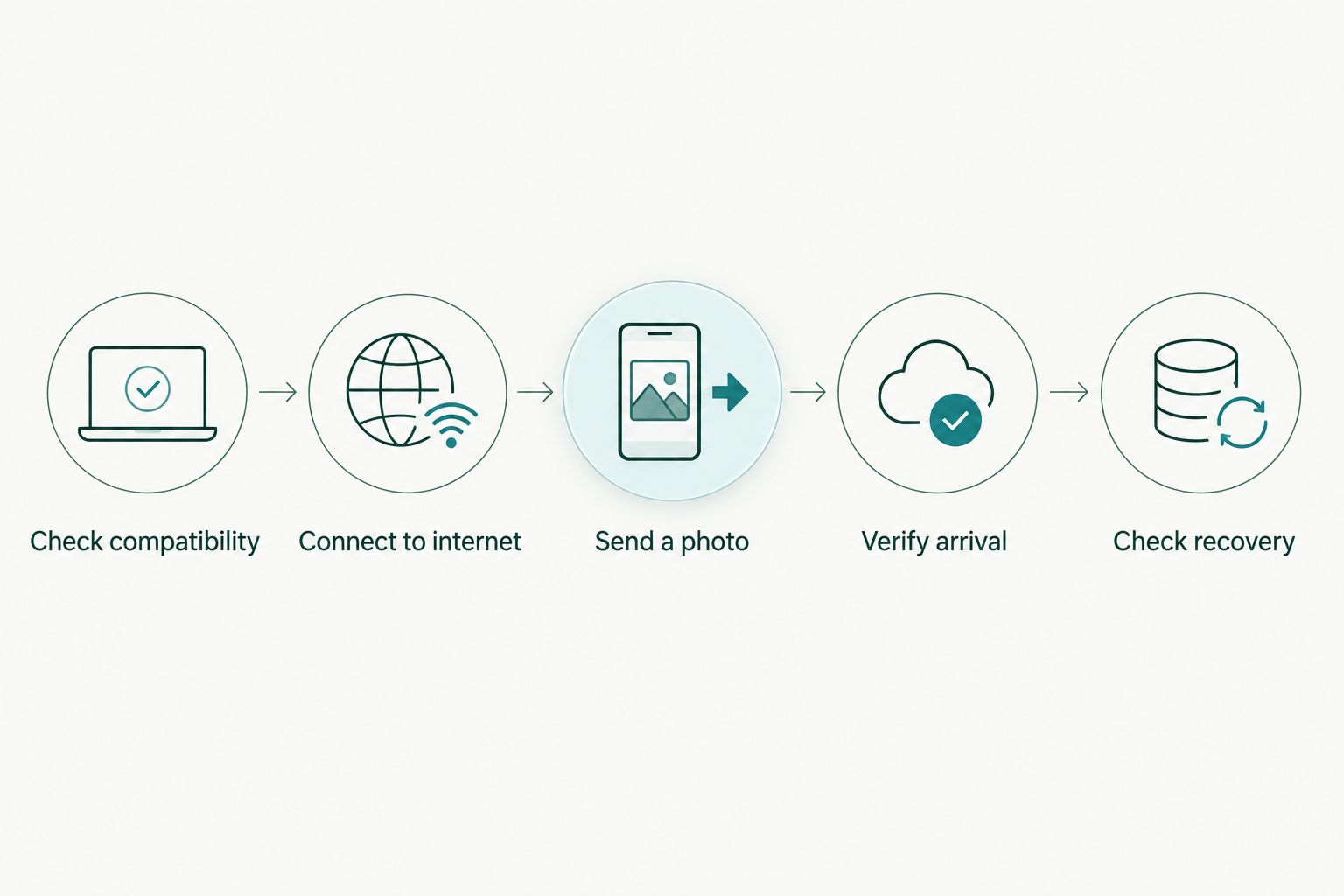
A working connection is only part of the test; verify that the photo reaches its destination.
Why camera-to-cloud upload results vary
Camera-to-cloud uploads depend on the complete transfer path. These factors explain why a working internet connection does not, by itself, guarantee a completed delivery.
- Internet reachability. A device can join a local network without gaining access to the wider internet. Confirm that the upload workflow reaches its destination.
- Equipment compatibility. Your camera, connection method and transfer configuration must work together. Verify the exact combination rather than assuming support from a general feature description.
- FTP configuration. The destination and authentication settings must be correct. A usable network cannot compensate for an incorrect transfer setup.
- Connection continuity. Losing the network interrupts the route to the cloud. Test how your setup behaves and establish a manual recovery procedure.
- File volume and upload capacity. More data takes more transfer capacity. Test representative event files rather than treating a small test image as proof of a full event's delivery speed.
For a 2026 booking, turn these factors into acceptance checks. Record what you tested and which connection worked, then repeat the critical checks when you arrive on location.
What should you do when the venue has no usable internet?
Keep the shoot running and separate capture from delivery. Local capture and cloud delivery are different stages, so losing internet does not justify abandoning your file-handling discipline.
Use a simple operational plan:
- Keep the original files on your capture media until you have verified your copies.
- Follow your studio's local backup procedure independently of cloud uploads.
- Tell the person coordinating delivery that new uploads depend on connectivity returning.
- Move upload work to a tested connection when one becomes available.
- Compare the intended delivery set with the files that actually arrived before announcing completion.
Avoid repeatedly changing settings during critical coverage. Assign connection troubleshooting to a team member when your staffing permits, or defer it until the shooting schedule allows.
For multi-function Indian weddings, apply the same check at each location. A successful transfer at the ceremony venue does not establish that the reception venue has a working upload route.
Where does Beam fit in the delivery workflow?
Fotoowl's Beam camera-to-cloud FTP feature is best suited to professional wedding and event photographers who want camera uploads within an AI Gallery delivery workflow. The feature sits inside AI Gallery; it is not a substitute for internet access.
The benefit is the connection between camera upload and gallery delivery within the platform. The limitation is equally important: your equipment, transfer configuration and internet route still determine whether files reach that gallery.
Fotoowl AI Gallery includes AI-powered face recognition for photo delivery. That downstream feature does not change the upload requirement: photos must reach the gallery before they can be part of its online delivery workflow.
Evaluate the workflow in the order you use it. Establish a reliable upload first, verify gallery arrival next, and only then build your client communication around delivery.
How should you set delivery expectations in 2026?
Describe the outcome you can verify, not the connection you hope to find. “The venue has Wi-Fi” is a statement about facilities; “the test photo reached the gallery” is evidence that your current setup works.
Before the event, agree internally on what happens if the connection fails. Decide who checks uploads, who communicates delays and where the team will upload later if on-site delivery is not possible.
During the event, distinguish between files captured, files sent and files confirmed in the gallery. Those are separate states. Reporting them clearly prevents a transfer attempt from becoming an accidental delivery promise.
After connectivity returns, check the destination against your intended delivery set. Do not announce that everything is online merely because the connection indicator has returned.
Does a mobile hotspot prove Beam will work without venue Wi-Fi?
A mobile hotspot provides a possible internet source, not proof that the complete Beam workflow works. Verify that your equipment can use the arrangement and send a fresh test photo all the way to the gallery.
For your 2026 event plan, treat a hotspot as a connection to validate, not an automatic fallback. Test it at the intended upload position rather than relying only on a phone's signal indicator.
Can I keep photographing when cloud uploads stop?
You can continue local capture when your camera has the power and storage needed to shoot. Cloud upload failure is a separate issue from recording images locally.
Keep your local file safeguards in place and check the delivery set after reconnecting. Continuing to shoot does not mean the missing cloud transfers have completed.
Is connecting to Wi-Fi enough to confirm delivery?
Connecting to Wi-Fi is not enough to confirm delivery. A local connection does not prove internet access, successful FTP authentication or arrival in the intended gallery.
Use the destination image as your confirmation. This check is more meaningful than a connected status because it verifies the result your client actually needs.
FAQ
Can Beam upload event photos with no internet connection?
No. Uploading photos to a cloud destination requires an internet connection; a local wireless connection alone cannot complete that upload.
Can I use Beam when the wedding venue has no Wi-Fi?
You need another supported internet route and a successful end-to-end test. Verify your actual camera, transfer configuration and connection before promising live delivery.
Does Beam include its own mobile internet connection?
Do not treat Beam as an internet connection. Plan a separate working internet source and verify how your upload equipment connects to it.
Will my photos automatically upload after the internet returns?
Do not assume automatic recovery. Check your setup's transfer behaviour, inspect the destination and identify any files that still need to be sent.
How do I know an event photo reached the cloud?
Open the destination gallery and confirm that the specific photo is present. A network connection or transfer attempt is not the same as confirmed arrival.
Is camera-to-cloud upload a replacement for local backups?
No. Keep local originals and follow your studio's backup procedure independently of online delivery, especially while transfers remain unverified.
Who is Fotoowl's Beam camera-to-cloud workflow for?
Fotoowl's Beam camera-to-cloud FTP workflow is for professional wedding and event photographers using AI Gallery. It connects camera uploads with gallery delivery, subject to a working and compatible transfer setup.
One last thing
Test the destination, not the Wi-Fi icon. Your strongest pre-event check in 2026 is a fresh photo that travels through the intended setup and appears in the correct gallery.
Keep that test separate from your client delivery announcement. First establish that the route works; then confirm the files you intend to deliver have arrived. That distinction keeps a network problem from becoming a delivery misunderstanding.