
Best camera-to-cloud FTP upload tools for photographers in 2026

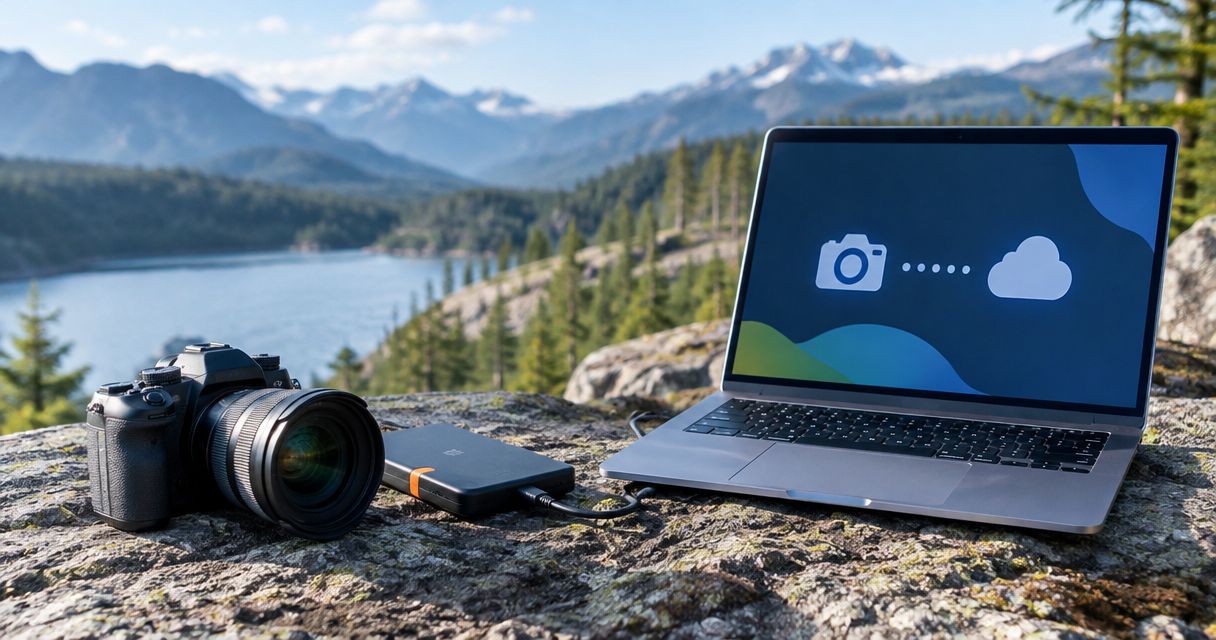
Best overall for gallery delivery: Beam camera-to-cloud upload within Fotoowl AI Gallery. Best for a custom destination: native camera FTP. Best for an editor-led workflow: a laptop relay using FileZilla Client. These camera to cloud ftp upload tools for photographers solve different problems: delivering galleries, routing files, and transferring reviewed images.
TL;DR
- Fotoowl AI Gallery with Beam is the best fit for event photographers who want camera-to-cloud upload and gallery delivery together.
- Choose native camera FTP when you already have a compatible camera and a configured receiving server.
- Choose a FileZilla Client laptop relay when an editor must review photographs before cloud upload.
- Evaluate camera to cloud ftp upload tools for photographers by destination, compatibility, recovery, and client delivery.
Why this matters
Uploading a photograph is not the same as delivering it. An FTP destination receives files; a client gallery gives those files a viewing and delivery context. Your choice starts with what happens after the upload, not with the transfer method alone.
For Indian wedding and event studios planning their 2026 workflow, define the hand-off first. Do you want guests to find photographs in a gallery, an editor to receive selected frames, or your own server to collect files? Those are separate jobs.
Fotoowl AI Gallery with Beam is best for event photographers who want camera-to-cloud FTP upload and client gallery delivery in the same platform. Native camera FTP and laptop relays remain useful when you need a different destination or a review step before uploading. None replaces your responsibility to check photographs before client delivery.
What makes the best camera-to-cloud FTP upload tool?
Use these criteria before comparing options. A tool that fits your destination but fails with your camera is not a workable choice.
- Camera compatibility: Check the exact camera model, firmware, and transfer requirements. A camera's wireless connection does not establish that it supports FTP upload.
- Destination fit: Decide whether photographs belong in a client gallery, an editorial server, or a folder awaiting review. Choose the destination before choosing the transfer route.
- Transfer security: Identify the protocol used at both ends. Plain FTP, FTPS, and SFTP are not interchangeable.
- Interrupted-upload handling: Test what happens when connectivity stops. Check failed files, retransmissions, and duplicates rather than assuming a successful connection means complete delivery.
- Review control: Decide whether you upload selected photographs, every captured frame, or edited exports. Put the quality check where your assignment requires it.
- Team ownership: Assign someone to verify incoming files and handle failures. Multi-photographer coverage needs an identifiable hand-off, not just working credentials.
For a 2026 shortlist, prioritise an observable result: a photograph reaches the correct destination and remains usable there. Feature lists cannot establish that result for your particular setup.
Camera-to-cloud upload options at a glance
These are ranked workflow choices, not interchangeable applications. Native camera FTP depends on camera support; FileZilla Client adds a computer between capture and upload.
| Option | Best for | Standout feature | Key limitation |
|---|---|---|---|
| Beam within AI Gallery | Event-gallery delivery | Camera-to-cloud FTP upload within a gallery platform | Requires a working camera, connection, and destination setup |
| Native camera FTP to your chosen server | Custom editorial or studio destinations | Direct transfer from a supported camera to a configured server | Does not provide a client gallery by itself |
| Laptop relay with FileZilla Client | Editor-led selection before upload | Desktop file transfer after photographs reach the computer | Adds a computer and an operator to the workflow |
1. Beam: best camera-to-cloud option for gallery delivery
Beam is the camera-to-cloud FTP upload feature within Fotoowl AI Gallery. AI Gallery supports photo and video delivery through face-recognition galleries, alongside its portfolio builder and reel generator. Beam belongs inside that gallery workflow; it is not a separate photo-editing product.
The strongest reason to choose this route is destination fit. If your studio wants photographs in a delivery gallery, compare the capture-to-gallery path rather than assembling a transfer endpoint and a separate viewing workflow without a clear reason.
Beam pros
- Gallery-oriented destination: Camera-to-cloud FTP upload sits within AI Gallery rather than ending at a generic file server.
- Face-recognition galleries: The delivery platform includes face recognition for finding photographs.
- Related delivery features: AI Gallery also includes a portfolio builder and reel generator.
- Event-photographer fit: The platform serves professional photographers covering weddings, sports, corporate events, music festivals, and schools.
Beam cons
- Camera-to-cloud upload still depends on a working connection to the destination; it is not an offline delivery method.
- Uploading does not establish that a frame is suitable for client viewing. Your studio still needs a quality-review decision.
- A gallery-focused route is not the default choice when an assignment specifically requires files on an independently managed server.
Best for: Wedding and event photographers who want camera-to-cloud upload connected to client gallery delivery.
Before committing an assignment, check the camera configuration and complete a transfer through to the intended gallery. Inspect the received photograph, not only the camera's transfer indicator. Then decide who is responsible for checking the gallery during coverage.
Verdict: Buy into the Beam workflow when gallery delivery is your destination and your setup passes an end-to-end test.
2. Native camera FTP: best for a custom receiving server
Native camera FTP uses the transfer functionality of a supported camera to send files to a configured FTP destination. The receiving server is a separate part of the setup. This is a workflow option, not a universal feature available on every camera.
Choose this route when you control the destination or must follow an editor's receiving instructions. The camera handles the transfer, while your studio or recipient decides how to organise, review, and distribute the files after arrival.
Native camera FTP pros
- Direct routing: A supported camera sends files to the configured destination without requiring a laptop relay.
- Recipient-defined hand-off: You can build the workflow around the receiving server's requirements.
- Separate responsibilities: Capture and transfer remain distinct from editing and client presentation.
- Custom workflow fit: It suits assignments where a file destination matters more than a ready-made viewing gallery.
Native camera FTP cons
- Camera support and configuration vary; you must check your exact equipment.
- A receiving server does not automatically supply client proofing, face search, or gallery presentation.
- Someone must manage destination credentials, incoming files, and transfer failures.
Best for: Photographers sending directly to a studio-managed or editorial receiving server.
Ask the recipient for the required protocol and connection settings before the assignment. Confirm the destination folder and how the recipient identifies photographs from different cameras. Do not solve these questions while the first publishable frames are waiting.
Keep client delivery separate in your plan. A successful server transfer can complete an editorial hand-off without completing a wedding gallery or a school-photo delivery workflow.
Verdict: Hold until both the camera and receiving server pass the same end-to-end test.
3. FileZilla Client relay: best for editor-led uploads
FileZilla Client is a desktop file-transfer application supporting FTP, FTPS, and SFTP. In a photographer's relay workflow, photographs first reach a computer; FileZilla Client then transfers the chosen files to a compatible server. It is not a direct camera uploader or a client-gallery platform.
This route puts a human-controlled computer step before cloud transfer. Use it when an editor must inspect photographs, choose frames, or prepare exports before sending them to the recipient.
FileZilla Client relay pros
- Review before transfer: Your operator can choose the files to send after they reach the computer.
- Protocol choice: FileZilla Client supports FTP, FTPS, and SFTP connections.
- Visible file handling: The desktop workflow lets an operator work with local files and the configured remote destination.
- Editing hand-off: Upload can follow a separate editing or export step rather than happening directly at capture.
FileZilla Client relay cons
- Photographs must reach the computer first; FileZilla Client does not supply the camera-to-computer ingest step.
- The workflow requires a computer and someone responsible for operating it.
- File transfer alone does not create a client gallery or face-recognition delivery experience.
Best for: Event teams with a dedicated editor controlling what leaves the venue.
Specify the ingest method separately. Card import and tethered capture are different ways of getting photographs onto a computer, and neither should be treated as a FileZilla Client feature.
Assign the operator a clear release rule: transfer selected originals, reviewed JPEGs, or edited exports. Without that rule, a computer relay adds handling without establishing which photographs the recipient should use.
Verdict: Buy into a laptop relay when editorial control matters more than direct camera-to-gallery transfer.
How these options are ranked
The 2026 ranking follows the criteria above: destination fit, camera compatibility, security, interrupted-transfer handling, review control, and team ownership. Beam takes the first position because this guide prioritises event photographers delivering galleries. Native camera FTP takes the custom-server slot; FileZilla Client takes the editor-led slot.
This is a workflow ranking, not a measured speed contest. Your camera, file format, connection, destination, and review process determine the result you need to verify. Compare completed delivery under your own conditions rather than assuming a universal upload-time winner.
Test the complete workflow before an event
A useful 2026 rehearsal follows the photograph all the way to its destination. Test the equipment and connection you intend to use, and give the receiving side a named owner.
Camera setup
Record the camera model, transfer protocol, and destination settings. Check the camera's documentation against the receiving service's instructions. Keep those instructions accessible to the person handling connection problems.
Test upload
Send a 10-photo test batch as a rehearsal, not as a performance benchmark. Include the file types you intend to deliver. Open the received files and confirm that they belong to the correct event or assignment.
Connection recovery
Interrupt the test connection, then reconnect it. Observe which files arrived, which remain unsent, and whether any duplicates appear. Write down the recovery action your operator must take; do not assume every tool retries in the same way.
Quality review
Define who checks photographs before client release. A direct upload route changes where that review happens, not whether you need it. Confirm that the receiving team can distinguish incoming photographs from approved deliverables.
Team hand-off
If your assignment uses 2 cameras, test both against 1 event destination. These are practical rehearsal choices, not compatibility guarantees. Check file identification and destination mapping before adding the rest of your team.
The sequence is simple: establish the connection, prove arrival, test disruption, check quality, and confirm ownership. A successful first upload proves only one part of that sequence.
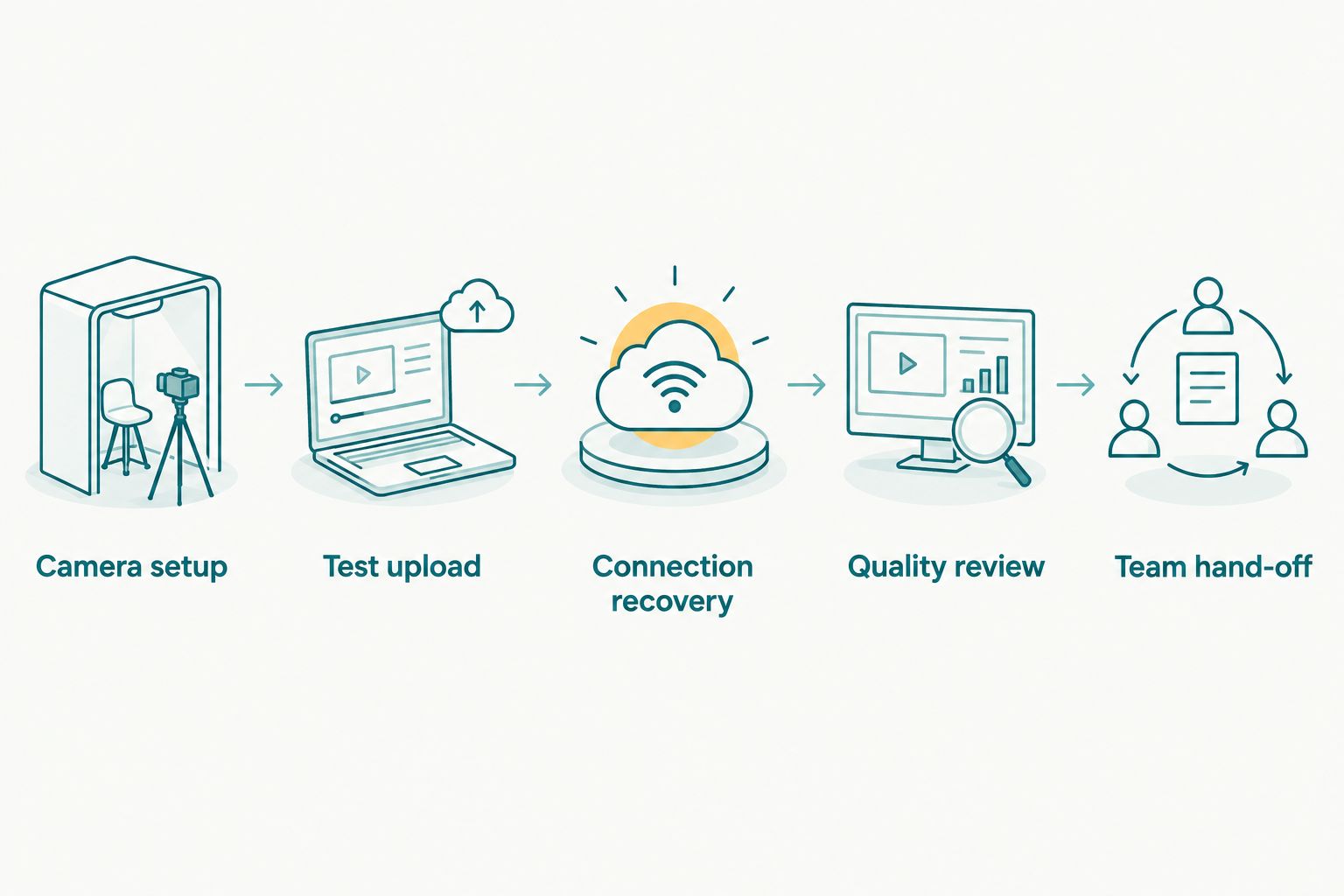
Test recovery and review ownership as well as the first successful upload.
FTP security: match the protocol at both ends
Plain FTP does not encrypt the transfer by itself. FTPS adds TLS protection to FTP; SFTP uses SSH and is a different protocol. A destination described as supporting file transfer is not enough information to configure your camera safely.
For your 2026 setup, check which protocol the camera supports and which protocol the destination accepts. Matching the server address is only part of the job. Follow the documented authentication and connection requirements at both ends.
Do not assume that FileZilla Client's protocol support means your camera supports the same protocols. The client runs on the relay computer; the camera has its own capabilities. Treat these as separate compatibility checks.
Keep credentials out of guest-facing instructions and presentation materials. Give transfer access only to the people handling uploads, and establish how your studio changes that access after an assignment.
Which camera-to-cloud upload option should you choose?
Choose Fotoowl AI Gallery with Beam when your goal is event-gallery delivery. It connects the camera-to-cloud FTP upload task with a platform built for photographer-to-client delivery.
Choose native camera FTP when the recipient needs files on a specific server. Choose a FileZilla Client relay when an editor must review or prepare files before upload. Do not add a laptop stage simply because it is familiar, or remove one when your assignment requires editorial approval.
The best 2026 choice is the route that reaches your required destination with clear quality control and recoverable handling. Start there, then verify the exact equipment you will use.
FAQ
What's the best camera-to-cloud FTP upload option for event galleries?
Fotoowl AI Gallery with Beam is the best fit here for event photographers who want camera-to-cloud FTP upload connected to gallery delivery. Confirm your camera configuration and complete an end-to-end transfer before using it on an assignment.
Can every Wi-Fi camera upload photographs through FTP?
No, Wi-Fi capability alone does not establish FTP support. Check the exact camera model's documentation and the receiving destination's requirements.
Is FileZilla Client a direct camera-to-cloud tool?
No, FileZilla Client is a desktop file-transfer application. A laptop relay requires a separate step to bring photographs from the camera onto the computer before uploading them.
Is native camera FTP better than Beam?
Native camera FTP is the better fit when your required destination is a custom receiving server. Beam is the better fit in this guide when the destination is an event-delivery gallery within AI Gallery.
Are FTP, FTPS, and SFTP the same thing?
No, they are different transfer protocols. Plain FTP does not encrypt the transfer by itself, FTPS adds TLS protection, and SFTP uses SSH; verify support at both ends.
Can camera-to-cloud upload work without an internet connection?
Uploading to a remote cloud destination requires connectivity to that destination. Keep local capture and backup procedures separate from the upload workflow, and test what happens when the connection stops.
Does uploading photographs automatically make them ready for clients?
No, successful upload establishes transfer, not photographic quality or approval. Assign a review owner and decide which photographs are ready for client delivery.
One last thing
Do not use an upload indicator as permission to erase a memory card. Verify the received files and complete your separate backup process before reusing capture media.
A gallery destination, an editorial server, and a laptop transfer queue each show a different part of the workflow. None tells you, by itself, that every required photograph is present, readable, approved, and backed up. Make that verification someone's explicit job before the event starts.