
How much upload speed does camera to cloud need?


Camera to cloud upload speed must exceed the rate at which your cameras generate the files you intend to upload; there is no universal Mbps minimum. Calculate that rate from your actual file sizes and shooting pace, then test sustained uploads at the venue. Allow for transfer overhead, interrupted connections and any gallery processing after the files arrive.
TL;DR
- Camera to cloud upload speed must keep pace with uploaded file volume, not the venue’s advertised download speed.
- Calculate required Mbps from megabytes generated per second multiplied by eight, before transfer overhead.
- Test camera-to-cloud FTP uploads with your actual camera settings and venue connection.
- A growing upload queue means your workflow is generating files faster than the connection transfers them.
How much upload speed does camera to cloud need?
You need enough sustained upload capacity to transfer your chosen files faster than you add them to the queue. A connection that handles selected photographs between portraits is not automatically sufficient for continuous sports bursts or several wedding photographers uploading together.
Use this calculation:
Required payload throughput in Mbps = total file size in MB × 8 ÷ available upload time in seconds.
This is a data-transfer calculation, not a platform minimum or a guaranteed delivery speed. For the setup side, follow the guide to uploading event photos directly from your camera using Beam.
- Measure the combined size of files you actually plan to send.
- Choose the time within which those files must finish uploading.
- Convert megabytes to megabits and divide by the available seconds.
- Test the complete transfer path and check whether it meets that deadline.
There are 8 bits in 1 byte. Mbps measures megabits per second; MB measures megabytes, so treating them as interchangeable produces the wrong estimate.
A minute contains 60 seconds. If your shooting rate is measured per minute, convert that time to seconds before calculating Mbps. Use decimal MB consistently; 1 MB equals 1,000,000 bytes, whereas MiB uses a different unit convention.
Why this matters
For an Indian wedding studio planning same-day delivery in 2026, the useful question is not whether the hotel has fast internet. It is whether your upload path can clear the files produced during the busiest part of the assignment.
A download result measures traffic coming towards your device. Camera-to-cloud delivery sends files in the opposite direction, so you must inspect upload performance separately.
A connection passes only when your actual files arrive within your delivery window. A speed-test result alone does not establish that.
Separate the promises you make, too. Upload completion, image review and client delivery are different milestones; completing the first does not prove the others are finished.
Calculate your workload before choosing a connection
Start with the files leaving the camera, not the camera’s megapixel count. File format, compression settings and image content affect the bytes you need to transfer.
Measure a representative batch from the assignment you are preparing for. Include the kind of busy sequence that creates pressure on delivery, rather than using only a quiet portrait session.
Record these details in your 2026 event preparation sheet:
- File size: the total bytes in a representative upload batch.
- Shooting pace: how quickly the upload batch is produced.
- Camera count: every camera sharing the same internet connection.
- Delivery window: when the batch must finish transferring.
- Existing backlog: files already waiting when the next sequence begins.
For multiple cameras, add their upload workloads before comparing the total with the connection. Testing each camera separately does not reproduce simultaneous use.
Also distinguish continuous capacity from catch-up capacity. Matching the ongoing workload leaves no capacity to clear an existing backlog; clearing that backlog requires additional throughput or a pause in new uploads.
Measure the batch, not just the average photograph
An average file size helps estimate volume, but the combined batch size gives you the actual transfer workload. Use the file information reported by your operating system and keep the units consistent.
Repeat the measurement when you change recording settings. A calculation based on a different format or compression setting no longer describes the files you are sending.
Choose what needs to upload during the event
Your upload policy determines bandwidth demand. Sending selected photographs, every JPEG or every supported original creates different workloads, even when the photographer and venue stay the same.
The table compares workflow choices, not product compatibility. Check which formats and transfer controls your camera and destination support before choosing one.
| Upload approach | Best for | Advantage | Limitation |
|---|---|---|---|
| Selected JPEGs | A reviewed same-day highlight set | Transfers fewer files than sending the whole shoot | Requires someone to select the photographs |
| All JPEGs | Coverage where every JPEG must reach the destination | Removes the selection step before transfer | Includes frames that still need review |
| RAW originals, where supported | Workflows requiring original camera files remotely | Preserves the original files for later work | Requires bandwidth based on the actual RAW batch size |
| Local capture, later upload | Assignments without dependable connectivity | Keeps shooting independent of internet access | Does not provide live cloud delivery |
Choose selected JPEGs when the assignment calls for a reviewed highlight set, not an immediate copy of every frame. Keep your agreed original-file recording and backup workflow separate.
Do not reduce image quality simply to make an upload indicator move faster. Decide what the client needs, confirm acceptable output settings and test those files before the assignment.
Test the complete camera-to-cloud path
For your 2026 venue test, use the camera, recording settings, connection and destination planned for the event. A laptop uploading a small document is not a substitute for the actual photography workflow.
Measure files
Create a representative batch and record its total size. Confirm that the transfer settings send the intended files rather than a different format or an additional copy.
Test connection
Measure upload performance where the camera will operate. If you move between a ballroom, lawn and entrance, test those working locations rather than assuming the connection behaves identically everywhere.
Run uploads
Send the representative batch through the full transfer path. Record the elapsed transfer time and confirm that the destination receives the complete batch.
Watch backlog
Shoot another representative sequence while uploading continues. Check whether pending files increase, remain steady or clear after the sequence ends.
Verify arrival
Open the received photographs at the destination. Confirm that the files belong to the correct assignment and distinguish successful arrival from any later processing or publication step.
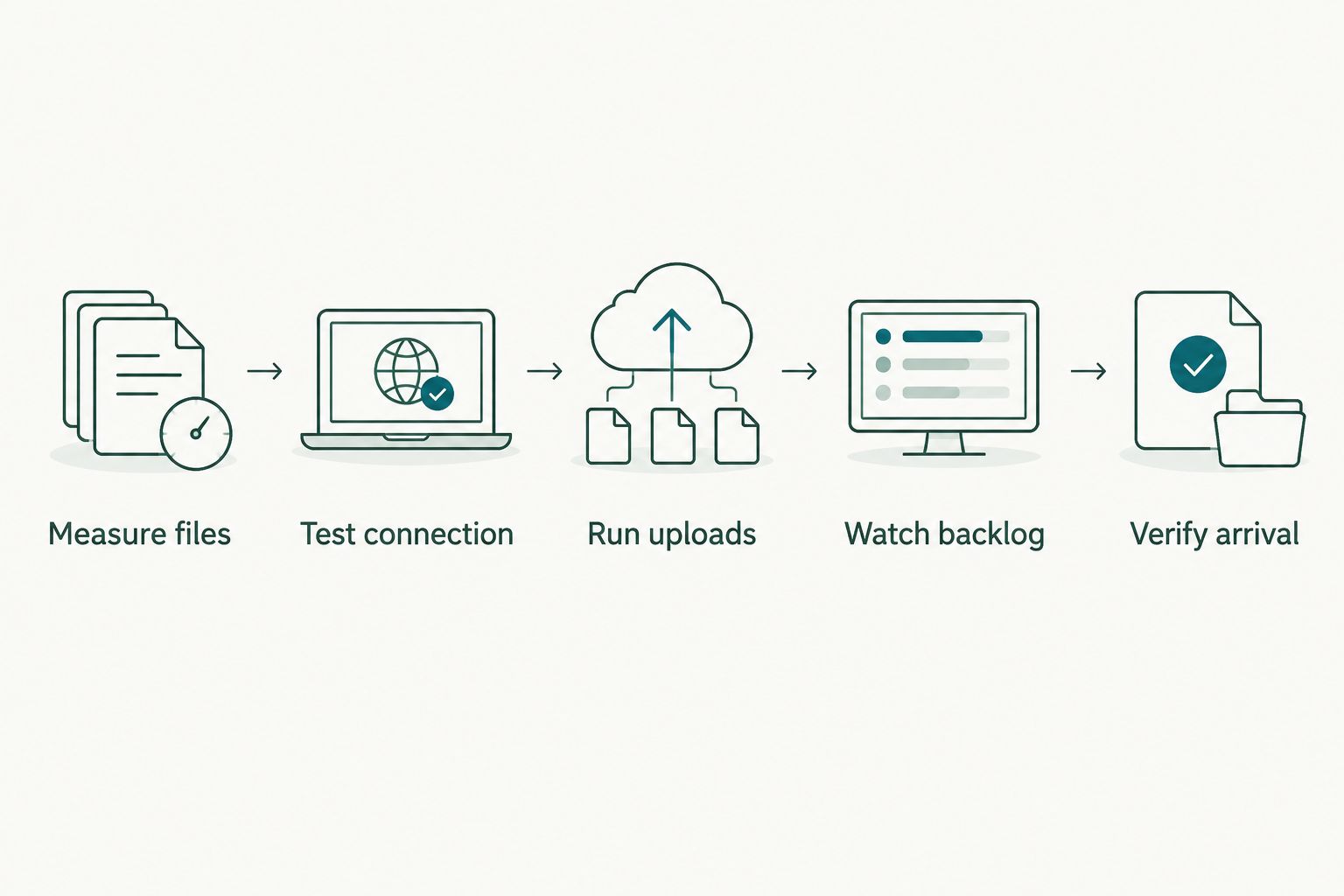
Test the full transfer path, not just the internet connection.
Keep the results with your event preparation notes. A useful record identifies the tested location, connection, file settings and whether the upload queue cleared.
Repeat the test when those conditions change. A successful transfer at your studio establishes that the setup works there; it does not establish venue performance.
Why camera to cloud upload speed varies
The required speed follows your workload, while the achieved speed follows the complete transfer path. These factors explain why a single Mbps recommendation is not enough:
- File volume: larger batches require more data to cross the connection within the same deadline.
- Shooting cadence: bursts create a temporary queue even when quieter periods let it clear.
- Concurrent cameras: cameras sharing an uplink compete for the same total upload capacity.
- Shared traffic: other devices using that connection consume part of its capacity.
- Connection interruptions: time spent disconnected leaves less time to transfer the same workload.
- Transfer overhead: connection management and retransmissions use capacity beyond the image payload itself.
Do not apply an arbitrary safety percentage to an untested connection. Measure whether the workflow clears its queue under representative conditions, then repeat it during the venue conditions available to you.
For a 2026 wedding or corporate assignment, ask the venue which network your team will use and whether other event operations share it. Treat the answer as preparation information, not proof of throughput.
Where Fotoowl fits in the upload workflow
Fotoowl’s camera-to-cloud workflow is best for event photographers who want FTP uploads within AI Gallery. Beam is the camera-to-cloud FTP upload feature inside AI Gallery, rather than a separate sixth product.
Fotoowl AI Gallery supports photo and video delivery with face recognition galleries. The relevant benefit here is the connection between capture uploads and the gallery workflow; it does not remove the need for sufficient internet upload capacity.
The limitation is equally practical: Fotoowl camera-to-cloud delivery still depends on files reaching the cloud. Test your actual setup rather than treating software choice as a substitute for connection planning.
Keep photographer review in your delivery process. A transferred photograph is not automatically a photograph you should publish to a client.
What should you change when uploads fall behind?
Reduce the live workload or improve the tested connection before promising faster delivery. First establish whether the bottleneck is connection availability, shared capacity or the volume you are sending.
Use this order during preparation:
- Confirm that the intended upload connection is active.
- Check whether unrelated transfers are using the same uplink.
- Compare the pending batch size with your tested transfer performance.
- Prioritise the agreed delivery set using controls your setup actually supports.
- Switch to your tested fallback or revise the delivery timing.
Do not assume interrupted transfers resume automatically. Test the behaviour of your camera and destination, including how you identify incomplete files and confirm successful retries.
For multi-function Indian weddings, agree on delivery checkpoints with your team before shooting starts. A reviewed set after a function and continuous delivery throughout it are different commitments.
Keep local originals until you have verified the required copies. An upload indicator is not a replacement for a backup check.
Does faster download speed help camera-to-cloud uploads?
Download speed does not establish upload capacity. Check the upload result separately, then verify performance with your camera files because the complete transfer path determines completion time.
Can camera-to-cloud uploads work over mobile internet?
Mobile internet can carry camera-to-cloud uploads when your setup can use that connection. Test upload performance at the shooting location, and confirm camera connectivity and transfer compatibility rather than assuming a mobile network label guarantees delivery.
How do you know whether upload speed is enough?
Upload speed is enough when representative files arrive within your required window and the queue clears. If pending files accumulate throughout representative shooting, reduce the upload workload or increase sustained transfer capacity.
FAQ
What upload speed do I need for camera to cloud?
You need sustained upload throughput above the rate at which your chosen files enter the upload queue. Calculate payload Mbps from total file size in MB multiplied by eight, divided by the available seconds, then test the complete workflow.
Is the venue’s download speed enough to judge camera uploads?
No. Camera uploads depend on outbound throughput, so check upload performance separately and run a representative camera-file transfer.
Should I upload JPEG or RAW files during a wedding?
Choose the format that meets your delivery requirements and is supported by your setup. Selected JPEGs suit a reviewed highlight workflow; original-file delivery needs its own workload calculation.
Do several cameras need more upload bandwidth?
Several cameras sharing a connection contribute to the same combined upload workload. Add their file volumes and test simultaneous transfers rather than relying on separate camera tests.
Can I upload camera photos without venue Wi-Fi?
You can use another internet connection if your camera and transfer setup support it. Without an internet path, files cannot reach a cloud destination.
Does Beam remove the need for fast internet?
No. Beam provides camera-to-cloud FTP uploads within Fotoowl AI Gallery, but available upload capacity still controls how quickly files reach the cloud.
Should I delete memory-card photos after an upload finishes?
Keep local originals until you have verified the required copies and followed your backup procedure. Transfer completion alone does not establish a complete backup.
One last thing
A fast upload is not the same as a live-delivery workflow. Your connection can transfer a batch successfully while review, processing or publication still separates it from the client.
For your next 2026 assignment, write down the milestone you are promising: files uploaded, photographs reviewed or gallery delivered. Then test that exact milestone from capture to completion, rather than stopping the clock when the transfer ends.