
Camera to cloud for multi-camera event teams: a practical workflow

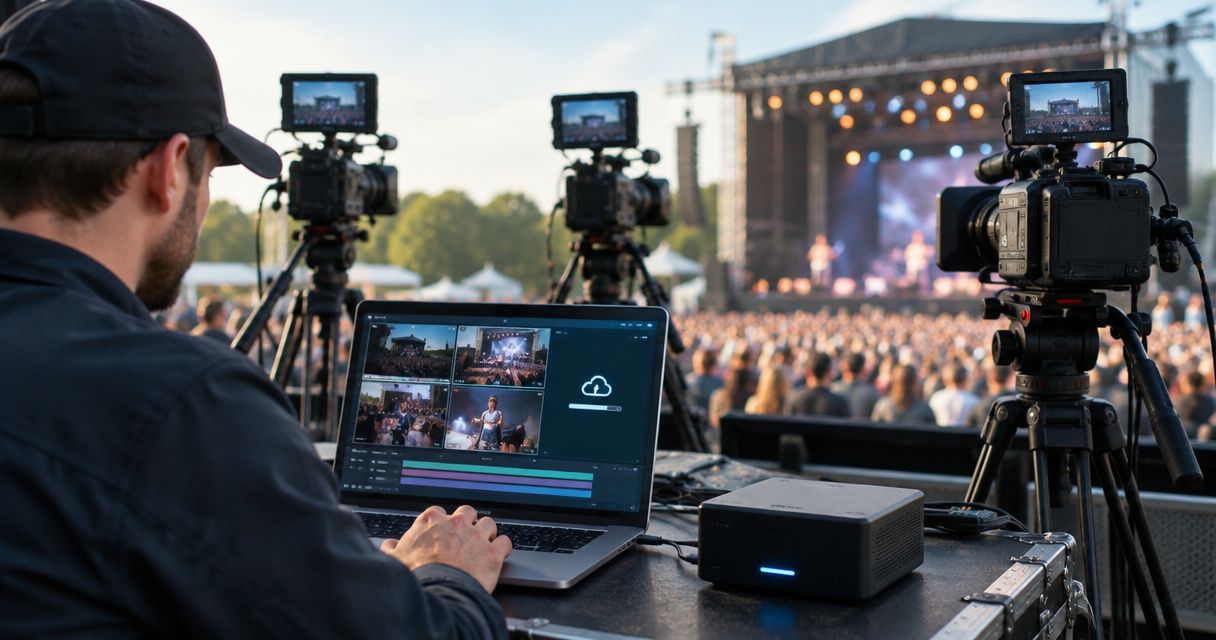
Instead of collecting memory cards from every photographer between event segments, set up a multi camera cloud upload workflow that sends supported cameras’ files to a shared event destination through Beam, the camera-to-cloud FTP upload feature within AI Gallery. Keep local originals, test every camera separately, and assign a receiving operator to check arrivals before client delivery.
TL;DR
- Fotoowl suits professional event teams that need camera-to-cloud FTP uploads feeding an AI Gallery delivery workflow.
- For multi camera cloud upload, test each camera before testing the whole team together.
- Keep local originals; a successful network connection does not confirm that every photograph arrived.
- Separate upload checks from approval for client delivery.
Why this matters
A wedding team can cover the mandap, family portraits and reception preparations simultaneously. Collecting cards interrupts that coverage. Camera-to-cloud upload moves file transfer into the shooting workflow, but the team still needs clear responsibility for destination checks, missing files and delivery approval.
Fotoowl is best for professional event photographers who want camera-to-cloud FTP uploads alongside AI Gallery delivery. Beam handles the camera-to-cloud upload part of that workflow; it does not replace your capture, review or backup decisions.
For a 2026 event workflow, judge readiness by files arriving correctly from every assigned camera—not by a connection indicator. The supporting guide to uploading event photos directly from your camera using Beam covers the individual-camera setup; this guide focuses on coordinating the team.
Before you start
- Confirm camera support and destination access. Have each camera’s manual, the current Beam setup instructions, authorised account access and the connection details required by that setup. Check each body individually; do not assume different models offer identical FTP controls.
- Prepare the event network and local storage. Arrange an internet connection you can test at the shooting positions, charged equipment and enough memory-card capacity to retain originals. Assign a photographer to each camera and a receiving operator to check uploads.
- Resolve the filename collision risk. Different cameras can produce identical filenames. Establish a distinct filename prefix where the camera supports it, or maintain a camera-by-camera source record and verify destination behaviour before combining uploads.
Keep connection credentials private. Give the team the access needed for the assignment rather than circulating the main account login in an event group chat.
Event destination and team ownership
Start your 2026 setup with a written routing plan. It should tell each photographer where files belong and tell the receiving operator whose files to expect.
- Record the event name, function or session, photographer and camera identifier in a shared job sheet. For an Indian wedding, distinguish the sangeet, ceremony and reception rather than treating every function as an unnamed stream.
- Confirm the intended event destination using the current Beam instructions. Record that destination in the job sheet so every camera setup is checked against the same plan.
- Assign 1 receiving operator to monitor arrivals and coordinate corrections. A small studio can combine this with another role, but the responsibility must remain explicit.
- Decide who approves photographs for delivery. Treat receiving files and approving photographs as separate tasks, even when the same person performs both.
- Agree on a fallback handover point. If connectivity fails, photographers should know when and where to provide cards without abandoning their coverage positions unexpectedly.
Expected result: every camera has an identified owner, an intended destination and a person responsible for confirming receipt. No photographer has to guess whether another team member is checking uploads.
Use the job sheet as an operational record, not as a claim that the software automatically assigns photographer identities. Camera ownership should remain traceable even when destination displays differ.
Camera connection and individual upload test
Configure one camera at a time before enabling the whole team. FTP menu names differ by manufacturer and model, so use the exact labels in that camera’s manual and the current Beam instructions rather than transferring menu directions from another body.
- Connect the camera using its supported network method. Test from the actual coverage position, not only beside the router or at the studio desk.
- Enter the destination and authentication details specified by the current setup instructions. Copy them carefully; do not substitute a remembered server address or guess a connection setting.
- Set the file-transfer behaviour available on that camera. Confirm which files it will send and whether transfer requires a photographer’s selection or another supported camera action.
- Capture 3 test photographs per camera, each showing a recognisable subject. Record the filenames so the receiving operator can distinguish a missing arrival from a photograph nobody intended to send.
- Check that all intended test files reach the correct destination. Open the files and inspect them; a thumbnail or connection indicator alone is not the acceptance test.
- Repeat the process for every camera, including spare bodies expected to join the event later.
Expected result: the receiving operator can identify and open every intended test photograph from each configured camera. Any unsupported body gets a separate card-handover plan before the event starts.
Do not infer video-transfer support from a successful still-photo test. If video is part of the assignment, verify the exact camera and upload workflow separately before promising that handoff.
Shared-network rehearsal and recovery check
An individual upload proves one camera can complete the route. It does not establish that the full team’s shooting pattern works on the event connection.
For your 2026 rehearsal, run the following sequence with the equipment and file settings planned for the job. Keep test originals on their cards throughout.
- Parallel capture: start with 2 cameras shooting and transferring together, then include every planned body. Use a representative shooting sequence rather than a single isolated frame.
- Arrival check: compare intended transfers with received files for each camera. Record missing filenames and check the actual images, especially where filenames resemble one another.
- Connection recovery: briefly disconnect a test camera from the network, continue capturing locally, then reconnect. Observe what happens to pending transfers; do not assume automatic retry or resume behaviour.
- Delivery approval: have the receiving operator identify a small approved set. Confirm the team understands the difference between a received image and an image cleared for client delivery.
Expected result: you know how the full team’s transfers behave, how interrupted files are recovered and who approves the first deliverable set. Write down any manual recovery steps discovered during the rehearsal.
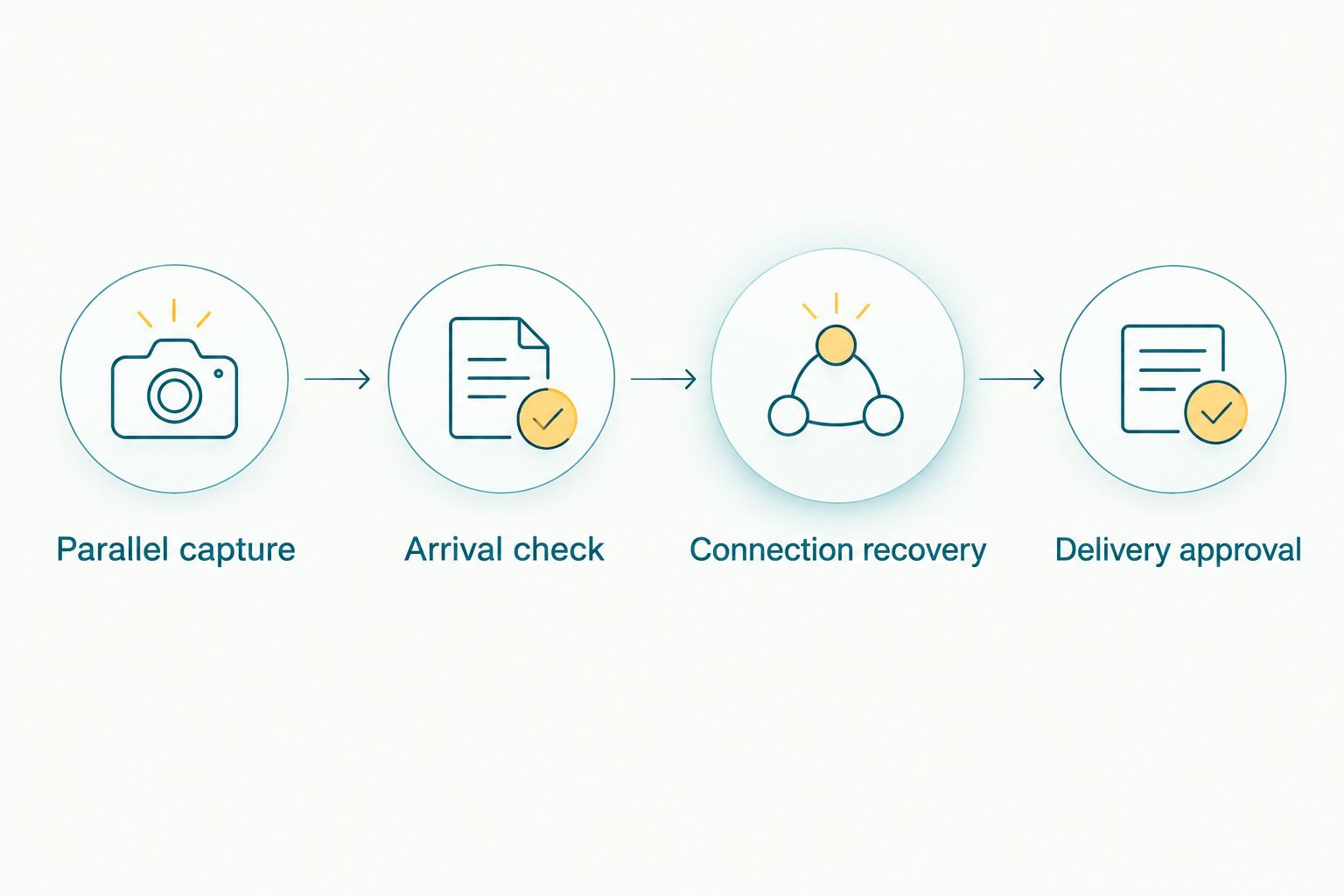
Test recovery as well as successful uploads before assigning live event coverage.
A rehearsal passes only when the receiving operator can account for intended files. If a camera reports success but the operator cannot find its photographs, keep investigating before adding more bodies.
Receiving checks and delivery handoff
The receiving role turns incoming files into a controlled handoff. Without it, photographers can keep shooting while an unnoticed destination or transfer problem continues.
- Compare incoming photographs with the camera roster at agreed event checkpoints. Suitable checkpoints include the end of portraits, the ceremony break or the close of a conference session.
- Check whether each active camera contributed the expected coverage. Use filenames and recognisable moments, not just the overall gallery total.
- Separate upload problems from photographic review. A received frame can still have missed focus, poor exposure or content that should not be delivered.
- Confirm the approved delivery set and communicate its status to the lead photographer. Do not describe unreviewed arrivals as finished client photographs.
- Retain local originals until your studio’s backup and verification process is complete. Cloud arrival alone is not a reason to format a card.
Expected result: the lead photographer knows what has arrived, what needs recovery and what is approved for delivery. The team can continue coverage without repeatedly asking every photographer to inspect the destination.
For Fotoowl camera-to-cloud work, keep this responsibility separate from AI Gallery’s face-recognition features. Finding people in received photographs does not establish that every camera’s intended files arrived.
Variant: selected-frame upload during busy segments
A multi camera cloud upload workflow does not have to send every captured frame during the busiest part of an event. Where your camera supports the necessary transfer choices, use selected-frame transfer for a controlled early-delivery set and reconcile remaining coverage later.
Choose the operating approach before the event. These are workflow choices to verify on your equipment, not promised Beam settings.
| Workflow choice | Best for | Advantage | Limitation |
|---|---|---|---|
| Selected-frame transfer | Teams preparing a small early-delivery set | Keeps the immediate handoff focused on chosen photographs | Photographers must select files and track what remains |
| Every-capture transfer, where supported | Teams needing broad incoming coverage | Reduces selection work during capture | Sends more data and still requires photographic review |
| Card-based fallback | Cameras or locations without a working upload route | Keeps capture independent of the internet connection | Delays cloud arrival and requires a physical handover |
Choose selected-frame transfer when immediate delivery matters more than receiving the complete shoot during coverage. Choose broader transfer only after the shared-network rehearsal succeeds with representative files.
For a 2026 sangeet or corporate awards night, agree on the subjects needed for the first handoff. The receiving operator should reconcile that brief against arrivals, not assume that a stream of new photographs covers every required moment.
When you later transfer the remaining photographs, check for previously delivered frames. Do not assume the destination automatically removes duplicates or replaces earlier versions in the way your studio expects.
Troubleshooting
One camera connects but sends no photographs
Check that the camera is configured to transfer the intended files, not merely connected to the network. Follow its documented transfer action and repeat a recognisable test photograph. Then verify the destination and authentication details against the current setup instructions.
Transfers slow when more photographers join
Pause non-essential transfers and test one camera on the same connection. Compare that behaviour with the full-team rehearsal, then use the agreed selected-frame approach where supported. Check upload performance at the coverage positions; a network that loads web pages is not proof of a suitable transfer route.
Photographs appear missing or duplicated
Compare the source filenames, camera roster and received images before resending a whole card. Identical filenames can make reconciliation confusing. Check how the destination handled those files, then correct the naming or source-tracking process before the next event segment.
A network interruption leaves uncertain transfers
Inspect the camera’s documented transfer status and compare intended filenames with received files. Retry only through the supported process, then check for duplicates. If recovery remains uncertain, retain the card and use the planned handover rather than treating reconnecting as confirmation of receipt.
The files arrive, but the gallery sequence looks wrong
Check camera clocks, time zones and the destination’s available sort controls. Synchronise bodies before coverage; arrival order and capture order are different. For functions spanning midnight, include the date in your checks rather than comparing clock time alone.
Customize your workflow
Expand only after the basic route works. For a 2026 multi-function wedding, keep one team-wide naming convention while recording each function separately. For a conference, record room and session assignments so the receiving operator can identify a missing camera contribution.
Build the Fotoowl AI Gallery workflow around your delivery brief, not around every available feature. Beam’s benefit is moving supported camera files into the cloud workflow; its limitation is that successful operation still depends on compatible equipment, correct configuration and connectivity.
Use the guide to managing multiple photographers on one event gallery when expanding the team. Add cameras only after the receiving operator can reconcile the existing sources without ambiguity.
FAQ
What is the best way to set up multi camera cloud upload for an event team?
Configure and test each supported camera separately, then rehearse simultaneous transfers to the intended event destination. Assign a receiving operator to reconcile arrivals and keep local originals throughout the job.
Can different camera brands upload into the same event workflow?
Include different camera brands only after confirming support and completing a separate upload test for each body. FTP menus, transfer controls and supported connection methods differ by model.
Is Beam a separate product from AI Gallery?
Beam is the camera-to-cloud FTP upload feature within Fotoowl AI Gallery, not a separate sixth product. Use it for the upload stage while keeping review and delivery decisions explicit.
Should every camera upload every photograph during an Indian wedding?
Send every photograph during coverage only when the camera supports that behaviour and the team rehearsal succeeds. Selected-frame transfer is the better fit when the immediate brief is a small approved delivery set.
Does camera-to-cloud upload work without an internet connection?
Uploading to a cloud destination requires an internet connection. Without a working route, retain photographs locally and follow the tested recovery or card-handover process; do not assume automatic queuing.
How do I stop identical filenames causing confusion across cameras?
Use distinct camera filename prefixes where supported and keep a camera-to-photographer roster. Test destination behaviour with matching filenames before the event rather than assuming automatic renaming or duplicate removal.
Can I format memory cards once the photographs appear online?
Do not format cards solely because photographs appear online. Complete your studio’s backup, file-opening and reconciliation checks before clearing local originals.
One last thing
Test the spare camera before you need it. A replacement body can preserve coverage while silently breaking your upload workflow if its credentials, clock or filename settings differ. Include it in the same arrival and recovery checks as the primary cameras.