
Camera FTP upload not working: what should photographers check?


If your camera FTP transfer is not working, check network access, the server address, protocol, login details and destination permissions, then send a single test photo. A camera connected to Wi-Fi does not necessarily have internet access, and a successful login does not prove that file uploads work. Use the checks below to find the failing stage before changing your setup during an event.
TL;DR
- Camera FTP transfer not working? Check network access before changing server settings.
- FTP, FTPS and SFTP are different protocols; match your camera to the receiving service.
- A successful login does not prove the destination folder accepts uploads.
- Fotoowl supports camera-to-cloud FTP uploads through Beam, a feature within AI Gallery.
Camera FTP upload not working: what should photographers check?
Check the connection in order: network, server, authentication, destination, then file transfer. Stop at the first failed stage. Changing unrelated settings makes it harder to identify the cause.
- Confirm network access. Check the camera's connection status and whether the network provides a route to the receiving server.
- Verify the server details. Compare the hostname, protocol and port with the receiving service's instructions.
- Check authentication. Re-enter the supplied username and password without adding spaces.
- Confirm the destination. Check the remote folder and the account's permission to upload there.
- Send a test photo. Select a supported file explicitly and inspect the transfer result.
- Verify receipt. Find that exact filename at the destination before sending the remaining queue.
For the setup workflow rather than fault diagnosis, see how to upload event photos directly from your camera using Beam.
Why this matters
At an Indian wedding, school sports day or corporate conference, you need to distinguish a failed upload from a delayed gallery update. Otherwise, your assistant can spend the event resetting a working camera while the actual problem sits at the destination.
For your 2026 event workflow, define success as a received, readable file—not a Wi-Fi icon or a connection message. Keep the originals on your memory cards while you diagnose the transfer.
Match the symptom to the next check
| What you see | What it establishes | What to check next |
|---|---|---|
| Camera cannot join Wi-Fi | The local wireless connection has failed | Network name, password and supported wireless settings |
| Wi-Fi connects, server connection fails | Wireless association works; server access remains unproven | Internet access, hostname, protocol, port and firewall rules |
| Login is rejected | Authentication has failed | Username, password and account status |
| Login works, upload fails | Authentication works; file writing remains unproven | Folder permissions, data connection and destination limits |
| Transfer completes, photo is missing | The camera reports completion | Exact filename, remote folder and receiving workflow |
| Some files transfer, others do not | The transfer path works for at least some files | File selection, format, size and individual error messages |
Start with the network, not the password
Check which network the camera actually joined. A saved studio network, a phone hotspot and venue guest Wi-Fi are separate connections, even when the camera shows the same wireless symbol.
Venue Wi-Fi can require a browser sign-in or acceptance page. If your camera cannot complete that process, joining the wireless network alone will not give it usable internet access.
Use another device on the same network to inspect connectivity, but treat that as supporting evidence. A phone with working internet does not prove that the camera has passed the network's access requirements or can reach the FTP service.
Change only the network for the next test. Keep the camera's server profile unchanged and try a permitted alternative connection. If the same profile uploads there, investigate the original network before editing credentials.
For your 2026 venue checklist, record whether the connection requires a browser login and whether outbound file-transfer traffic is permitted. Ask the venue's network administrator rather than disabling security controls.
Match the protocol, hostname and port
FTP, FTPS and SFTP are not interchangeable names for uploading files. Your camera and the receiving service must support the same protocol and configuration.
| Protocol | What it does | Useful distinction | Limitation to check |
|---|---|---|---|
| FTP | Transfers files using the FTP protocol | Separates commands from file-data connections | Plain FTP does not encrypt credentials or file contents |
| FTPS | Adds TLS protection to FTP | Retains FTP's command and data connection model | Camera and server TLS settings must match |
| SFTP | Transfers files over SSH | Uses a different protocol from FTP | An FTP-capable camera does not automatically support SFTP |
Use the endpoint supplied for camera uploads, not a public gallery address. A page that opens in a browser is not necessarily an FTP destination.
Standard FTP control connections commonly use port 21, while SFTP commonly uses port 22. Those are protocol conventions, not instructions to overwrite the port your provider supplies. A service can specify a different port.
Check whether your camera separates the hostname and port into different fields. Enter each value according to the camera manual; do not paste a complete connection string into a field that expects only a hostname.
Read the error before retrying
Your camera's error wording and any available server logs are more useful than a generic connection-failed message. Record the exact text before restarting equipment.
These standard FTP reply codes help identify the failing stage. Camera interfaces can translate them into different wording, and the accompanying server message matters.
- 530 reply: Authentication has not succeeded. Check the supplied credentials and whether the account is permitted to log in.
- 550 reply: The requested file action failed because the file or destination was unavailable, including access or path problems. Read the accompanying explanation.
- 425 reply: The server could not open the data connection. Investigate data-channel settings and network restrictions.
- 226 reply: The server reports that the requested data action completed successfully. Verify the corresponding file at the destination.
A 530 reply calls for a different check from a 425 reply. Repeatedly changing the password will not repair a blocked data connection.
For a 2026 support request, capture the camera model, firmware version, protocol, connection type, timestamp and exact error. Share credentials only through the receiving service's approved secure process, never in an event group chat.
Follow a controlled test sequence
Use a test photo and change a single setting between attempts. That gives each result a clear meaning and avoids sending the full event queue into an unverified destination.
Network access
Confirm the camera has joined the intended connection. Check any captive-portal requirement and whether the connection reaches the public internet when your receiving server is hosted online.
Server details
Compare the saved profile against the receiving service's current instructions. Verify the hostname, protocol and port independently rather than assuming an old saved profile remains correct.
Login check
Re-enter the username and password carefully. Check capitalisation, accidental whitespace and whether you are using upload credentials rather than credentials for an unrelated account interface.
Folder access
Confirm the remote folder syntax and upload permissions. Use the specified destination rather than creating a new path based on the event name without checking the service's requirements.
Test receipt
Send a clearly identifiable supported photo. Find the exact file at the destination, open it and confirm that it belongs to the intended event before resuming the queue.
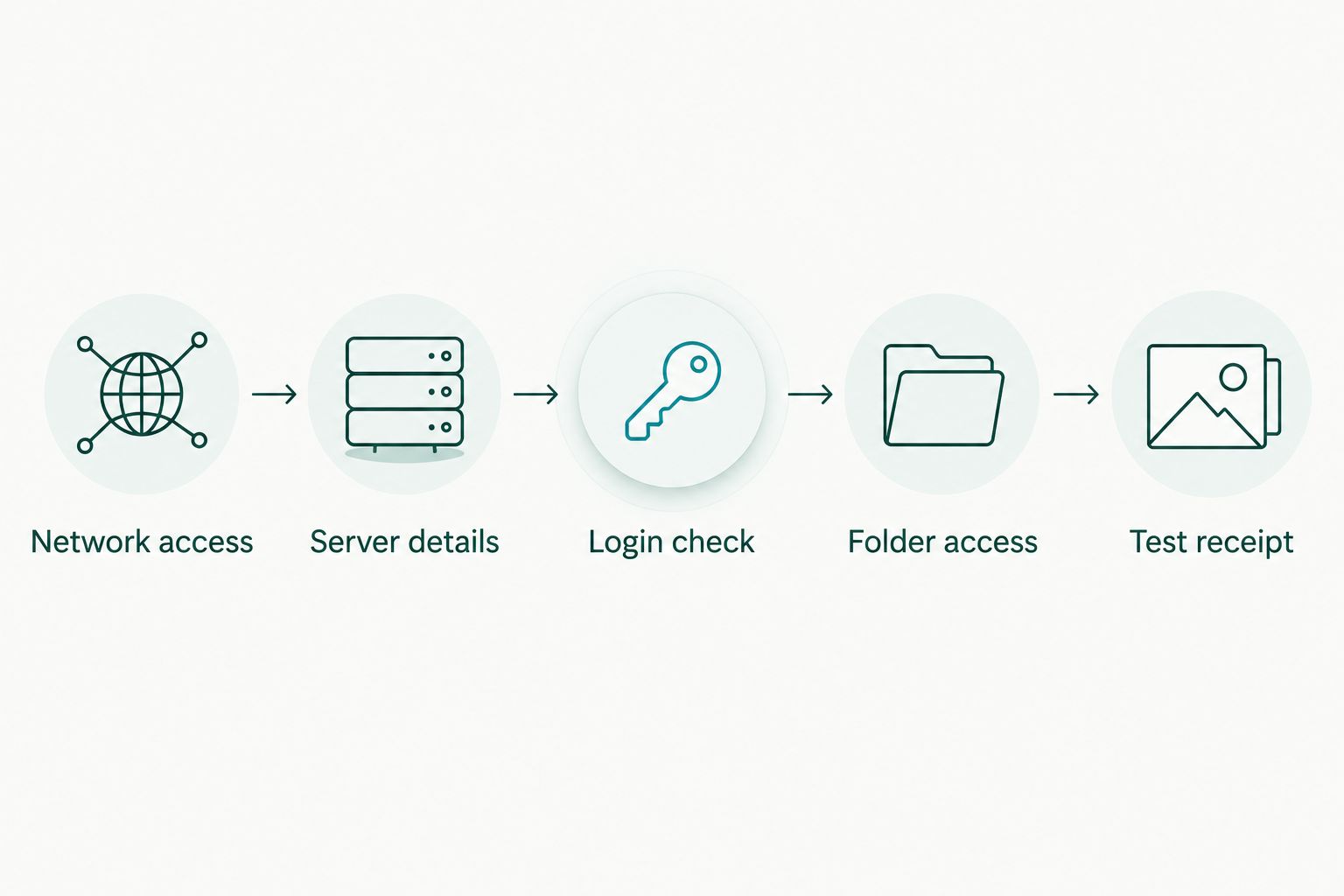
Confirm each stage before changing settings at the next stage.
Write down the successful profile after the test. Keep passwords out of shared screenshots, and record which network and destination you actually verified.
Why camera FTP reliability varies
The same camera profile can behave differently when the network, destination or selected files change. These are the main variables to inspect—not reasons to reset every setting.
- Network access rules: Guest sign-in pages and outbound traffic restrictions affect whether the camera can reach the server.
- Protocol support: The camera and receiver need compatible FTP, FTPS or SFTP settings.
- Data connections: FTP uses a separate data connection, so successful authentication does not establish successful file transfer.
- Destination permissions: An account can authenticate without having permission to write into the selected folder.
- File eligibility: Camera transfer rules and receiver requirements determine which selected files can be sent and accepted.
- Connection continuity: Losing the wireless connection or switching off a hotspot interrupts the path used for uploading.
Treat your 2026 venue test as specific to that connection and location. A successful studio upload does not verify a different network at the reception hall.
Why does FTP login work but the photo upload fail?
A successful login confirms authentication, not permission to write files or a working data connection. Check the destination folder first, then inspect the data-transfer error.
In passive FTP, the server provides an endpoint for the data connection. Firewall and server configuration must allow that connection; opening only the control connection is not enough.
If your camera offers an active or passive setting, follow the receiver's documented configuration. Do not alternate modes blindly or ask venue staff to open unrestricted access.
Why does the camera say transferred but the gallery is empty?
A transfer-complete message does not establish that the photo is visible in the gallery you are viewing. Match the filename to the receiving folder, confirm the intended event and inspect any processing status the service exposes.
Do not immediately resend the full queue. First establish whether the file reached another destination or whether the receiving workflow has not yet made it visible.
Should you reset the camera's network settings?
Reset the network settings only after recording the current profile and testing the specific failure. A reset removes useful configuration without proving whether the network, server or account caused the problem.
If the camera supports multiple profiles, preserve the known-working profile while testing changes. Follow the camera manual before deleting saved settings or applying firmware changes.
Where Beam fits in the upload workflow
Fotoowl is best for professional event photographers who want camera-to-cloud FTP uploads within AI Gallery. Beam is the camera-to-cloud FTP upload feature inside AI Gallery, not a separate sixth product.
The benefit is a camera-upload workflow within the gallery platform. The limitation remains the transfer path: Fotoowl cannot remove the need for compatible camera settings, usable connectivity and a correctly configured destination.
Before relying on Fotoowl for an event, verify the current setup instructions and complete an end-to-end test with your actual equipment. For your 2026 handover, assign someone to confirm receipt while the lead photographer keeps shooting.
FAQ
Why is my camera FTP transfer not working even though Wi-Fi is connected?
A Wi-Fi connection confirms wireless access, not internet access or access to the FTP server. Check browser sign-in requirements, the server hostname, protocol, port and network restrictions.
What should I check when my camera shows an FTP login error?
Check the upload username, password and account status against the receiving service's instructions. A 530 reply indicates that authentication has not succeeded; the accompanying message helps identify the cause.
Which port should I use for camera FTP uploads?
Use the port specified by the receiving service. Standard FTP control connections commonly use port 21 and SFTP commonly uses port 22, but the supplied configuration takes precedence.
Why can my camera log in but not send photos?
Successful login does not prove folder write permission or a working data connection. Check the destination path, upload permissions and any data-channel error before changing the password.
Can I use SFTP settings in my camera's FTP menu?
Only use SFTP if your camera explicitly supports SFTP. SFTP is a different protocol from FTP and FTPS, so changing the port alone does not make an FTP profile compatible.
Should I delete photos from the card after an FTP transfer?
Do not delete card originals solely because the camera reports a completed transfer. Verify that the destination files are readable and follow your studio's backup procedure before formatting cards.
Does Fotoowl Beam replace the need for an internet connection?
No. Beam supports camera-to-cloud FTP uploads within AI Gallery, but cloud transfer still needs a working connection to the receiving service. Test the actual event connection before relying on live uploads.
One last thing
An empty upload queue is not proof that every intended photograph arrived. Transfer selection rules determine which files entered the queue in the first place.
Before declaring the problem fixed, choose a recognisable photo, send it deliberately and open that exact file at the destination. That final check distinguishes a working connection from a completed delivery.