
How to fix missing photos after a culling export to Lightroom


To fix missing photos after a culling export to Lightroom, first confirm that the selected originals exist on disk, then check Lightroom’s filters, import destination and file links. In Lightroom Classic, reconnect missing files or folders before importing anything again. An export that transfers selection metadata is not the same as an export that copies photographs, so identify what your culling application actually produced.
TL;DR
- For missing photos after culling export Lightroom troubleshooting, check originals, export contents and catalogue visibility before reimporting.
- Lightroom Classic missing-file warnings require relinking; absent imports require a different repair.
- Fotoowl AI Culling suits photographers who want offline desktop culling with human review before Lightroom export.
- Keep original files and catalogue backups intact until every selected photograph is accounted for.
Why this matters
A missing thumbnail and a missing original are different problems. Lightroom Classic stores catalogue records separately from your photographs, so a visible preview does not prove that the original file remains accessible.
For an Indian wedding studio handling separate ceremonies and multiple camera folders, compare filenames within the correct event and camera folder. A matching filename alone does not establish that you have found the right photograph.
Use this 2026 troubleshooting checklist alongside the culling-to-Lightroom workflow. Repair the broken handoff, not the entire shoot.
How do you fix missing photos after a culling export to Lightroom?
Work through these 7 checks in order. These instructions use Lightroom Classic’s catalogue and folder tools; Lightroom’s cloud-based application has a different interface and storage workflow.
1. Confirm which Lightroom application and catalogue you opened
Check whether you are using Lightroom Classic or Lightroom. In Classic, confirm that you opened the catalogue used for this job rather than an older catalogue or a separate editor’s copy.
Select All Photographs in the Catalog panel, then search for a known selected filename. Do not assume an empty collection means the import failed: a collection contains its assigned photographs, not every photograph in the catalogue.
If the photograph exists elsewhere in the catalogue, fix the view or collection rather than importing another copy. Record its current folder before changing anything.
2. Remove filters that hide imported photographs
In Lightroom Classic’s Library module, clear text, attribute and metadata filters. Check flags, star ratings and colour labels, including filters applied through the filmstrip.
Open the relevant folder in the Folders panel instead of relying only on a smart collection. Expand stacks when you need to inspect individual frames; collapsed stacks hide their other members from the grid.
A culling selection and a Lightroom filter must refer to the same criteria. For example, filtering for flagged photographs will not reveal a selection transferred only as star ratings. Make photographs visible before changing their metadata.
3. Verify the originals outside Lightroom
Open the source folder in Finder or File Explorer. Locate a photograph that should have survived the cull, and check its filename, extension, folder and whether the file is accessible.
Reconnect the external drive if the files live there. For files held in a synchronised storage folder, confirm that the originals are downloaded locally rather than represented only by online placeholders.
If the original is absent from the source and export folders, search your verified backup before changing the catalogue. Relinking cannot recover a deleted original, and importing cannot recreate one. Avoid writing new data to a storage device suspected of file loss.
4. Inspect what the culling export contains
Open the export destination and identify what is actually there: image files, metadata sidecars, a catalogue, or another handoff format supported by the application. Check the culling application’s chosen export settings rather than inferring them from a completion message.
An XMP sidecar carries metadata; it is not a replacement for a RAW photograph. If your handoff contains sidecars, the corresponding original images still need to be available to Lightroom.
Compare 3 locations: the culling source, the export destination and Lightroom’s recorded folder. This separates a selection problem from a copy problem or a broken file path.
5. Reconnect files that Lightroom already knows about
In Lightroom Classic, open Library > Find All Missing Photos to identify catalogue records whose originals cannot be found. A missing-file indicator on a thumbnail also lets you locate that photograph’s original.
For a missing folder, right-click it in the Folders panel and use Find Missing Folder. If an existing folder needs to point to a different location, Update Folder Location is the relevant command.
Choose the verified folder containing the actual originals. Relink the highest relevant folder when a whole directory tree has moved, rather than repairing every photograph separately. Then confirm that the missing-file warnings disappear.
6. Import only photographs absent from the catalogue
If the originals exist but the catalogue contains no corresponding records, open Import and select the verified folder. Inspect the destination and import method before starting.
In Lightroom Classic, Add references files in their current location, while Copy creates copies at the selected destination. Move changes their location. Avoid Move while diagnosing a broken handoff because it changes the file layout you are trying to verify.
Review any photographs excluded as suspected duplicates. Do not disable duplicate checking across the entire job just to increase the import count; first establish whether those photographs already exist elsewhere in the catalogue.
7. Reconcile the selected set before editing
Compare the human-reviewed selection against the photographs now visible in Lightroom. Match filenames with their camera folders and file extensions, not just thumbnail appearance or a total count.
Inspect photographs from each ceremony or event segment, including the beginning and end of each camera folder. Open selected originals in Develop to confirm access rather than relying solely on cached previews.
Save a catalogue backup after the repair. Keep your source backup unchanged until you have verified the editing and delivery handoff. A successful import message is not the final acceptance check.
The sequence below keeps diagnosis ahead of repair: establish what exists, identify what Lightroom knows, then reconcile the result.
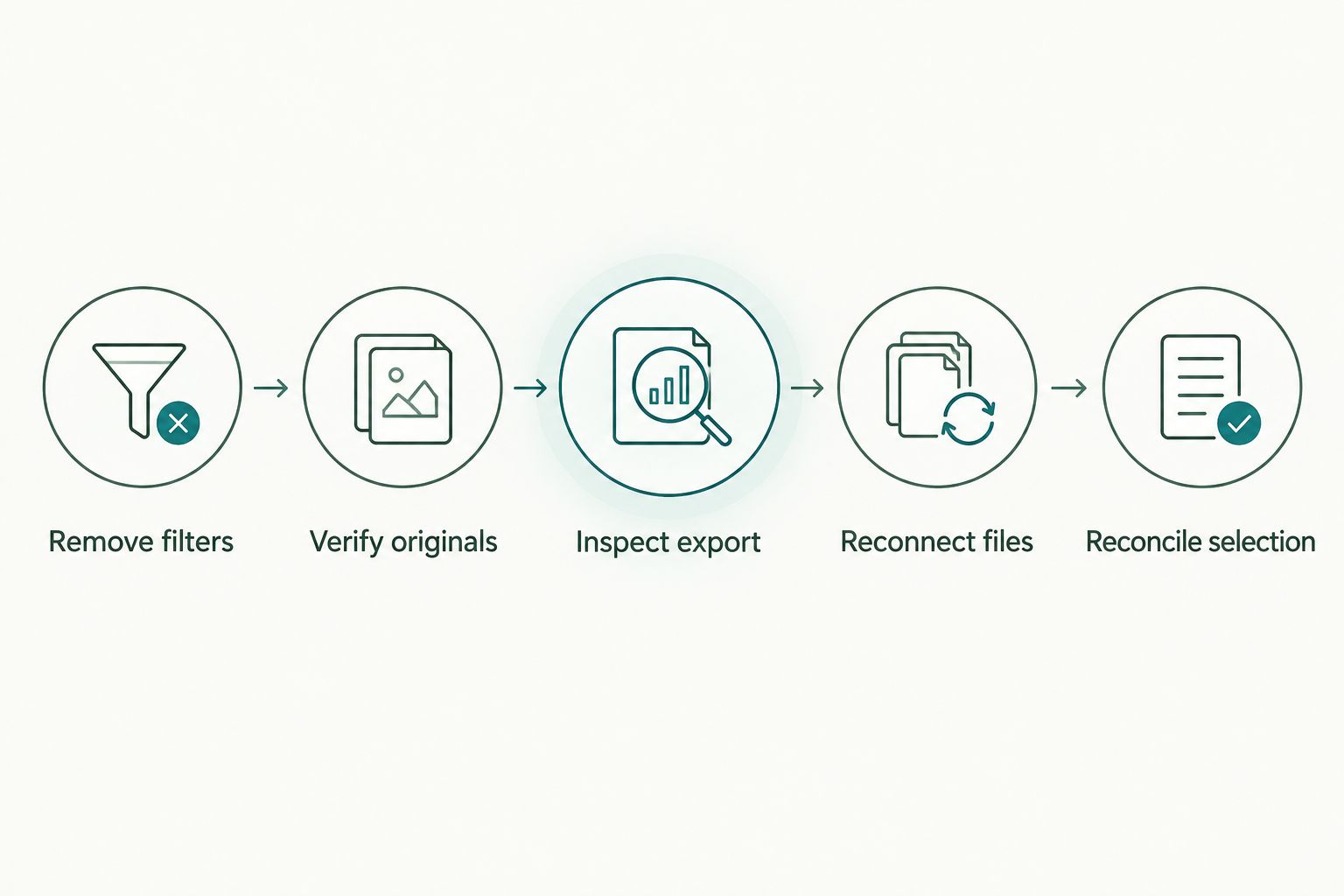
Verify the originals and export contents before repairing Lightroom’s catalogue links.
Which repair matches the symptom?
Use these 2 repair paths as the main distinction: reconnect an existing catalogue record, or import an original that has no catalogue record. Clearing a filter requires neither.
| Symptom | Best first action | Best for | Limitation or risk |
|---|---|---|---|
| Photograph appears after clearing filters | Correct the view or selection criteria | Hidden catalogue photographs | Does not repair inaccessible originals |
| Thumbnail exists but original is missing | Locate the original or reconnect its folder | Existing records with broken paths | Requires the correct original file |
| Original exists but no catalogue record appears | Import from the verified folder | Photographs never imported into this catalogue | Incorrect settings can create unwanted copies |
| Export contains sidecars but no images | Locate the corresponding originals | Metadata-only handoffs | Sidecars cannot replace missing photographs |
| Original is absent from working folders | Restore from a verified backup | Deleted or lost working files | Catalogue backups do not contain the original photographs |
Do not reimport a photograph merely because its existing catalogue record has lost its file link. Reconnecting that record preserves its relationship with the catalogue’s edits and organisation.
For a 2026 studio handoff, write the chosen repair beside the affected folder. This gives another editor a clear record of what changed without asking them to repeat the diagnosis.
Why missing-photo symptoms vary
The same description—photos missing after export—covers different failures. Check these factors before selecting a repair:
- Export scope: Exporting the reviewed selection excludes photographs outside that selection. Compare against the intended keepers, not the full shoot.
- Handoff format: Copied originals and metadata-only exports require different import steps. Inspect the actual files.
- Folder changes: Renaming or moving folders outside Lightroom Classic can break the catalogue’s recorded paths.
- Storage access: Disconnected drives and unavailable originals prevent Lightroom from reading files even when previews remain visible.
- Catalogue visibility: Filters, collections and stacks change what appears in the grid without deleting originals.
- Metadata handling: Selection ratings or labels need to reach Lightroom correctly before a filter can reproduce the culling selection.
Keep your 2026 troubleshooting notes tied to filenames and folder locations. A note saying that the export failed is less useful than identifying whether the original, catalogue record or selection metadata is missing.
What if the photographs appear but the culling ratings do not?
Missing ratings are a metadata problem, not proof of missing photographs. First confirm that the originals appear in Lightroom and that the culling application exported the intended ratings or labels in a supported format.
If your workflow uses XMP sidecars, check that each sidecar corresponds to its original and sits where the workflow expects it. Do not rename the image without accounting for its associated metadata.
In Lightroom Classic, reading metadata from files can replace catalogue metadata with information stored in those files. Back up the catalogue and review the consequences before using Metadata > Read Metadata from Files, especially if editing has already started.
For your 2026 process, decide which application controls selection metadata before the handoff. Avoid making competing rating changes in the culling application and Lightroom after editing begins.
Should you export the culled photographs again?
Export again only when the verified handoff is incomplete or contains the wrong selection. If the correct originals already exist and Lightroom has their records, relinking or clearing filters addresses the actual problem without repeating the transfer.
Before repeating an export, preserve the previous output and check the destination. Use a clearly identified folder so you can compare the replacement handoff without mixing it into an uncertain export.
How do you prevent missing photos on the next wedding job?
Keep the working folder structure stable from culling through editing. Document the selected filenames, export destination and Lightroom catalogue, then verify the handoff before another team member starts work.
For Fotoowl AI Culling, the relevant workflow is offline desktop culling followed by a second human review before export to Lightroom or the gallery. Review the chosen photographs before transferring responsibility to the editor.
Fotoowl AI Culling suits professional wedding and event photographers who want offline desktop culling with human review before Lightroom export. Its role is selection: it does not remove the need to verify originals, storage access and Lightroom’s catalogue links.
When using Fotoowl AI Culling for a multi-function Indian wedding, include each ceremony and camera folder in the handoff check. Preserve meaningful frames during human review, then verify that those same files reach the editor.
FAQ
Why are my photos missing after a culling export to Lightroom?
Check whether the originals are absent, hidden by filters, never imported, or disconnected from existing catalogue records. Inspect the source folder and export contents before repeating the export.
How do I find all missing photos in Lightroom Classic?
In Lightroom Classic, choose Library > Find All Missing Photos. This identifies catalogue records with unavailable originals; it does not find photographs that were never imported.
Should I reimport photos that show a missing-file warning?
Reconnect the existing catalogue record to the verified original instead of reimporting it. Reimporting is appropriate when the photograph has no record in the intended catalogue.
Can an XMP sidecar restore a missing RAW photo?
An XMP sidecar cannot restore a missing RAW photograph. It stores metadata, so you still need the corresponding original from working storage or a verified backup.
Why can I see a preview if Lightroom says the original is missing?
Lightroom Classic can retain a preview while the original is unavailable. Reconnect the original before relying on full-resolution editing or export.
Will a Lightroom catalogue backup recover deleted originals?
A Lightroom Classic catalogue backup does not include your original photographs. Restore originals from your separate image backup, then reconnect the catalogue records where needed.
Can filters make my culled photos look missing?
Filters can hide photographs that remain in the catalogue. Clear rating, flag, colour-label, text and metadata filters, then inspect the relevant folder and expand stacks.
One last thing
Matching totals do not prove matching selections. An omitted keeper and an unintended extra can leave the same count, so reconcile filenames and folder context before declaring the repair complete.
Make that your final 2026 handoff rule: verify the selected originals, not just the number shown in the grid.