
Indian wedding Lightroom presets: a photographer's guide

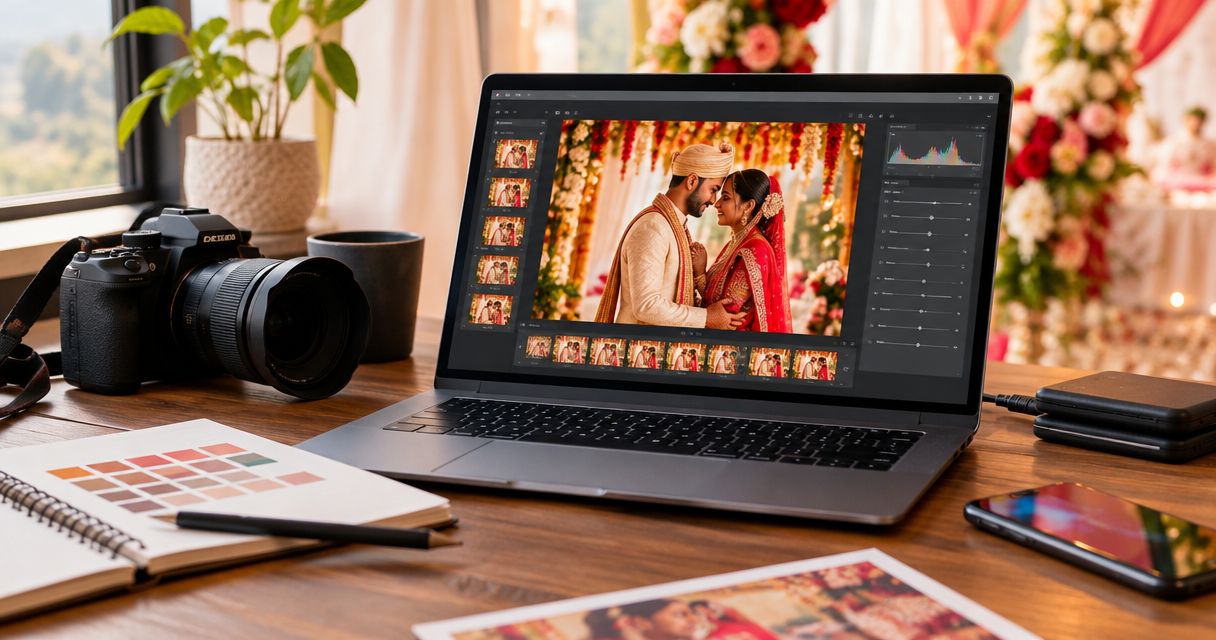
Indian wedding Lightroom presets are saved editing settings for photographers, designed to create consistent colour across wedding functions while keeping skin tones believable. Start with a restrained base look, then adjust each lighting group separately; haldi sunlight, mandap lighting and reception LEDs need different corrections, not one blanket preset.
TL;DR
- Choose Indian wedding Lightroom presets by skin tone and fabric detail, not promotional before-and-after images.
- Correct white balance before judging a preset; separate daylight, flash and coloured-light photographs.
- Fotoowl AI Culling supports pre-edit selection, not Lightroom colour correction.
- Test wedding photo editing settings across complete sequences before committing to a studio look.
Why Lightroom presets matter for Indian wedding photographers
A preset gives your studio a repeatable starting point. It does not decide whether a red lehenga looks accurate, a face needs local correction or a dark ritual photograph deserves to stay in the story.
For your 2026 editing workflow, judge consistency across functions rather than making every photograph identical. A daylight portrait and a candlelit ceremony should belong to the same wedding without pretending they share the same light.
Start by organising photos for multi-function Indian weddings. Separating functions and lighting conditions makes preset testing more useful than applying a look to an undivided folder.
The best preset is the one that preserves people and clothing across your actual assignments. A dramatic sample image is not enough evidence to adopt a look for an entire wedding.
Your practical constraints are specific: multiple camera bodies, changing venues, saturated clothing and photographs made under mixed light. Build a workflow that handles those differences before choosing a stronger visual style.
Build your Indian wedding preset workflow for 2026
1. Define the look your studio can repeat
Begin manually with your own RAW photographs. Choose finished images that represent the work you want to deliver, then identify what makes them consistent: contrast, highlight treatment, skin colour and the relationship between warm and cool areas.
Separate your creative direction from technical repairs. Lifting an underexposed face is a correction; choosing softer contrast is a style decision. Saving both indiscriminately creates a preset that behaves unpredictably on the next scene.
Write a short editing brief for anyone sharing the job. Describe visible outcomes rather than vague words such as cinematic or premium. The brief should explain which colours must stay faithful and where creative interpretation is acceptable.
Use these checks before building the preset:
- Choose 2 reference frames: one daylight portrait and one indoor portrait.
- Describe the intended contrast and shadow depth in plain language.
- Identify skin, red fabric and gold jewellery as review subjects.
- Decide whether colour or black-and-white carries each sequence.
- Keep exposure recovery separate from your signature look.
2. Test presets on a representative wedding sample
Create a small test collection in Lightroom rather than judging presets on their promotional photographs. Use your files, your cameras and the lighting conditions you regularly encounter.
For a practical 2026 test, choose 12 images across 4 groups: daylight, indoor ambient light, flash and coloured stage light. These are suggested test sizes, not performance benchmarks. Include close portraits and wider frames so you can see how a look treats both faces and the venue.
Compare candidates at similar brightness. A brighter preview can look more appealing even when its colour treatment is less suitable. Inspect the unedited file alongside each candidate and record what you must repair afterwards.
Finish the test with a clear rejection rule:
- Include different skin tones and clothing colours in the sample.
- Compare candidates using the same starting profile where possible.
- Check faces, fabric texture and background lighting separately.
- Reject looks that repeatedly require corrective colour work.
- Save comparison exports for a later, fresh review.
3. Cull the sequence before spending time on colour
Review the shoot manually first: mark keepers, compare similar frames and retain the expressions that tell the story. Do not let an attractive preset distract you from missed focus or an incomplete moment.
Fotoowl AI Culling is an offline desktop application that rejects duplicate and weak frames, groups similar images and ranks photographs by composition, exposure and blur. It provides a selection path before Lightroom, not a replacement for editing judgement. Keep the second human pass before exporting your choices.
The limitation matters at weddings. An unusual expression, deliberate motion blur or imperfectly exposed ritual frame can still be important to the sequence. Review the selection against the event's coverage, not only technical neatness.
Use the AI Culling to Lightroom workflow when planning that hand-off.
- Compare similar frames before applying your creative look.
- Keep intentional motion blur when it serves the photograph.
- Review key rituals and family combinations manually.
- Confirm the final selection before beginning batch edits.
- Export chosen photographs to Lightroom for colour work.
4. Correct light before applying the creative treatment
Choose a representative image from each lighting group and correct it manually. Set exposure and white balance before deciding whether your preset suits the scene. Otherwise, you are judging the preset through an existing colour cast.
Mixed lighting needs special attention. A face lit by flash and a background lit by warm lamps do not necessarily need the same correction. Use local adjustments when a global change fixes the face but damages the surroundings, or the reverse.
Do not neutralise every trace of warmth. The aim is believable people within the atmosphere you photographed, not identical colour temperature throughout the venue. Where coloured light affects skin, inspect individual faces instead of relying on a universal slider recipe.
Close this stage with a repeatable correction routine:
- Group photographs by light source and direction.
- Correct exposure before evaluating contrast.
- Check white balance against a genuinely neutral reference when available.
- Inspect faces separately from coloured backgrounds.
- Use local corrections where global settings create a trade-off.
5. Save a restrained base preset and controlled variants
Build your first preset from a manually finished reference photograph. In Lightroom's preset settings, include the adjustments that define your look and leave out settings that belong only to that image.
For your 2026 preset library, use descriptive names based on lighting or treatment. A daylight base and an indoor variant are easier for an editor to interpret than a collection of mood names with no usage guidance.
Avoid saving a crop or scene-specific mask into a general wedding preset unless you deliberately want that behaviour. Also review whether exposure, white balance and noise reduction belong in the saved settings. Those decisions depend on the intended use, not a universal rule.
Keep the library small enough to understand:
- Save the tone and colour treatment you intend to repeat.
- Leave scene-specific adjustments out of the general base.
- Create separate variants only when the lighting demands them.
- Record which camera profile your reference edit uses.
- Test each saved variant on photographs outside its original scene.
6. Synchronise selectively and review the exceptions
Apply the chosen base to a lighting group, then synchronise only the settings that group genuinely shares. A sequence can include changing exposure, different flash coverage or a photographer moving between shade and sunlight.
Batch editing should repeat decisions, not conceal differences. Review the first, middle and last photographs in each sequence, then inspect obvious lighting changes and important portraits individually. Expand the review whenever those checks reveal inconsistent results.
Examine focus and fine detail at 100% magnification where needed, but judge overall colour at a useful viewing size too. Pixel-level inspection does not replace comparing photographs together. Before exporting, view adjacent frames as a sequence to catch sudden shifts in brightness or skin colour.
Use this batch-review checklist:
- Synchronise creative treatment only across compatible lighting groups.
- Adjust exposure separately when the capture brightness changes.
- Inspect skin and clothing after colour adjustments.
- Review scene-specific masks before copying them elsewhere.
- Compare neighbouring photographs before exporting the sequence.
7. Check exported photographs before client delivery
Export a small review set first and inspect the resulting files outside Lightroom. Check the intended colour space, dimensions and sharpening rather than assuming the export preset matches the destination. For general web viewing, sRGB is a standard colour-space choice.
Arrange the review around Select, Correct, Style, Review, Deliver. Each stage has a different job; moving a photograph into a gallery does not finish its colour correction.
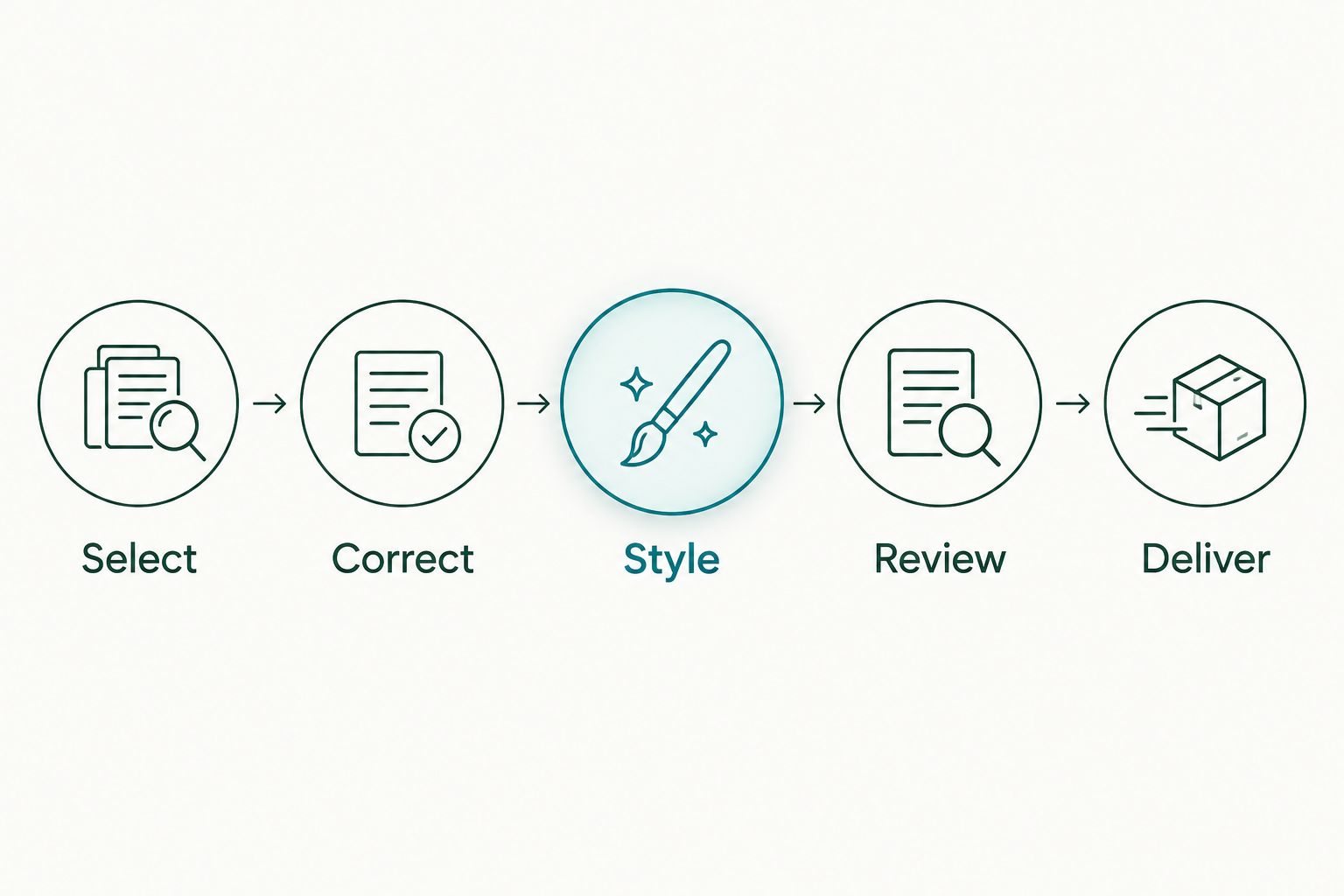
Finish colour review before moving the wedding photographs into delivery.
Fotoowl AI Gallery is best for wedding photographers delivering edited photographs through face-recognition galleries. Its role is delivery, not Lightroom preset creation; finish your colour decisions before uploading. Photo Selection handles client proofing, with selections reused for albums and printing, rather than replacing the photographer's technical review.
Complete the delivery check deliberately:
- Inspect exported files rather than only Lightroom previews.
- Confirm that filenames still match your working records.
- Compare representative portraits on another display.
- Distinguish editing approval from album-image selection.
- Upload the approved export set, not an earlier draft.
Compare preset options for your studio
Choose an editing approach by how much control you need and how well you can explain it to another editor. The options below are workflow choices, not a ranking of untested preset packs.
| Option | Best for | Main advantage | Key limitation |
|---|---|---|---|
| Manual edit, then save a preset | Studios defining their own look | The starting treatment comes from your photographs | Requires initial editing decisions and testing |
| Lightroom built-in presets | Photographers exploring different treatments | Provides existing looks to evaluate | Still needs testing against your cameras and wedding lighting |
| Third-party preset packs | Photographers seeking a particular visual direction | Offers an external creative starting point | Promotional samples do not establish suitability for your files |
| Lighting-specific studio presets | Teams editing recurring wedding conditions | Gives editors clearer usage rules | Needs maintenance when capture conditions or studio style change |
Best starting choice: edit your own reference photographs, then save a restrained studio preset. This gives you a treatment you can explain and revise without guessing which hidden adjustment caused a problem.
An external pack remains useful when its direction matches your work. Treat it as editable settings, not an authority on skin colour. Check compatibility information before adopting it, and evaluate complete sequences rather than isolated favourites.
Common preset mistakes Indian wedding photographers make
Treating every function as the same lighting environment
Applying one unchanged treatment across haldi, ceremony and reception photographs ignores how each scene was lit. Keep a shared visual direction, but build corrections around the actual light. A consistent story does not require identical white balance.
Using orange shifts to make every face look warm
Increasing warmth or changing orange hues globally affects more than skin. Inspect faces alongside peach clothing, orange flowers and warm décor. If only a face needs correction, target that problem instead of changing the entire photograph.
Muting reds until wedding clothing loses its character
A subdued palette is a creative choice, not automatic improvement. Compare the edited fabric with your reference photographs and the capture context. Preserve visible texture and meaningful colour differences rather than forcing every red outfit into the same tone.
Expecting matching sliders to match different cameras
The same preset settings do not guarantee the same visual result across camera bodies and profiles. Compare representative files from each camera, then make camera-specific corrections where needed. Judge the pictures, not whether the slider positions agree.
Changing the studio look halfway through delivery
A new preset can make a later batch visibly different from photographs already shared. For each 2026 wedding, record the approved base treatment before producing the final set. If you change direction, review the whole delivered sequence rather than only the newest export.
FAQ
What's the best starting point for Indian wedding Lightroom presets?
Start with a manually edited reference photograph from your own wedding work, then save its repeatable creative adjustments as a preset. Test that preset across daylight, indoor, flash and coloured-light photographs before adopting it.
Can one Lightroom preset work for haldi, sangeet and reception photos?
One preset can provide a shared creative base, but each lighting group still needs its own corrections. Adjust exposure, white balance and local colour problems before judging whether the overall treatment works.
Should I include white balance in my wedding preset?
Leave white balance out of a general-purpose creative preset when you intend to correct it separately for each scene. Include it only when the preset has a clearly defined lighting use and you have tested that behaviour.
How do I keep Indian skin tones natural in Lightroom?
Correct white balance and exposure first, then inspect skin before making broad hue or saturation changes. Use local adjustments when the face needs a correction that would damage clothing or the background.
Are third-party presets better than my own studio presets?
Third-party presets are not automatically better than a preset built from your own work. Compare both approaches on the same representative files and choose the treatment that preserves your intended colour with fewer corrective changes.
Does Fotoowl apply Lightroom presets to wedding photographs?
Fotoowl's stated workflow separates AI Culling, editing and gallery delivery; Lightroom preset application is not an identified feature. AI Culling runs offline on desktop, supports a second human review and exports selections to Lightroom or the gallery.
How should I review presets before delivering a wedding in 2026?
Review representative exported photographs and complete sequences before client delivery. Check skin, clothing, highlight detail and transitions between adjacent images, then confirm the export settings match the intended use.
One last thing
Keep a difficult reference photograph in your preset test collection, not only a flattering portrait. Choose a frame containing a face, saturated clothing and mixed lighting. It exposes compromises that an easy daylight photograph hides.
For your next 2026 wedding, test the proposed look on that frame before batch editing. If the treatment repeatedly damages the same colours, revise the preset rather than building a separate repair routine around it.