
7 best free Lightroom presets for photographers in 2026


Best overall: Clean Colour. Best for golden-hour portraits: Warm Portrait. Best starting point for beginners: Gentle Contrast. These seven best free Lightroom presets are DIY recipes you create and save yourself—not named download packs—so you control exactly what changes in your 2026 wedding and event edits.
TL;DR
- The best free Lightroom presets start with Clean Colour: a restrained DIY recipe for consistent event editing.
- Choose Warm Portrait for sunset sessions and Stage Monochrome for expressive black-and-white performance photographs.
- Save colour and tone adjustments separately from exposure, white balance, cropping and subject-specific masks.
- Fotoowl serves event photographers with AI Gallery for delivery; Lightroom presets handle a different part of the workflow.
Why this matters
A preset repeats editing settings. It does not understand whether you photographed a bride beside a window, a school group outdoors or a performer under coloured lights. Your starting image still determines the result.
For Indian wedding assignments, evaluate the edit against skin, embroidered clothing, jewellery and venue lighting—not just a dramatic preview. A look that flatters a sunset portrait can distort the colours in a ceremony photograph.
Build a small, understandable preset collection rather than a folder of unexplained effects. The guide to creating Lightroom presets for consistent wedding edits covers the saving process in more detail.
What makes the best free Lightroom presets?
Use these criteria to choose your editing starting point in 2026:
- Skin colour: Faces should retain believable colour across the people in your photograph.
- Highlight detail: Check pale clothing, reflective jewellery and brightly lit faces before accepting the edit.
- Colour fidelity: Reds, greens and blues should support your brief rather than change simply for effect.
- Repeatability: A useful preset works across a lighting group with manageable corrections.
- Compatibility: Check your Lightroom application and version before importing someone else's preset files.
- Editable settings: Know which adjustments the preset changes. Avoid saving unrelated corrections by accident.
The strongest default is the preset that needs the least corrective work across your actual assignment. An impressive single-image transformation is not enough.
Seven DIY Lightroom presets at a glance
These names describe editing recipes in this article. They are not commercial packs, Adobe preset names or Fotoowl products. Create each look on a representative photograph, then save the adjustments you want to reuse.
| Preset recipe | Best for | Standout adjustment | Key limitation |
|---|---|---|---|
| Clean Colour | General event coverage | Restrained contrast and colour | Needs separate exposure correction |
| Warm Portrait | Golden-hour couple portraits | Gentle warmth and soft contrast | Adds unwanted warmth under tungsten light |
| Stage Monochrome | Expressive performance photographs | Black-and-white tonal separation | Removes meaningful colour information |
| Soft Highlights | Bright outdoor portraits | Controlled highlights and gentle whites | Cannot restore clipped capture detail |
| Indoor Neutral | Corporate and school interiors | Restrained saturation and balanced tone | Does not fix mixed lighting globally |
| Deep Greens | Outdoor environmental portraits | Selective green adjustments | Can distort clothing and décor |
| Gentle Contrast | Beginner batch-editing workflows | Small tonal adjustments | Leaves more finishing work |
1. Clean Colour: best Lightroom preset for general event coverage
Best for: Wedding documentary coverage, conferences and mixed event assignments where believable colour matters more than a stylised finish.
Clean Colour is a restrained starting recipe. Begin with a profile that suits your camera files, then adjust contrast, highlights and shadows without imposing a strong colour cast. Leave exposure and white balance out of the saved preset.
For a practice version, try reducing Highlights by 10 slider units. Treat that as an editing exercise, not a universal setting: compare faces, white shirts and reflective surfaces before keeping it.
Clean Colour pros:
- Preserves room for image-specific corrections.
- Keeps strong colour effects out of your default edit.
- Makes a useful reference against more stylised versions.
Clean Colour cons:
- Does not match different cameras automatically.
- Still requires exposure and white-balance decisions.
Build your 2026 default around this recipe if your work spans several event types. Verdict: Use Clean Colour as your first preset; skip blanket synchronisation across unrelated lighting.
2. Warm Portrait: best Lightroom preset for golden-hour sessions
Best for: Couple portraits and family photographs made in warm, directional outdoor light.
Warm Portrait supports warmth already present in the scene. Use gentle contrast and restrained colour grading rather than saving a fixed white balance that will be applied to every photograph.
Check skin beside red, orange and yellow clothing. If the edit pushes both the subject and the surroundings towards orange, reduce the effect rather than cooling the whole photograph to compensate.
Warm Portrait pros:
- Supports a warm portrait brief.
- Creates a distinct alternative to neutral event coverage.
- Encourages deliberate colour decisions before batch editing.
Warm Portrait cons:
- Can exaggerate existing warm colour casts.
- Is a poor default for colour-sensitive documentation.
Keep this recipe within its lighting group. Verdict: Use Warm Portrait for intentional sunset edits; skip it as an all-day wedding preset.
3. Stage Monochrome: best Lightroom preset for performance stories
Best for: Concert expressions, backstage moments and performance photographs where gesture matters more than colour.
Stage Monochrome converts the image to black and white, then uses tonal adjustments to separate the subject from the background. Adjust the black-and-white colour mix while watching faces, clothing and stage lights.
Colour casts disappear as colour, but their tonal consequences remain. A face lit differently from the background still needs careful treatment, and conversion cannot recover detail that the original exposure never recorded.
Stage Monochrome pros:
- Focuses attention on expression and shape.
- Offers a distinct storytelling treatment.
- Lets you adjust how original colours translate into grey.
Stage Monochrome cons:
- Removes costume, lighting and sponsor colours.
- Can make different colours look tonally similar.
Keep a colour version when the brief depends on those details. Verdict: Use Stage Monochrome selectively; skip it for colour-critical deliverables.
4. Soft Highlights: best Lightroom preset for bright outdoor portraits
Best for: Daylight portraits with bright clothing, pale backgrounds or strong differences between sun and shade.
Soft Highlights uses restrained highlight and white adjustments to soften the brightest recorded tones. Balance the result with enough contrast to keep faces and clothing from looking flat.
Do not turn highlight recovery into an automatic rescue promise. If fabric detail is clipped in the original file, a preset cannot reconstruct the missing texture.
Soft Highlights pros:
- Encourages inspection of bright fabric detail.
- Provides a gentler alternative to hard contrast.
- Gives outdoor portrait groups a consistent starting treatment.
Soft Highlights cons:
- Excessive adjustment makes whites look grey.
- Does not solve an underexposed face by itself.
For your 2026 outdoor assignments, compare the edited photograph with its starting version before saving. Verdict: Use Soft Highlights when recorded detail benefits; skip heavy recovery that dulls the image.
5. Indoor Neutral: best Lightroom preset for corporate interiors
Best for: Conferences, school functions and indoor documentation where clothing and branding need believable colour.
Indoor Neutral keeps saturation and contrast restrained. Correct white balance for a representative lighting group before applying the look, rather than assuming one preset can neutralise every room.
Mixed lighting needs local judgement. A window-lit face and a warm ceiling-lit face in the same photograph do not necessarily respond well to the same global correction.
Indoor Neutral pros:
- Prioritises documentary colour over a strong style.
- Leaves space for local face corrections.
- Suits assignments with varied subjects and backgrounds.
Indoor Neutral cons:
- Cannot neutralise conflicting light sources globally.
- Requires separate checks for screens and coloured lighting.
Use a neutral object as a reference only when it is genuinely neutral and lit appropriately. Verdict: Use Indoor Neutral for restrained indoor coverage; skip fixed white balance across the entire event.
6. Deep Greens: best Lightroom preset for environmental portraits
Best for: Garden portraits and outdoor couple sessions where foliage is part of the composition.
Deep Greens adjusts green saturation and luminance without treating the entire photograph as a landscape. Make the foliage support the subject rather than becoming the strongest element in the frame.
Inspect green clothing, floral arrangements and venue décor before saving the recipe. Colour controls affect matching colours wherever they appear, not just the leaves you intended to change.
Deep Greens pros:
- Gives outdoor backgrounds a deliberate treatment.
- Keeps the editing goal specific and understandable.
- Offers an alternative to increasing global saturation.
Deep Greens cons:
- Can change clothing and décor unintentionally.
- Needs revision when foliage colours change with lighting.
Check hands and faces near greenery for unwanted colour casts separately. Verdict: Use Deep Greens for controlled portrait sets; skip it when accurate greens are part of the brief.
7. Gentle Contrast: best Lightroom preset for learning batch edits
Best for: Photographers building their first repeatable editing workflow.
Gentle Contrast changes only a small set of tonal controls. Start with modest contrast and shadow adjustments, then save the recipe without exposure, white balance, cropping or local masks.
The point is to understand the result. If you cannot explain why a saved adjustment belongs in the preset, remove it and compare again.
Gentle Contrast pros:
- Makes preset behaviour easier to understand.
- Keeps image-specific corrections separate.
- Provides a simple baseline for training studio editors.
Gentle Contrast cons:
- Does not create a distinctive finished style.
- Leaves colour and local corrections to the editor.
A smaller preset is easier to troubleshoot than an unexplained bundle of settings. Verdict: Use Gentle Contrast to learn repeatable editing; skip adding controls just to make the preset look sophisticated.
How to build and test your preset collection
Use this sequence before applying a look to a client assignment:
- Choose references: Select photographs covering the lighting, skin tones and clothing in the assignment.
- Correct exposure: Establish a sensible starting exposure and white balance for each lighting group.
- Apply the look: Test one recipe without changing several variables at once.
- Inspect details: Check faces, fabric, highlights and noise at 100% magnification.
- Save selectively: Include reusable style settings and exclude unrelated corrections.
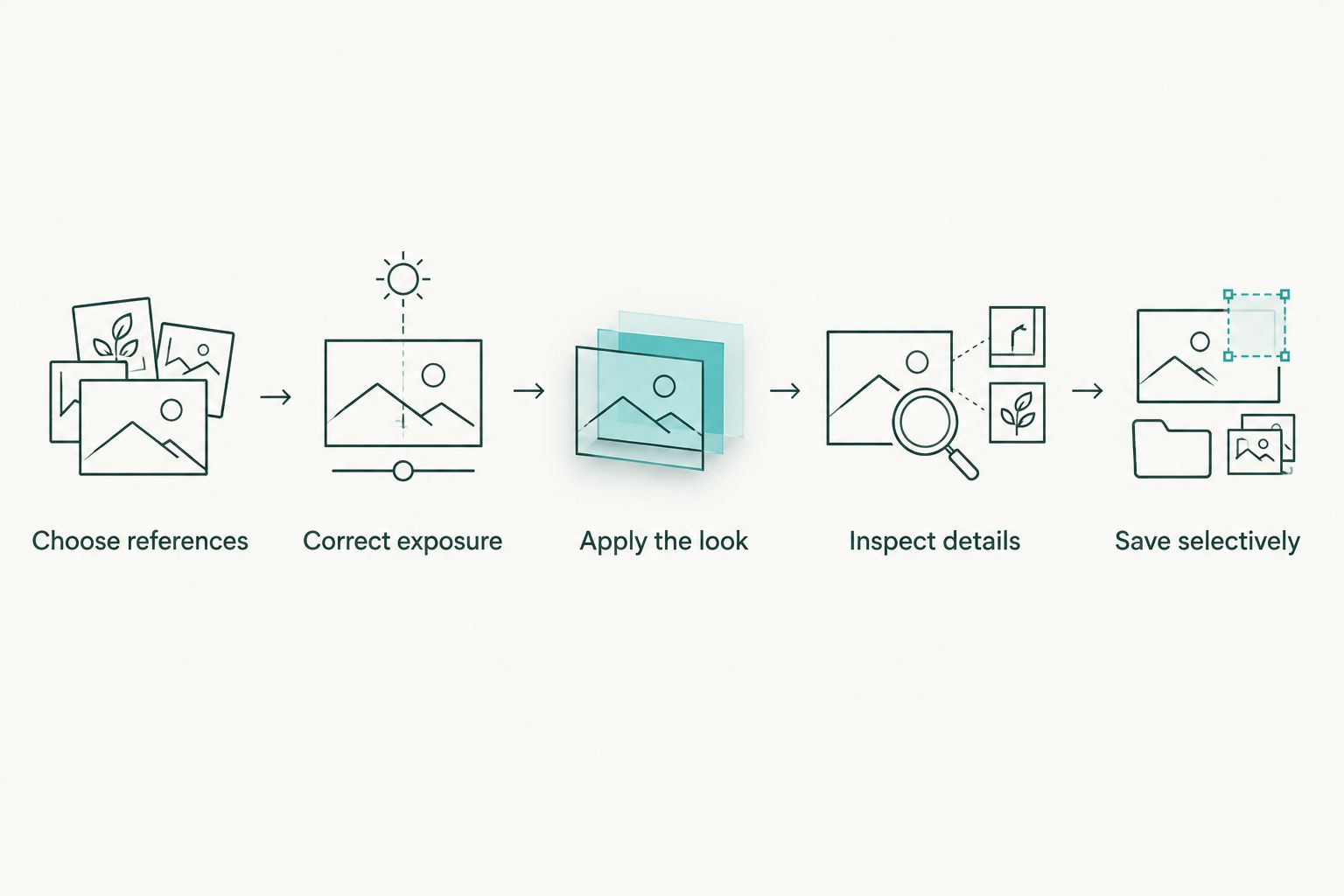
Correct the starting image before deciding whether the preset works.
As a controlled exercise, compare a photograph before and after a +0.20 EV exposure adjustment. Notice how that changes your judgement of contrast and colour; the preset is not always the reason an image looks wrong.
Save a new version when you revise a recipe. Keep the previous version until you have compared the result across the assignment, not just the photograph currently on screen.
How these presets are ranked
The ranking prioritises skin colour, highlight detail, colour fidelity, repeatability and understandable settings. Clean Colour takes the default slot because its restrained approach leaves room for corrections; specialised looks follow according to their intended assignments.
This is a practical recipe guide for 2026, not a benchmark of downloadable packs. The recipes give you editing directions without inventing pack names, download conditions or compatibility claims.
Keep preset editing separate from culling and delivery
A preset belongs to editing. It does not decide which near-duplicate expression to keep, approve an album selection or deliver the finished photographs.
Fotoowl's AI Culling is an offline desktop application that groups similar photographs and ranks frames, followed by a human review before export to Lightroom or the gallery. Fotoowl's AI Gallery handles client delivery with face recognition; it is not a Lightroom preset pack.
For the handoff between those tasks, follow the AI Culling to Lightroom workflow. Keep the final visual check after editing, before delivery.
Which Lightroom preset should you choose?
Choose Clean Colour if you are undecided. Build one dependable default, then add Warm Portrait or Stage Monochrome only when the assignment calls for that treatment.
For a studio standard in 2026, document what each recipe changes and where editors should avoid it. A shared preset name means little if every editor applies it to different starting conditions.
FAQ
What's the best free Lightroom preset for wedding photographers?
Clean Colour is the default DIY recommendation in this guide for wedding photographers who want restrained colour. Save reusable tone and colour adjustments, then correct exposure and white balance for each lighting group.
Where can I download the seven presets in this article?
These seven presets are DIY recipes, not downloadable packs. Build each look in Lightroom and save your chosen adjustments as a preset.
Can one Lightroom preset work for an entire Indian wedding?
One preset is not a substitute for correcting different lighting conditions across an Indian wedding. Use a consistent base look, then review ceremony, outdoor and reception photographs separately.
Should I include exposure and white balance in a preset?
Leave exposure and white balance out of a general-purpose style preset. Include them only when you deliberately want those exact corrections repeated across a suitably matched set.
Will a Lightroom preset fix blurred or overexposed photographs?
A preset cannot restore genuinely missing highlight detail or correct missed focus. Inspect the original file before deciding whether tonal adjustments will improve it.
Are these Lightroom recipes suitable for mobile editing?
Use a recipe on mobile only where your Lightroom version provides the required controls. The editing principles transfer, but importing and saving procedures depend on the application.
Does Fotoowl replace Lightroom presets?
Fotoowl does not replace Lightroom presets in this workflow. AI Culling supports selection before editing, while AI Gallery supports delivery after you finish the photographs.
One last thing
Judge the preset on the least flattering photograph you still need to deliver. A recipe that only works on your best-lit portrait is a creative effect, not a dependable batch-editing default.
Keep an unedited reference beside the finished version. If the look changes the person, clothing or event colours in ways the brief does not support, revise the preset before repeating it.