
How to install Lightroom presets on desktop and mobile

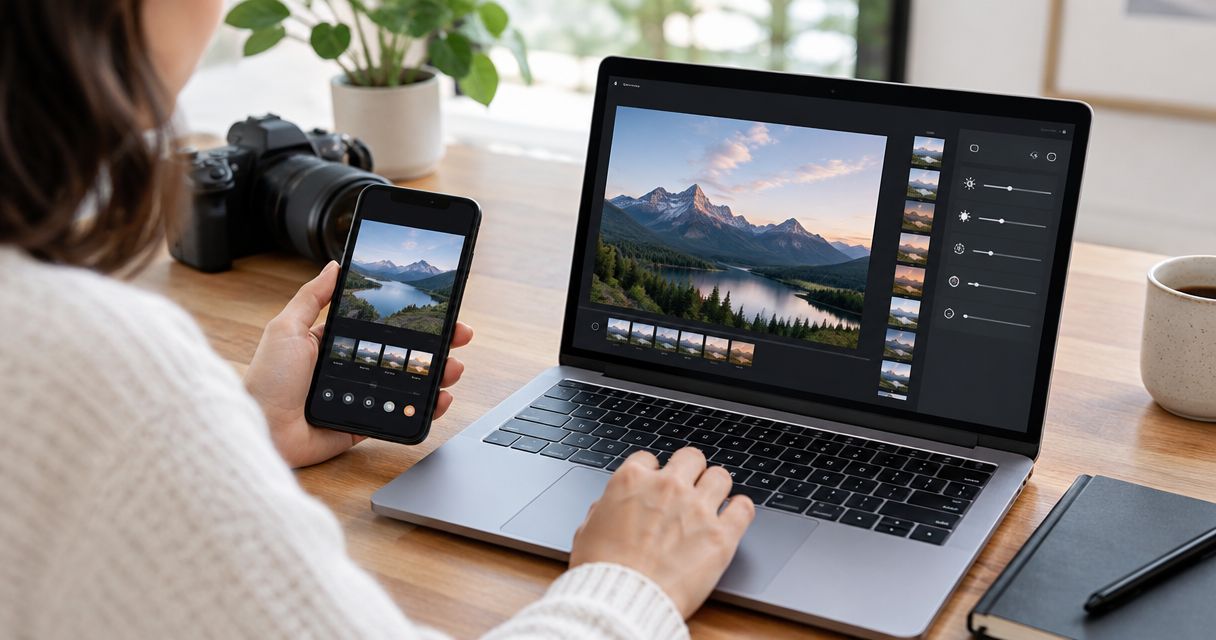
To install Lightroom presets, import the preset files through Lightroom Classic’s Develop panel, Lightroom desktop’s File menu, or Lightroom mobile’s Presets menu; for DNG presets, import the image and create a preset from its settings. Desktop-to-mobile preset syncing uses cloud-based Lightroom with the same Adobe account—not Lightroom Classic’s preset library.
TL;DR
- How to install Lightroom presets depends on your app and file: use XMP import or create a preset from DNG.
- Lightroom Classic presets do not automatically sync to Lightroom mobile.
- Import cloud-based Lightroom presets with the same Adobe account to sync supported settings across devices.
- Fotoowl serves event photographers after editing; install and apply Lightroom presets inside Adobe Lightroom.
Why this matters
Choose the instructions for your Lightroom app, not just your device. Lightroom Classic and cloud-based Lightroom both run on computers, but their preset libraries behave differently. A successful import into Classic does not mean the preset will appear on your phone.
For Indian wedding and event photographers, installation is only the starting point. A preset that suits daylight portraits still needs checking under mandap lighting, stage LEDs and reception spotlights. If you are reviewing your broader editing setup, compare the roles covered in this guide to photo editing tools for event photographers.
How to install Lightroom presets on desktop and mobile
Use this comparison to choose your route in 2026. Check the application name and the downloaded file extension before opening an import window.
| Application or method | Best for | Installation route | Main advantage | Main limitation |
|---|---|---|---|---|
| Lightroom Classic | Desktop catalogue-based editing | Develop, Presets, plus icon, Import Presets | Imports presets into your existing editing workspace | Its preset library does not automatically sync to mobile |
| Lightroom desktop | Editing across desktop and mobile | File, Import Profiles & Presets | Supported imported presets sync through your Adobe account | Sync requires the correct account and an internet connection |
| Lightroom mobile direct import | Installing supported files on your phone | Open a photo, Presets, menu, Import Presets | Avoids a desktop transfer | Available import controls and file handling differ by platform and release |
| Lightroom mobile DNG method | Preset packs supplied as edited DNG images | Import DNG, open image, Create Preset | Saves settings carried by the supplied image | Requires creating and naming presets from the example files |
The table separates installation from syncing. You can install a preset correctly on a computer and still need a different route to get it onto a phone.
How do you install presets in Lightroom Classic?
In Lightroom Classic, import editing presets from the Presets panel in Develop, not the photo-import window. These instructions apply to the desktop workflow in 2026 on Windows and macOS.
- Download the preset pack. Save the original download somewhere you can find again. If it includes instructions, check which files are intended for Lightroom.
- Inspect the contents. An XMP file is a common current preset format. A ZIP can contain presets, profiles, example images and documentation together.
- Open a photograph. Select an image in your catalogue and switch to Develop.
- Find the Presets panel. Look on the left side of the Develop workspace and select the plus icon beside Presets.
- Choose Import Presets. Select the supplied XMP files or a supported preset ZIP, then confirm the import.
- Locate the imported group. Expand the group in the Presets panel and apply a preset to your selected photograph.
Import the files; do not rename their extensions. Changing a DNG filename to XMP does not turn an image into an editing preset.
If a ZIP fails, extract it and inspect the folders. Import the actual preset files rather than a wrapper folder containing instructions or another archive. Keep supplied profiles with the pack, because a preset can depend on a profile for its intended appearance.
Older packs sometimes contain .lrtemplate files. Lightroom Classic supports conversion of legacy Develop presets, but an export template or another template type is not a Develop preset. Check the pack’s instructions rather than importing every file indiscriminately.
How do you install presets in Lightroom desktop?
In cloud-based Lightroom desktop, use File > Import Profiles & Presets. This is the desktop route to use when you want supported presets available through your Adobe account on mobile.
- Open Lightroom, checking that it is not Lightroom Classic.
- Choose File > Import Profiles & Presets.
- Select the supplied XMP files or supported preset ZIP.
- Open a photograph and enter the editing workspace.
- Open Presets and check your imported groups under the user preset area.
- Apply a preset and confirm that its adjustments appear on the image.
To check desktop-to-mobile syncing, sign in to the same Adobe account on both applications. Connect both devices to the internet, allow syncing to finish, then open a photograph and inspect Presets on your phone.
For a 2026 cross-device workflow, use Lightroom desktop as the sync source—not Classic. Repeatedly importing into Classic will not populate Lightroom mobile’s preset library.
Keep your original preset files backed up separately. An imported preset library is useful for editing, but the original download makes reinstalling or transferring the pack easier to manage.
How do you install presets in Lightroom mobile?
On Lightroom mobile, start by checking whether your preset pack contains XMP files or DNG images. Use direct preset import when your installed app exposes that option; use the DNG method for packs supplied as edited example images.
Import XMP presets directly
Open a photograph, enter Presets, and inspect the menu for Import Presets. Select the supported files from your device’s file picker, complete the import, and find the imported group in your user presets.
Android supports direct preset importing. On iPhone and iPad, check the controls available in your installed release; if the import option is absent, use Lightroom desktop syncing or a supplied DNG pack instead. Follow the visible controls rather than an outdated screenshot.
A downloaded file must be accessible through your phone’s file picker. If it remains inside an archive, extract the download when needed and select the actual preset files.
Create a preset from a DNG image
A DNG preset pack uses an edited image to carry settings. Importing the image alone does not add a named preset to your Presets panel.
- Import the DNG image. Add the supplied file to Lightroom’s photo library.
- Open the image. Confirm you are viewing the supplied example, not a screenshot of it.
- Choose Create Preset. Open the editing menu and select the preset-creation command.
- Name the preset. Use a recognisable name and place it in a dedicated group.
- Choose the settings. Save the intended look without automatically including image-specific exposure, cropping or masks.
- Save and test. Open another photograph, select the new preset and inspect the result.
Use the same process for the other DNG examples in the pack. Naming each preset as you create it prevents a library full of indistinguishable entries.
Why the installation method varies
Preset installation in 2026 varies because the app, file and account determine different parts of the process. Check these factors before reinstalling anything:
- Application: Lightroom Classic keeps its own preset library; cloud-based Lightroom provides the account-based route to mobile syncing.
- File format: XMP files are imported as presets, while supplied DNG images require creating presets from their editing settings.
- Archive contents: A ZIP can contain nested folders, documentation or unrelated files alongside the presets.
- Compatibility: Presets can depend on profiles, camera support, image type or editing features available in the receiving application.
- Account and connection: Desktop-to-mobile syncing requires the same Adobe account and a working connection.
Diagnose the file and application before blaming the download. An image file selected in a preset-import window is a workflow mismatch, not proof that the pack is broken.
What should you do if imported presets do not appear?
Start with the preset group list. Imported presets can appear under their creator’s group name rather than under the download’s filename. Expand the groups and check preset visibility or management controls.
Next, open a different photograph. Some presets are only fully compatible with particular image types or depend on a profile that is unavailable for the current image. Check any compatibility warning before importing the same pack again.
Use this troubleshooting order:
- Check the app: Confirm whether you imported into Classic, Lightroom desktop or mobile.
- Check the file: Confirm you selected a preset rather than documentation, a preview JPEG or an unopened nested archive.
- Check the group: Look through imported and user preset groups, including hidden groups.
- Check dependencies: Review the supplier’s instructions for required profiles or supported image types.
- Check syncing: On mobile, verify the Adobe account and desktop sync status.
If the preset appears but the result looks wrong, installation has probably succeeded. Inspect white balance, exposure and profile settings before deleting the pack.
How should you test presets before editing an event?
Test a preset on 3 frames before applying it across a shoot: a daylight portrait, an indoor photograph and a difficult mixed-light image. These are test choices, not a performance benchmark. Check skin tones, highlight detail, shadows and strongly coloured clothing.
For an Indian wedding, inspect both faces and fabric. A treatment that flatters a portrait can still push a red outfit too far or lose detail in bright embroidery. Correct the photograph first, then judge whether the preset helps.
Use this review sequence for your 2026 editing workflow:
- Install presets: Confirm the imported group is visible.
- Test frames: Apply the look to representative lighting conditions.
- Adjust settings: Correct exposure, white balance and image-specific problems.
- Review exports: Inspect finished files before client delivery.
The sequence keeps installation checks separate from creative decisions. A preset appearing in the menu proves that it is installed; it does not prove that every resulting edit is ready for delivery.
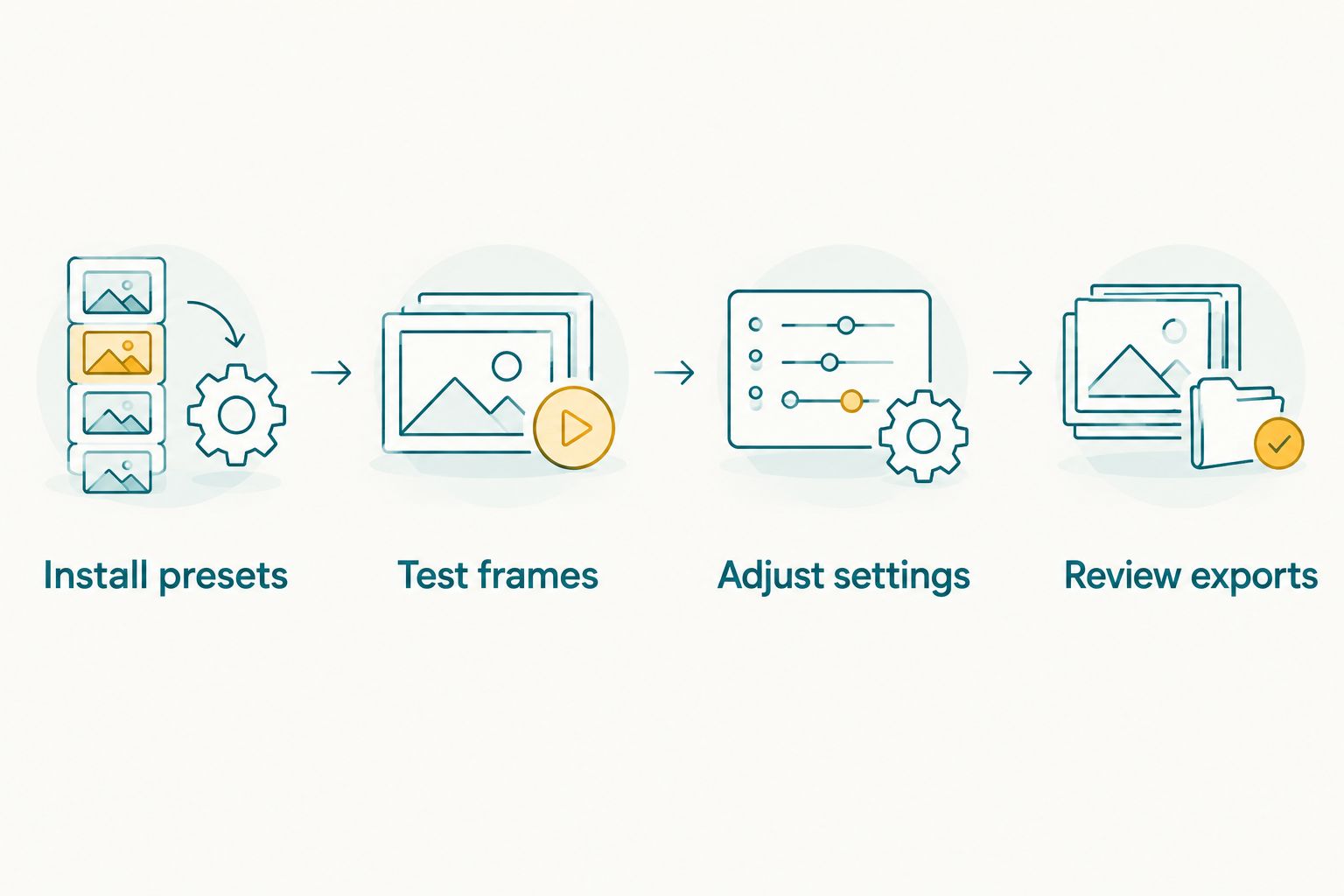
Confirm installation first, then judge the edit on representative photographs.
When copying settings across a batch, inspect which adjustments you include. White balance, exposure, cropping and masks need different treatment depending on how consistently the photographs were captured. Do not transfer every setting simply because it is selected.
Where does preset editing fit before client delivery?
Preset installation belongs inside Lightroom; client delivery comes after editing and export. Keep those jobs separate so you can check finished photographs rather than distributing files immediately after a batch adjustment.
Fotoowl is suited to wedding and event photographers who need face-recognition galleries for edited photo delivery. Fotoowl’s AI Gallery handles that delivery stage; it is not a Lightroom preset installer or a substitute for checking colour and exposure.
The benefit is a defined hand-off from editing to delivery. The boundary is equally clear: your Lightroom preset settings still need review before you export. Use the guide to integrating Lightroom with an event photo gallery to plan that next stage.
FAQ
What's the easiest way to install Lightroom presets on desktop?
In Lightroom Classic, open Develop and use the Presets panel’s plus icon, then Import Presets. In cloud-based Lightroom desktop, choose File > Import Profiles & Presets.
Can I install Lightroom presets directly on my phone?
You can import supported preset files directly when Lightroom mobile shows Import Presets in its Presets menu. If that option is absent, use desktop syncing or create a preset from a supplied DNG image.
Why aren't my Lightroom Classic presets showing on mobile?
Lightroom Classic’s preset library does not automatically sync to Lightroom mobile. Import the supported presets into cloud-based Lightroom desktop and use the same Adobe account on your phone.
Do I import a DNG preset like an XMP file?
No. Import the supplied DNG as a photograph, open it and choose Create Preset to save its editing settings. An XMP preset uses the preset-import route instead.
Why does the same preset look different on another photograph?
A preset applies settings to the photograph you give it, so lighting, exposure, white balance and camera profiles affect the result. Test representative images and adjust them before copying settings across a batch.
Does installing a preset change my original photo file?
Applying a Lightroom editing preset changes the image’s editing instructions rather than overwriting the original image pixels. Export a finished image when you need a file with that appearance applied.
Can Fotoowl install Lightroom presets for my studio?
Install Lightroom presets inside Adobe Lightroom, not Fotoowl. Use your gallery workflow after editing and export, when the photographs are ready for client delivery.
One last thing
Leave exposure and white balance out of a reusable look unless you deliberately want them included. Those adjustments often belong to the photograph, not the style. Saving them indiscriminately can replace a correction you already made.
For your next 2026 event, save 1 preset containing only the intended look, then test it on your representative frames. A shorter settings list gives you clearer control over what changes when you apply it.