
How to connect Razorpay to your gallery for photographer payouts


Instead of matching payment screenshots to photo orders by hand, connect your gallery’s supported Razorpay checkout to verified payment records and bank-settlement tracking. For Razorpay photographer payouts, first confirm the gallery supports Razorpay: collecting a customer payment and receiving the money in your bank are separate stages.
TL;DR
- Razorpay photographer payouts require separate checks for checkout, payment capture, and bank settlement.
- Fotoowl serves professional event photographers with AI galleries and photo selling; confirm Razorpay compatibility before configuration.
- Release purchased photos only after server-side payment verification, not a browser success screen.
- Test payment failures and duplicate notifications before opening an event gallery to buyers.
Why this matters
A parent purchasing school photographs, a runner buying race images, and a wedding guest ordering photos all need the correct purchase connected to the correct files. Your studio needs the same connection when reconciling payments. A screenshot does not establish that a payment was captured or settled.
Fotoowl is best for professional wedding and event photographers who need AI galleries and photo selling. Treat gallery delivery and payment processing as separate responsibilities until the connection between them is verified. For the buyer-facing ordering process, start with online ordering for school picture-day photos.
For your 2026 setup, define success as a traceable journey: gallery order, verified payment, purchased-photo delivery, and bank settlement. Do not call the workflow complete at checkout.
Before you start
- Gather the right access. You need gallery administrator access, a Razorpay account with the required activation steps completed for live collection, and access to the studio’s settlement bank records. Assign an owner for payment questions.
- Confirm the connection method. Ask your gallery provider whether Razorpay is supported, who owns the merchant account, and how payment status reaches the gallery. A custom integration requires a developer and a backend that keeps credentials private.
- Check the non-obvious gotcha. A successful checkout is not a bank payout. Test and live environments are also separate: test credentials and simulated payments do not establish that live settlement works.
Do not generate credentials before establishing which account receives the money. If a platform collects payments on your behalf, its settlement arrangement matters; your own Razorpay credentials are not automatically the correct connection method.
Choose the correct money flow
“Payout” can describe different operations. For a photographer selling photographs directly, the usual requirement is to collect customer payments and reconcile settlements to the studio’s bank account. Paying freelance photographers is a separate outgoing-payment workflow.
| Money flow | Best for | Main benefit | Limitation |
|---|---|---|---|
| Customer payment collection | Studios selling photos through a supported gallery checkout | Connects a buyer’s payment to a purchase | Requires verified payment status before fulfilment |
| Bank settlement | Studios reconciling collected payments | Connects payment collections to bank credits | Checkout completion does not prove settlement |
| Outgoing photographer payments | Studios paying assistants or freelance photographers | Separates team payments from customer purchases | Needs its own approvals and payment records |
Use the customer-payment workflow below for photo purchases. Do not substitute an outgoing-payment API for gallery checkout, and do not assume customer payments automatically split between photographers.
Merchant account and connection
This guide describes the configuration decisions, not an assumed Fotoowl dashboard menu. Use the connection instructions supplied for your gallery and the current Razorpay documentation; do not paste credentials into a field merely because it accepts text.
- Identify the merchant. Record whether your studio or the gallery platform collects the customer’s payment. Confirm the destination bank account through the responsible merchant account.
- Complete account requirements. Resolve the activation, identity, business, and bank-verification requirements shown for your Razorpay account before enabling live collection.
- Choose the supported route. For a native connection, follow the gallery provider’s documented authorisation process. For a custom connection, have your developer implement the checkout and backend verification rather than adding a payment button alone.
- Separate testing from production. Use test credentials for the test implementation and live credentials for production. Keep the API secret on the backend, outside gallery descriptions, public scripts, and shared documents.
- Document ownership. Record who can change credentials, inspect payments, issue authorised refunds, and investigate settlement discrepancies.
Expected result: You know who collects the money, which account receives settlements, and which supported integration connects checkout to the gallery. No customer-facing payment flow depends on an exposed secret.
For a 2026 studio handover, record these responsibilities alongside your gallery-access permissions. A photographer uploading images does not automatically need permission to change payment credentials.
Gallery orders and payment verification
A gallery order must identify what the buyer purchased before payment begins. The payment record then needs a reliable connection back to that order; matching only by customer name creates ambiguity.
- Define the purchase. Record the event, selected photographs, buyer contact details, and deliverables in your order system. Preserve stable image references so later uploads do not change the purchase.
- Create the payment order server-side. In a custom Razorpay checkout integration, create the Razorpay order from your backend and associate its identifier with your gallery order. Calculate the payable total on the server, not from editable browser values.
- Open the supported checkout. Pass the required order information using the documented integration. Do not replace the gallery’s purchase reference with a free-text note that staff must interpret later.
- Verify the checkout response. Validate the Razorpay checkout signature on your backend. Check that the payment belongs to the expected order and matches the expected transaction details.
- Confirm the fulfilment condition. Use the verified captured-payment state before releasing paid deliverables. Authorisation alone is not the same as capture.
Expected result: Each purchase connects to a gallery order and its payment identifiers. Your system can distinguish an unpaid order from a verified captured payment without asking the buyer for a screenshot.
Fotoowl’s gallery and photo-selling capabilities serve the photography side of this process. Confirm the payment connection separately; photo selling alone does not establish a native Razorpay integration.
Payment notifications and photo delivery
The buyer’s browser is not a dependable delivery trigger. A buyer can close the tab after paying, lose connectivity, or return to the gallery before the payment notification reaches your server.
- Configure the notification endpoint. For a custom implementation, provide a backend webhook endpoint through Razorpay’s documented webhook setup. Choose the payment events your implementation actually handles, including captured payments where applicable.
- Validate every notification. Verify the webhook signature against the raw request body using the configured webhook secret. Treat the API secret and webhook secret as separate credentials.
- Prevent repeated fulfilment. Record processed event identifiers and enforce a paid-state check on the gallery order. A repeated notification must not create another delivery or another purchase record.
- Deliver the purchased files. Connect confirmed payment to the exact deliverable recorded at checkout. Keep order confirmation separate from access to unrelated event photographs.
- Add a recovery check. Provide a backend reconciliation process for orders whose payment status remains unresolved. Query the payment provider rather than asking customers to pay again immediately.
Expected result: A verified payment can update the order even when the buyer never returns to the gallery. Repeated notifications leave the order in the same correct state.
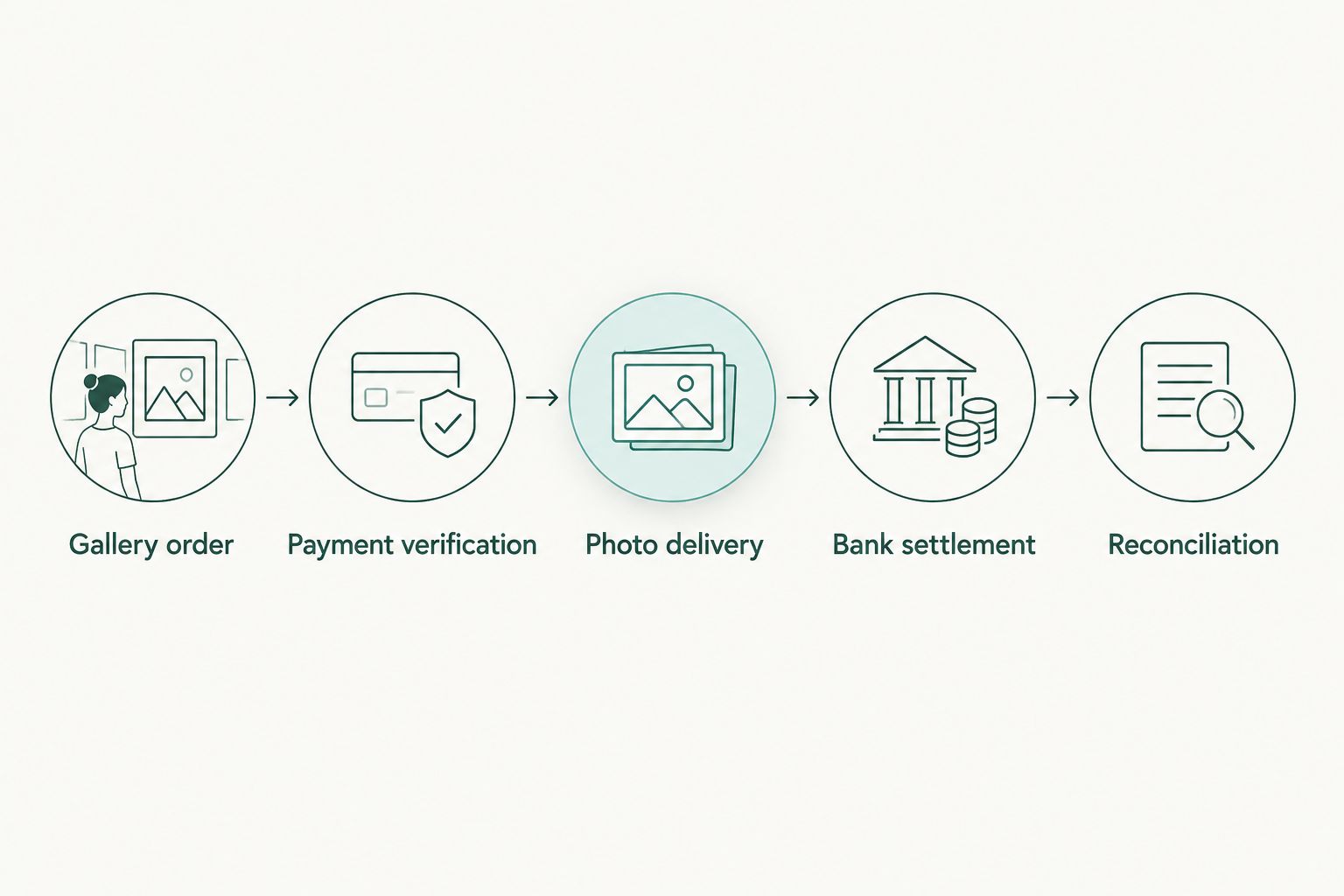
Photo delivery follows verified payment; bank settlement is checked separately.
Bank settlement and launch checks
Bank settlement completes the financial trail, not the photo-delivery trigger. In your 2026 reconciliation records, keep the gallery order reference, Razorpay order and payment identifiers, settlement reference, and bank-credit details connected.
- Run 3 test scenarios. Check successful payment, failed or abandoned payment, and a repeated payment notification. Confirm that only verified successful purchases receive their deliverables.
- Test interrupted browsing. Close the buyer’s browser after the simulated payment and check that backend verification still resolves the order correctly.
- Review live configuration. Confirm the production credentials, notification endpoint, merchant account, and bank details before accepting customer purchases.
- Trace 1 authorised live order. Follow a genuine purchase from gallery checkout through payment capture and delivery. Then reconcile its settlement using the merchant’s actual records.
- Check 2 financial records. Compare the settlement record with the bank credit. Investigate adjustments using the relevant payment and settlement details rather than assuming the credit must equal an individual order.
Expected result: You can explain both whether the customer received the purchased photographs and whether the corresponding collection entered the studio’s bank-settlement records. Do not promise a settlement deadline without checking the account’s applicable schedule.
Second workflow: deliver after a delayed payment update
Some orders remain unresolved when the buyer leaves checkout. Build a recovery workflow that updates the purchase when a verified payment notification arrives, rather than treating the missing browser return as a failed sale.
- Keep the gallery order pending while its payment outcome is unresolved.
- On a verified notification, retrieve the associated order and check the current payment state.
- Confirm that the event and purchased-photo references still match the original purchase.
- Fulfil the purchase only if the captured-payment condition is satisfied and fulfilment has not already happened.
- Record the change so support staff can explain when and why access was granted.
Best for: studios handling purchases during events where buyers move between venue Wi-Fi and mobile data. The benefit is recovery without manual screenshot matching; the limitation is that unresolved payments still need reconciliation and an exception owner.
Do not silently add newly uploaded images to an existing purchase. Whether a purchase covers selected files or a broader collection must follow the deliverable agreed at checkout.
Troubleshooting
Payment succeeded, but the photographs remain locked
Find the gallery order and associated Razorpay payment. Check capture status, signature verification, notification delivery, and the fulfilment record in that order. Repair the missing transition without creating another charge.
Checkout works in testing but fails for customers
Check production account activation and credential selection. Confirm that the production backend uses the matching environment throughout; a working simulated purchase does not verify live collection.
A notification creates duplicate delivery messages
Make notification processing idempotent: processing the same event again must not repeat its effects. Store processed event identifiers and make fulfilment conditional on the order not already being fulfilled.
A paid order has no matching bank credit
Inspect the merchant’s settlement records and applicable schedule. Check account-verification issues, settlement status, and adjustments before classifying the payment as missing. A captured payment and a completed bank settlement are different records.
The wrong buyer receives access
Audit the association between gallery order, payment order, and recipient. Use stable identifiers rather than names or phone numbers alone, suspend the incorrect access, and correct the mapping before restarting delivery.
Customize your workflow
Once payment verification works, adapt ordering to your photography business. A school purchase needs a clear student-photo association; a sports purchase needs the correct athlete and event; a corporate order needs the agreed buyer and deliverables.
For a 2026 rollout, start with one controlled event before expanding the setup across your studio. Fotoowl’s AI gallery workflow supports event-photo organisation and delivery, but payment verification, purchase permissions, and reconciliation still need explicit ownership.
Keep customer purchases separate from freelancer payments. Even when the same studio manages both, a customer’s purchase reference is not a substitute for an approved photographer invoice or team-payment record.
FAQ
How do I connect Razorpay to my photography gallery?
Confirm that your gallery supports Razorpay, then use its documented connection process or a developer-built checkout integration. Verify payment status on the backend before releasing purchased photographs.
Does Fotoowl have a native Razorpay connection?
Confirm native Razorpay support with Fotoowl before configuring payment credentials. Its gallery and photo-selling capabilities do not by themselves establish a particular payment integration.
Are Razorpay photographer payouts the same as settlements?
Customer-payment settlement and outgoing photographer payments are different workflows. For gallery sales, track the customer payment through capture and bank settlement; handle freelancer payments separately.
Should I release photos when checkout shows success?
Release paid photographs only after backend verification confirms the required captured-payment state. A browser success screen or payment screenshot is not sufficient verification.
Why has a successful photo payment not reached my bank?
Payment success does not establish that bank settlement is complete. Check the merchant account’s settlement record, applicable schedule, verification requirements, and any adjustments.
Can photographers share Razorpay API secrets with their team?
Keep Razorpay API secrets restricted to the backend and authorised administrators. Uploading or editing gallery photographs does not require access to payment credentials.
What should I test before opening gallery sales in 2026?
Test successful payment, failed or abandoned payment, and repeated notifications before launch. Also check interrupted browsing, correct photo delivery, and reconciliation of an authorised live purchase.
One last thing
A delivered photograph and a settled payment prove different things. Keep separate records for fulfilment and settlement so your studio can answer both customer-support and accounting questions without reconstructing the purchase from chat messages.