
Google Calendar to shoot-day reminders: complete 2026 workflow

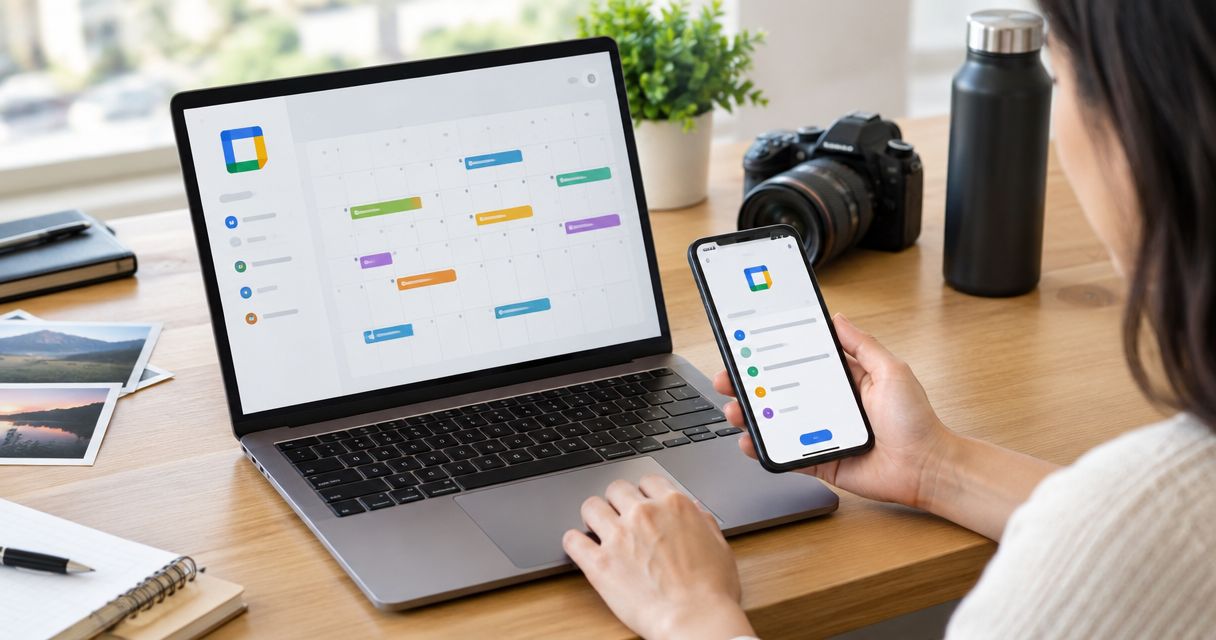
Instead of manually checking booking chats before every shoot, set up Google Calendar shoot reminders on timed events so your phone alerts you before preparation and departure. This 2026 workflow uses native calendar notifications, with separate checks for team invitations, changed schedules and photo-delivery tasks.
TL;DR
- Use Google Calendar shoot reminders for timed preparation alerts; test notifications on the phone you take to shoots.
- Set separate events for crew arrival and ceremony coverage when those times differ.
- Google Calendar notifications are personal settings, not guaranteed reminders for every invited photographer.
- Fotoowl supports event photo delivery; this workflow does not require a Google Calendar integration.
Why this matters
A booking confirmation is not a shoot-day instruction. Your photographer needs the reporting time, venue entrance, coordinator contact and coverage brief without searching through a long conversation.
Use Google Calendar for time-based alerts, not as proof that your crew has read the brief. A saved event establishes the schedule; an acknowledged assignment establishes responsibility. Keep those checks separate.
For multi-function bookings, organise the calendar around individual assignments rather than one wedding-wide block. Apply the same naming approach when organising photos for multi-function Indian weddings, so the schedule and delivered folders describe the same functions.
The scope here is deliberate: Google Calendar handles your shoot reminders. Fotoowl is best for professional wedding and event photographers who need AI-powered galleries and client photo delivery. The calendar setup below does not depend on a connection between the platforms.
Before you start
- Access: Use a Google account that can create and edit events on your studio calendar. Sign into that account in the Google Calendar mobile app on your shoot-day phone.
- Materials: Collect the confirmed reporting time, coverage window, venue address, coordinator contact and assigned photographer. Check your device notification permissions before creating live bookings.
- The gotcha: Event notifications are personal. Inviting a second shooter does not establish that photographer's reminder settings; each team member must configure and test their own alerts.
The desktop instructions below use Google Calendar's English interface. Set up events in a browser, then verify delivery on your phone. Do not treat a desktop notification as a successful mobile test.
Studio calendar configuration
Keep confirmed shoots on a dedicated calendar. This makes bookings easier to distinguish from personal appointments and gives you one place to maintain default event notifications.
Create the calendar and check the time zone
- Open Google Calendar on your computer. Beside Other calendars, select +, then Create new calendar.
- Enter a clear Name, such as Confirmed Shoots. Add a description explaining that the calendar contains confirmed crew assignments, then select Create calendar.
- Open Settings. Under General, open Time zone and check Primary time zone. For India-based assignments, use the India time zone unless the booking requires another location's local time.
- Under Settings for my calendars, select your new calendar and open Event notifications. Select Add notification to establish a default reminder for new timed events.
Expected result: Your dedicated shoot calendar appears in the calendar list, and its settings show the intended time zone and default notification.
For your 2026 season, decide who owns schedule changes before sharing the calendar. One designated scheduler should confirm the booking details; photographers should know whom to contact when a venue or reporting time changes.
For destination assignments, record the venue's local reporting time explicitly in the brief. A time-zone conversion can display correctly while the written instructions still describe the wrong local hour. Check both before confirming the assignment.
Shoot event configuration
Anchor reminders to the time the photographer must act, not simply the time the client's programme begins. If coverage starts after setup, the crew reporting time deserves its own event.
Add the confirmed assignment
- Select Create, then Event. Open More options to enter the complete assignment.
- Use a descriptive title. For example:
12 December 2026 | Mehta wedding | Crew arrival. This is an example naming format, not a booking record. - Choose Confirmed Shoots in the calendar selector. Enter the date and timed start and end. Leave All day off for a reporting-time reminder.
- In Location, enter the venue address. Include the entrance or meeting point in Description when it differs from the main address.
- In Description, add the assigned role, coordinator contact, preparation tasks and coverage brief. Keep sensitive client information out of calendars shared beyond the assigned team.
- Under Add guests, enter the assigned photographers' email addresses. Select Save, then Send when Google Calendar asks whether to send invitations.
Expected result: The assignment appears at the correct time on the correct calendar, with the venue, brief and invited photographers visible when you reopen it.
Use this description template for confirmed assignments:
- Reporting point: venue entrance and meeting location.
- Assignment owner: photographer responsible for this coverage.
- Coordinator: name and agreed contact details.
- Preparation: equipment and brief checks needed before departure.
- Coverage: function, start time and agreed scope.
- Delivery: person responsible for the next handoff.
For an Indian wedding with a haldi, sangeet and wedding ceremony, create separate events when reporting times, venues or crews differ. One long event cannot explain those changes clearly. Avoid copying the same invitation into multiple calendars unless each copy has a defined purpose.
Reminder timing configuration
Choose reminders around actual actions. A preparation alert should arrive while you can still charge equipment or clarify the brief; a departure alert should reflect your planned journey.
Add action-based notifications
- Open the assignment and select Edit event. Review any notification inherited from the calendar default before adding another.
- Select Add notification. Choose Notification and set an interval that matches your preparation task. For example, use 1 day before the reporting time for a kit-and-brief check.
- Select Add notification again if a second action needs an alert. For example, use 2 hours before reporting for a departure check, but only if that fits your route and setup plan.
- Remove redundant notification entries, then select Save. Reopen the event to confirm the intervals remain attached to the intended assignment.
Expected result: The event shows distinct notification intervals, with each interval tied to a specific action you understand.
These are suggested settings, not measured travel allowances. A 2-hour alert is wrong if your destination assignment requires leaving the previous evening. Build the reminder around the booking rather than forcing every booking into one template.
For your 2026 reminder standard, use a simple sequence: Preparation, Departure, Crew arrival, Coverage. Only the first two are notification actions; the latter two describe the operational milestones those alerts support.
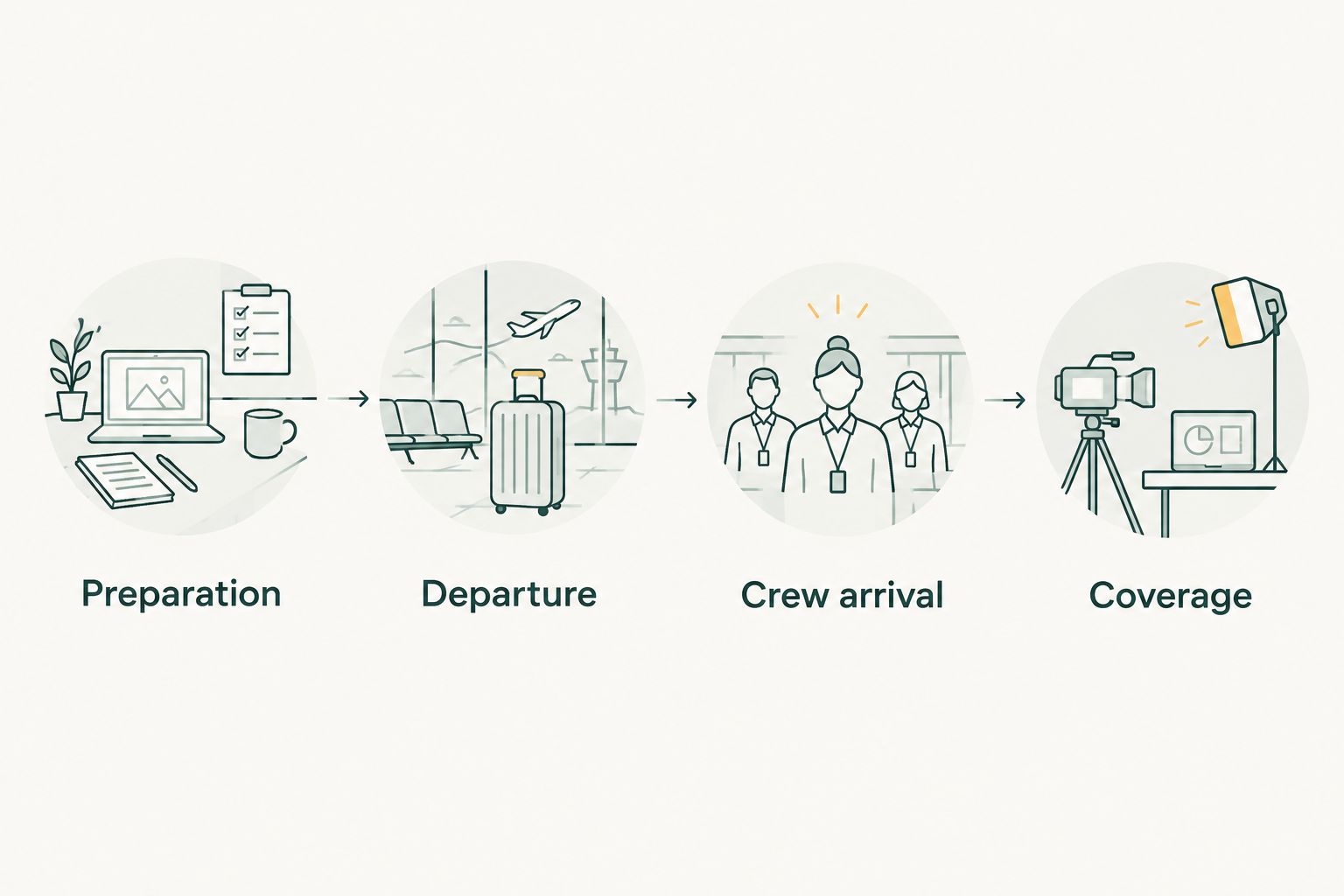
Set alerts before the action they support, rather than only before coverage begins.
Phone notification verification
A correctly configured calendar event still needs a working notification path on your device. Test the account, calendar and phone together before relying on them at a venue.
Test the complete reminder path
- Create a disposable timed event on Confirmed Shoots, starting 15 minutes from now. Give it a Notification set to 10 minutes before the start, then select Save.
- Open Google Calendar on your phone. Confirm that you are using the same account and that Confirmed Shoots is selected for display.
- Check your phone's system settings and allow Google Calendar notifications. Check whether Do Not Disturb or Focus settings silence the alerts you expect to receive.
- Lock the phone and wait for the test notification. Open the notification and confirm that it leads to the intended event.
- Ask each assigned photographer to run the same test on their own device. Delete the disposable event once verification is complete.
Expected result: The correct phone displays the test alert before the event, and the photographer can open the assignment from it.
An invitation response is not a notification test. A photographer can accept an event while using settings that silence its alerts. Repeat the test after changing phones, switching Google accounts or substantially changing notification settings during 2026.
Variant: reminders after a shoot is rescheduled
Edit the existing event when a confirmed assignment changes. Creating a replacement without removing the original leaves conflicting instructions in circulation.
- Open the original assignment and select Edit event. Change the date, time, Location and relevant details in Description.
- Review the notification intervals against the new reporting time. A reminder that suited an afternoon assignment can become impractical after a move to early morning.
- Select Save, then Send when prompted to send updated invitations to guests.
- Ask the assigned photographers to open the revised event and acknowledge the new reporting details. Use a direct message or call for urgent changes rather than relying only on calendar delivery.
Expected result: The original assignment displays the revised details, and the responsible crew confirms the change.
Google Calendar notifications are scheduled alerts, not an acknowledgement system. Sending an event update does not establish that every photographer has read it.
For a recurring school or academy assignment, use the event's Does not repeat control to choose an appropriate recurrence. When one session changes, select the edit scope carefully so you do not move unrelated sessions. Do not use recurrence for separate wedding functions merely because they share a client.
Choose the right workflow for each job
Google Calendar and Fotoowl AI Gallery serve different stages of an event photography job. Use the distinction below to avoid assigning a delivery task to a reminder tool, or assuming a gallery manages your phone alerts.
| Tool or workflow | Best for | Practical advantage | Limitation |
|---|---|---|---|
| Google Calendar timed events | Crew reporting and preparation reminders | Notifications sit beside a dated assignment and brief | Each photographer must verify personal notification settings |
| Google Calendar recurring events | Repeated sessions with a stable schedule | Related sessions follow a recurrence pattern | Editing the wrong scope changes unrelated sessions |
| Fotoowl AI Gallery | Client photo delivery after coverage | Supports photo and video delivery with face recognition galleries | This guide establishes no automatic calendar-to-gallery handoff |
Use timed Google Calendar events as the default for confirmed shoots. Choose recurrence only when the assignment genuinely repeats. Keep gallery preparation and delivery ownership explicit rather than assuming a saved booking creates a gallery.
Troubleshooting
The event appears, but the phone stays silent
Check that the event contains a Notification, not only an email reminder. Then inspect the phone's notification permissions, Do Not Disturb settings and the Google account used by the app. Repeat the disposable-event test after correcting the settings.
The second shooter receives no reminder
Confirm that the invitation went to the account the photographer actually uses. Ask the photographer to open the event, configure personal notifications and test them. Do not repeatedly add reminders to your own copy expecting that to fix someone else's device.
The alert arrives at an unexpected hour
Inspect the event's date, time zone and notification interval. Check whether All day was selected accidentally. Use a timed event for crew arrival, and confirm the local venue time when travel crosses time zones.
Two alerts point to conflicting assignments
Search for duplicate events and inspect which calendars contain them. Keep one authoritative assignment, remove obsolete copies and tell the crew which event remains current. If the event is recurring, review whether the duplicate affects one occurrence or the series.
Customize your workflow
Once shoot-day reminders work, add separate calendar events for the next accountable handoffs: backup review, editing handoff and gallery delivery. Give each event an owner and a real deadline rather than adding every task to the shoot description.
Keep the distinction visible in your 2026 studio process: a backup-review reminder asks someone to verify the files; it does not perform a backup. A delivery reminder asks someone to prepare and check the gallery; it does not upload photos.
For Fotoowl photo delivery, connect the calendar brief to your operational checklist through consistent event names and named owners. Keep the handoff manual unless you have separately verified an integration that performs the required action.
FAQ
How do I set up Google Calendar shoot reminders?
Create a timed shoot event, add notification intervals, save it and test the alert on your phone. Include the reporting time, venue and assigned photographer so the reminder opens a usable brief.
Will my second shooter get the same reminders as me?
Your notification settings do not establish your second shooter's reminders. Each photographer should configure personal notifications and test them on the device used during assignments.
Can Google Calendar send shoot reminders on WhatsApp?
This workflow uses Google Calendar notifications, not WhatsApp messages. WhatsApp reminders require a separately verified messaging workflow; saving a calendar event does not create one.
What reminder times should wedding photographers use?
Set reminders before preparation and departure, based on the actual assignment. A day-before preparation alert and a separate departure alert are useful starting points, but travel and setup determine the final intervals.
Do Google Calendar reminders change when I reschedule a shoot?
An edited event schedules its remaining notifications relative to the revised start time. Recheck the intervals, send the update and obtain crew acknowledgement; an alert whose trigger time has already passed is not a dependable change notice.
Should I use all-day events for wedding shoots?
Use timed events when you need reminders tied to crew reporting or coverage. An all-day event can mark the booking date, but it should not replace a precise assignment time.
Does this workflow automatically create a Fotoowl gallery?
No, this workflow does not create a gallery or establish a Google Calendar integration. Assign gallery preparation and delivery as separate tasks with a named owner.
One last thing
The client's ceremony time and your crew's reporting time are different instructions. Put the photographer's required arrival in the event that drives the reminder, then record the ceremony time in the brief or a separate coverage event. That small distinction makes the alert actionable.