
Google Drive to automatic photo backups: 2026 workflow

Instead of manually copying each event folder to Google Drive after a shoot, set up Drive for desktop to sync your finished photo folder and check that the files arrive. For a google drive photo gallery backup in 2026, keep the Drive copy separate from the Fotoowl gallery you use for client delivery: a synced folder protects access to files, while a gallery helps clients find photos.
TL;DR
- For a google drive photo gallery backup, sync a local event folder with Google Drive for desktop, then verify uploaded files.
- Google Drive stores the files; Fotoowl AI Gallery is better for photographers who need face-searchable client delivery.
- A synced deletion can affect the Drive copy. Keep a separate, recoverable backup before clearing cards or working folders.
- Check storage, account access and one completed upload before relying on the workflow for a 2026 event.
Why this matters
A wedding or corporate event can leave you with files on camera cards, an editing computer and a client gallery. Those locations serve different jobs. Your working folder holds files you edit; Google Drive gives you an off-site synced copy; your client gallery presents the photos you choose to deliver. For a closer look at those roles, see cloud storage for photographers.
Sync is not the same as a recoverable backup. If you delete or replace a file in a synced folder, that change can carry over to Drive. Before you format a card or remove a local folder, confirm the upload and retain another copy you can restore without depending on the synced folder. In 2026, that distinction matters more than whether an upload starts automatically.
Fotoowl is best for event photographers who need a client-facing gallery with face recognition; Google Drive is best used here as a file-copy destination. Fotoowl AI Gallery accepts photos and videos for delivery. Neither a gallery upload nor a Drive sync should be treated as proof that your original files are safely backed up until you check the copies.
Before you start
- Get the right accounts and access. Sign in to the Google account that will hold the files, install Google Drive for desktop on the computer holding your event folders, and confirm that you can open the destination account. If your studio shares a computer, check which Google account is signed in before you add a client folder.
- Choose a stable local folder. Put the files you intend to copy in a clearly named folder on a drive that stays connected while Drive uploads. Decide whether you are backing up originals, edited exports or both. A folder that only contains preview JPEGs does not protect the original captures.
- Check the storage limit and deletion risk first. A standard Google account includes 15 GB of storage shared across Google Drive, Gmail and Google Photos. Check the available space in your account before a large upload. More importantly, do not use a synced folder as your sole backup: changes to local files can affect the Drive copy.
The setup below uses Sync with Google Drive for a folder on your computer. It does not assume that Google Drive connects directly to Fotoowl. You will upload the photographs you want clients to see to your gallery separately.
Set up your event folder
- Create a folder for the job on the computer that holds your files. Use an event name and date that your team can identify without opening individual images. For a multi-function Indian wedding, keep events such as mehndi, sangeet and the ceremony in separate subfolders if that reflects how you edit and deliver them.
- Decide which stage to sync. Sync your ingest folder if you need an off-site copy while you work, or sync a finished-export folder if you only need copies of deliverables. To protect both originals and exports, include both folders in your backup plan and verify each one.
- Keep the folder in place during setup. Moving a folder after you configure it makes it harder to tell which location Drive is monitoring. If you work from a removable drive, connect it before launching Drive for desktop and leave it connected until the upload finishes.
Expected result: You have one identifiable local folder, with the intended files inside it, ready to select in Drive for desktop. You also know whether that folder contains originals, exports or both.
Configure Google Drive for desktop
- Open Google Drive for desktop and confirm the signed-in Google account. If it is the wrong account, correct that before adding a client folder; otherwise, you can send event files to a destination you did not intend to use.
- Open Settings, then Preferences. Under My Computer, select Add folder and choose the local event folder you prepared. Drive for desktop may show the folder's name as well as its location; check both before continuing.
- Choose Sync with Google Drive for that folder. This is the setting that syncs its files to Google Drive. Do not confuse it with Back up to Google Photos, which sends eligible media to a different destination and changes where you check the result.
- Select Done, then Save if those controls appear in your installed version. Leave Drive for desktop running and keep the computer connected to the internet while the initial upload progresses.
Expected result: Drive for desktop lists the event folder under My Computer, and its activity shows files being uploaded or synced. In Google Drive, look under Computers for the corresponding computer and folder. If you do not see the event there, check the signed-in account before changing the setup.
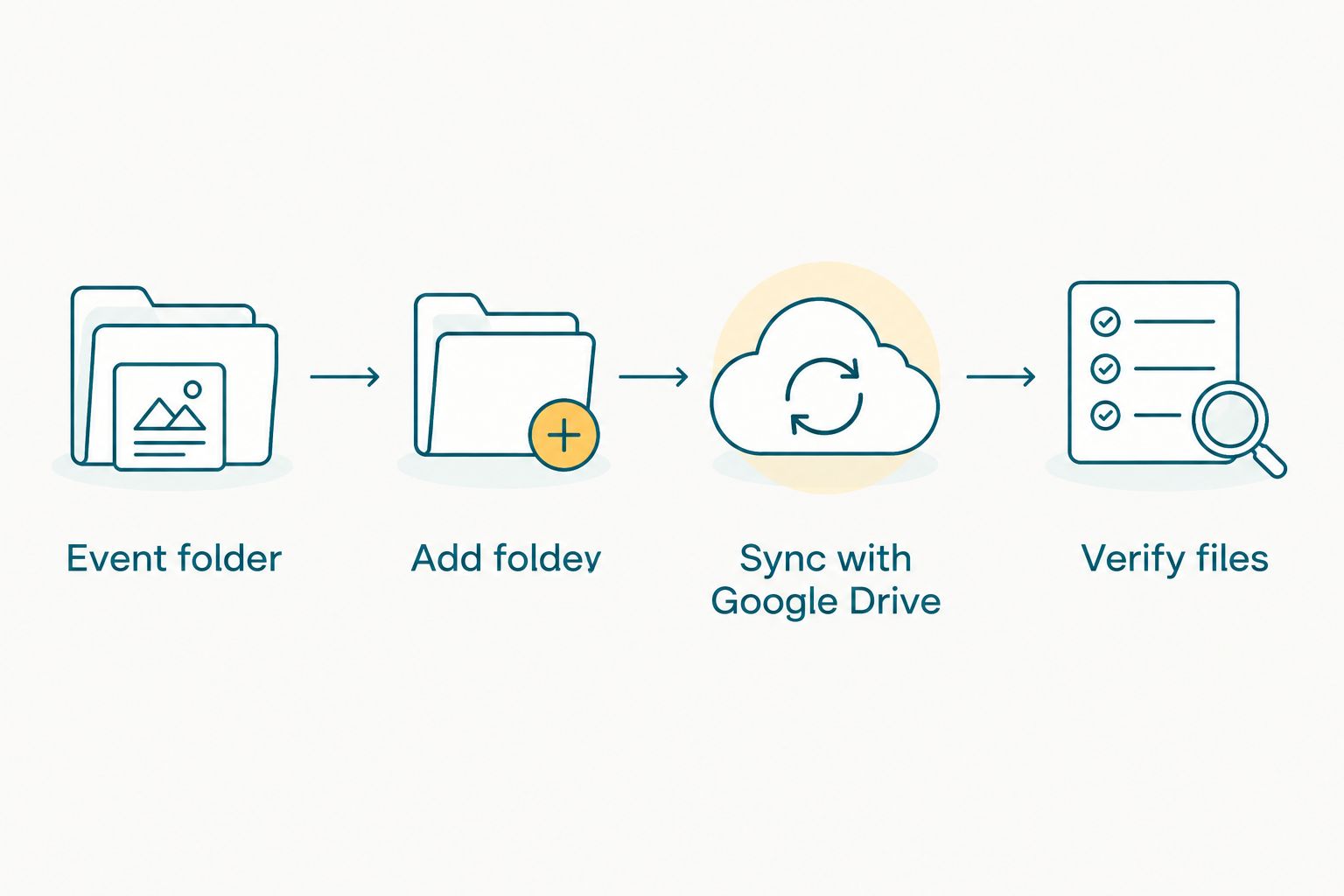
The workflow is not complete until you check the files in Drive.
Drive for desktop handles the transfer, but it cannot decide whether the correct files entered the folder. If your edit is still open or your export is incomplete, wait for the finished files before treating the upload as a deliverable copy. For 2026 shoots with several photographers, agree on the local folder structure before anyone starts moving cards or exports between computers.
Verify the Drive copy
- Open Google Drive in the destination account after Drive for desktop reports that syncing is complete. Go to Computers, open the computer's folder and locate the event folder by name.
- Compare the folder structure with your local copy. Check the subfolders that matter to the job, not only the first visible images. If you planned to back up originals and edited exports, confirm that both are represented.
- Open a file from Drive. Choose an image from the latest batch and confirm it opens. Repeat with an original file if originals are part of this workflow. A folder name on its own does not confirm that its contents uploaded.
- Keep a separate recoverable copy. Retain the camera cards or another independent backup until you have checked the Drive copy and your other backup. Do not delete the local event folder merely because its name appears online.
Expected result: You can find and open a file in Drive that was uploaded from the intended event folder, and you still have an independent copy. That is a checked transfer, not just a completed-looking sync icon.
For a studio handling multiple 2026 events, record who verified each job before cards are cleared. A simple job checklist is enough: identify the source folder, the Drive location, the files checked and the location of the separate copy. The point is to make the decision visible to the next person handling the files.
Use the Drive copy alongside client delivery
Once your selected photos are ready, upload the deliverables to Fotoowl for your client gallery. Fotoowl AI Gallery supports photo and video delivery with face recognition; Google Drive remains the file-copy destination in this workflow. No direct Google Drive-to-Fotoowl import or automatic cross-platform sync is established here, so plan these as separate actions.
| Option | Best for | Strength | Limitation |
|---|---|---|---|
| Google Drive folder sync | Keeping a synced off-site copy of an event folder | Copies files from the selected computer folder | Synced changes can affect the copy; it is not a client-gallery workflow |
| Fotoowl AI Gallery | Delivering event photos and videos to clients | Face recognition helps people find relevant gallery photos | A gallery upload does not replace a separate backup of original files |
Use Google Drive for file continuity and Fotoowl AI Gallery for presentation and retrieval. A wedding guest searching for their photos and an editor restoring an original file have different needs. Check each workflow against its own purpose rather than treating the gallery as the archive or Drive as the finished client experience.
Variant: sync finished exports instead of the ingest folder
If your current Drive folder contains every frame from the shoot, you can add a separate folder for finished exports. This is useful when your studio wants a clear copy of what was delivered without confusing it with working files. It does not remove the need to back up the originals.
- Create a finished-export folder outside the existing ingest folder. Keeping it separate helps you identify exactly which files belong to the delivered set.
- Export the approved photos into that folder using your normal editing workflow. Check the export before upload; syncing repeats the contents you supply, including an incomplete selection.
- In Google Drive for desktop, open Settings and Preferences. Under My Computer, use Add folder to select the finished-export folder and choose Sync with Google Drive. Select Done, then Save if prompted.
- Check the new folder under Computers in the destination Google Drive account. Open a recent export there and compare it with the file you intend to deliver.
Expected result: Drive holds identifiable copies of the finished exports, distinct from the originals or working folder. You can now upload that approved set to the client gallery without mistaking the Drive sync for an automatic gallery transfer. In 2026, use the same folder-naming rule across your studio so another editor can identify the approved set.
Troubleshooting
The folder does not appear in Drive
Check which Google account is open in your browser and which account Drive for desktop uses. Then return to Preferences and confirm the event folder appears under My Computer with Sync with Google Drive selected. Look under Computers in Drive, rather than assuming it will appear in the main My Drive folder.
The upload stops before the event is complete
Open Drive for desktop and check its activity for an error or paused sync. Confirm the computer is online, the source drive is connected and the Google account has available storage. Resume syncing after fixing the cause, then check the latest files in Drive; do not rely on the upload's start time as proof of completion.
Only exports appear, not original files
Check the local folder you selected with Add folder. If it contains only exports, Drive cannot copy originals from elsewhere on the computer. Add the original-file folder to your backup plan, keep an independent copy and verify representative originals after they upload.
Files disappear after a local cleanup
Stop treating the synced folder as an archive. Check whether the files are available through Google Drive's recovery controls, then restore from your independent backup if needed. For future events, verify and preserve the independent copy before deleting anything from a folder synced with Drive.
The client gallery is missing photos that exist in Drive
A successful Drive upload does not publish files to Fotoowl. Check the set you chose for gallery delivery and complete that upload separately. For a 2026 event, verify a sample of gallery photos from the client's perspective as well as checking the Drive copy from the studio's account.
Customize your workflow
Separate capture, editing, backup and delivery in your studio checklist. Capture and editing determine which files exist. Drive sync moves files from the chosen computer folder to the chosen Google account. An independent backup gives you another recovery route. Fotoowl presents the selected work to clients; its AI Gallery can help guests find photos through face recognition.
For a multi-day wedding, organise local folders by function before you configure sync, then maintain that structure in your working copies and client-delivery selection. For a sports tournament or school event, make the event name unmistakable when several jobs pass through the same editing computer. The folder labels do not automate verification, but they make a mistaken upload easier to spot.
Do not add every changing scratch folder to Drive for desktop. Choose folders whose purpose your team understands, and check the destination whenever you add or change one. If you need a broader backup policy for events rather than just this Google Drive setup, follow the automatic event-photo backup guide.
FAQ
How do I set up a google drive photo gallery backup in 2026?
Install Google Drive for desktop, add your local event folder under My Computer and select Sync with Google Drive. Verify a file under Computers in the destination account, and retain a separate recoverable backup.
Does Google Drive automatically back up photos from my camera?
No, this folder-sync workflow starts when photos reach the computer folder you selected. Moving files from the camera or card into that folder is a separate step.
Is syncing a photo folder to Google Drive enough to protect wedding originals?
No. Synced changes can affect the Drive copy, so retain an independent backup and check it before clearing cards or local folders.
Where do synced computer folders appear in Google Drive?
Look under Computers in the Google Drive account connected to Drive for desktop. Confirm the computer name and event folder before assuming an upload failed.
Does a Google Drive upload automatically create a Fotoowl gallery?
No direct Google Drive-to-Fotoowl import is established in this workflow. Upload the approved photos to Fotoowl separately, then check that the gallery contains the intended set.
Should I sync original files or finished exports?
Sync the files you need to preserve, and label originals and exports separately. A finished-export folder helps you identify deliverables, but it does not protect originals stored elsewhere.
What should I check before deleting photos from my editing computer?
Confirm that the intended files open from Google Drive and that you have a separate recoverable copy. A synced folder alone is not a safe basis for deleting the source.
One last thing
Test recovery before you need it. Pick an image from a completed 2026 job, locate it in Drive and confirm you can retrieve the separate backup too. If either check fails, fix the workflow before the next card is cleared.