
Dropbox to AI-powered client galleries: complete 2026 workflow


Instead of manually finding guest photos in Dropbox and sending separate batches, use a file-based Dropbox to client gallery workflow: download approved exports, upload them to an AI-powered gallery, and test the recipient experience before sharing. Keep Dropbox as your source during the handoff, rather than treating the gallery upload as an automatic sync.
TL;DR
- For a Dropbox to client gallery workflow, use a file-based handoff and verify the upload before sharing.
- Fotoowl AI Gallery suits wedding and event photographers who need face-recognition galleries for client delivery.
- Start with a recommended 20-photo pilot before transferring the full approved collection.
- Keep source files separate from delivery exports, and test recipient access before announcing the gallery.
Why this matters
A folder transfer and a client delivery solve different problems. The transfer moves files; delivery also requires you to check what recipients can see, how they find photographs, and whether the collection is ready for release.
Fotoowl AI Gallery is best for wedding and event photographers who need face-recognition galleries for client delivery. Use the gallery for the approved viewing experience, not as a reason to discard your working files or backups.
For an Indian wedding studio, the handoff can cover separate mehendi, sangeet and reception exports. For a corporate assignment, it can separate an approved attendee collection from images still awaiting client review. Start with Fotoowl as the destination platform, then apply the same release checks to every assignment.
Choose the role of each platform
Keep the responsibilities clear in your 2026 delivery process. Neither a storage folder nor a face-recognition gallery removes the need for a photographer's approval.
| Platform | Best for | Useful role in this workflow | Limitation to plan around |
|---|---|---|---|
| Dropbox | Holding and transferring source files | Supplies the files you download for the handoff | A source folder does not establish which images are approved for client release |
| AI Gallery | Wedding and event photographers delivering searchable collections | Presents uploaded photos and videos through face-recognition galleries | Uploading still requires checks for completeness, access and recipient experience |
Keep Dropbox responsible for the source handoff and the gallery responsible for client presentation. This distinction also makes corrections easier: your team knows where an edited file originated and where the released version belongs.
Before you start
- Accounts and access: Have permission to download the relevant Dropbox files and access to the destination gallery account. Assign a studio team member to approve the transfer and release.
- Materials: Prepare finished delivery exports, an event name, a recipient list and a written decision about who should see the collection. Keep working files outside the upload batch.
- The gotcha: A file visible in a synced folder is not proof that its full contents are downloaded locally. Open the actual files before uploading; also extract downloaded archives before selecting images.
Use a recommended 20-photo pilot before the full transfer. Include a portrait, a group photograph, a wide scene and photographs from different parts of the event. This is a suggested test batch, not a platform limit or an accuracy benchmark.
The guide below uses descriptive actions rather than assuming that either platform has a particular connector, import wizard or matching set of settings. Use only controls actually present in your account.
Source files: prepare the Dropbox handoff
Download the approved delivery set
- Open the event folder in Dropbox and identify the approved exports. Keep rejected photographs, working edits and client-private material outside this batch.
- Select the pilot files and use Download in Dropbox's web interface. If you use a local synced folder instead, open each selected file to confirm it is actually accessible on the computer.
- Extract the download if it arrives as an archive. Upload the extracted images, not the archive containing them.
- Create a local staging folder with a clear event and release name, such as
Sharma_Sangeet_2026_Approved. Treat this as a working naming example, not a required platform format. - Record the filenames in the pilot. Keep this transfer record outside the gallery so you can compare source files with uploaded photographs.
Expected result: You have a local, readable batch containing only approved photographs, with filenames you can reconcile after upload.
Do not rename files simply to make the gallery look tidier. Preserve the connection between the delivered image and your editing records. If different cameras produced identical filenames, resolve those collisions in staging and record the changes before transfer.
Check the files, not just the folder
Open representative photographs at full size. Confirm that they are the finished exports you intend clients to receive, rather than previews, screenshots or earlier edits.
Check mixed batches deliberately. A folder containing photographs and videos needs separate verification of both media types; a successful photograph upload does not establish that every video transferred correctly.
For a 2026 multi-function wedding, keep a written mapping between each source batch and its intended destination. Organisation should survive the transfer even if the destination does not reproduce your Dropbox folder structure.
Approved exports: configure the gallery handoff
Upload and reconcile the pilot
- Open the intended event gallery in Fotoowl AI Gallery, or create the destination through the controls available in your account.
- Upload the extracted pilot photographs from the staging folder. Do not assume that pasting a Dropbox sharing link transfers the underlying files.
- Allow the upload to finish before testing the collection. Keep the source batch unchanged while you check the result.
- Compare the uploaded photographs with your transfer record. Check both the total and the individual filenames wherever filenames are visible.
- Open representative images inside the destination. Verify orientation, visible content and whether the correct edited version appears.
Expected result: Every pilot photograph is accounted for and opens correctly in the intended gallery.
Use 3 stages in your studio's release record: Source files, Approved exports, and Client gallery. These are recommended workflow checkpoints, not software settings. A batch advances only after the responsible team member confirms the previous stage.
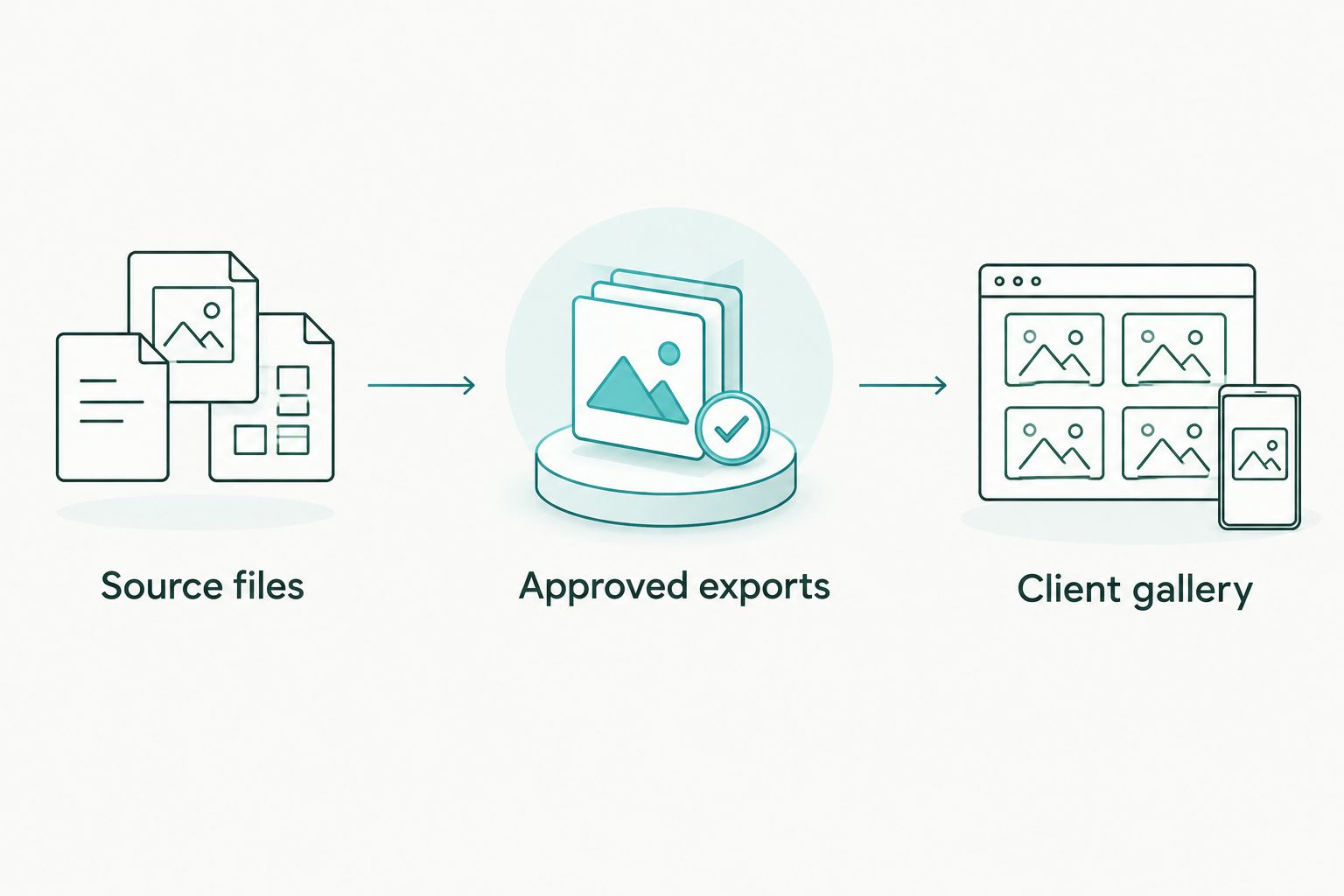
Approve the export batch before testing the client-facing gallery.
Keep a release record
Record the event name, source location, uploaded batch, reviewer and release status in your own studio document. This record does not require an integration or a new software subscription.
Avoid recording unnecessary guest information. The purpose is to trace the photographs and approval decision, not to create another database of attendees.
Approve the content before approving the link. A correctly functioning gallery can still contain the wrong export batch.
Client gallery: verify search and release
Test as a recipient
- Open the recipient-facing gallery link in a browser session that is not signed into your photographer account. Your own account is not a reliable access test.
- Check what is visible before taking any further action. Confirm that the experience matches the access decision agreed with your client.
- Test the face-recognition experience with a consenting participant whose photographs are in the pilot. Review the returned photographs rather than assuming every result is correct or complete.
- Check representative portraits and group photographs. Face visibility, angle and image quality affect recognition, so retain a way to investigate missing results.
- Test viewing on 2 devices: a phone and a computer. This is a recommended acceptance check, not a compatibility claim.
- Approve the pilot, upload the remaining approved batches, and repeat the completeness and recipient-access checks before release.
Expected result: The intended recipient can open the correct collection, use the available search experience, and view the approved photographs without photographer-account access.
For your 2026 release checklist, separate search testing from permission testing. Finding a person's face in a collection does not, by itself, establish who is authorised to view that collection.
Send a clear handoff message
Give the client the approved gallery link, the event name and a short explanation of what the collection contains. State whether it is an initial release or the completed delivery.
Do not distribute an unfinished gallery simply because the upload has started. For a wedding spanning several functions, tell recipients which functions are included so an absent reception batch is not mistaken for a search failure.
Keep the message practical. Explain how to report a missing photograph and ask for an event segment or image reference rather than unnecessary personal information.
Add approved photos whenever the event collection grows
An incremental release is the adjacent workflow: transfer newly approved photographs without repeating the entire collection. This suits a studio releasing a first wedding batch before the remaining functions are ready.
- Create a separate staging batch for newly approved exports.
- Compare its filenames with your release record before uploading.
- Upload only the intended additions to the correct event destination.
- Check the new photographs and repeat recipient testing where the additions affect search or access.
- Tell the client what changed and update the release record.
Expected result: The client receives a checked update, while your team can trace which photographs were added.
This is a controlled batch workflow, not a promise of automatic Dropbox synchronisation. A changed source file does not prove that its gallery counterpart has changed; inspect the destination after every correction.
Best for: staged event delivery. The benefit is a clear release history. The trade-off is another approval checkpoint for each batch, which your team must complete before announcing an update.
Troubleshooting
Dropbox files appear locally but will not upload
Open a failing file directly from the staging folder. If the file is not locally accessible, complete the download first; if the download is an archive, extract it before selecting photographs.
Retry with a known-good image after checking the destination's current file requirements. Do not repeatedly submit the full batch before identifying the failing file.
The gallery contains fewer photographs than expected
Compare the source record with the destination, then investigate missing filenames individually. An interrupted transfer or accidentally omitted selection requires a different fix from an unreadable file.
Upload only the confirmed missing photographs. Re-uploading everything before reconciliation makes duplicate investigation harder.
Face search misses a guest's photographs
First confirm that the relevant images are present in the gallery. Then inspect whether the person's face is visible clearly enough for a meaningful recognition test.
Use the available recipient search process with consent and review the results. Do not promise that face recognition retrieves every photograph of every attendee.
Clients see a different collection from the studio
Repeat the test outside the photographer account and inspect the exact link you sent. Check the destination and access configuration against the client's agreed audience.
Correct the link or configuration before resending. A successful administrator view does not establish a successful recipient experience.
A corrected image appears alongside an older version
Compare both files with the release record. Identify the approved version and use the destination's available controls to resolve the obsolete copy.
Check any references the client has already used before changing filenames. Keep a record of the correction so the studio does not accidentally release the older export again.
Customize your workflow
Standardise the handoff around the event, not the storage tool. For Indian weddings, define approved batches by function; for conferences, define them by session or agreed audience. Keep confidential material out of general delivery batches.
Assign separate preparation and release responsibilities when your team structure allows it. The editor checks the exports; the release owner checks the gallery and recipient experience. These responsibilities can belong to the same photographer, but neither check should disappear.
For Fotoowl AI Gallery, make a tested pilot your default before moving an established client collection. In your 2026 studio procedure, record the actual configuration used rather than relying on screenshots or instructions from an older account setup.
The next improvement is a repeatable approval process, not another unverified automation. Establish the handoff first, then assess additional transfer methods against the same acceptance checks.
FAQ
How do I move photos from Dropbox to a client gallery?
Download your approved Dropbox exports, extract any archive, and upload the photographs to the intended client gallery. Reconcile the files and test recipient access before sharing the link.
Does this workflow automatically sync Dropbox with Fotoowl?
This workflow uses a file-based handoff rather than automatic synchronisation. Treat every addition or corrected export as a separate transfer that requires destination checks.
Can I paste a Dropbox folder link into a gallery instead of uploading?
Do not treat a Dropbox sharing link as an uploaded photo collection. Use the destination's documented transfer method and verify that the actual photographs appear before releasing the gallery.
Should I delete my Dropbox photos after uploading the gallery?
Do not delete your source collection merely because the gallery upload succeeded. Confirm your separate backup and retention arrangements before removing any files.
Will face recognition find every photograph of a wedding guest?
Do not promise complete retrieval through face recognition. Check that the photographs were uploaded and test representative images, including group photographs and less direct face angles.
How should I handle photos from several Indian wedding functions?
Prepare approved batches for each function and record where each batch belongs. Tell clients which functions are included in each release so incomplete delivery is not confused with missing search results.
What is the safest way to test a client gallery before sharing?
Test the recipient link outside your photographer account, then check the collection on a phone and a computer. Verify the intended audience, uploaded content and available search experience before release.
One last thing
Matching file counts do not prove a correct transfer. A duplicate photograph and an omitted photograph can leave the total unchanged. Reconcile filenames and inspect representative images before approving the release; that small discipline belongs in every 2026 handoff.