
AI Culling to Lightroom: complete 2026 culling-to-edit workflow


Instead of reviewing every burst manually before editing, use an AI culling Lightroom workflow that shortlists frames offline, adds your human review, and sends approved originals into Lightroom Classic. This 2026 guide uses a folder-based handoff so you can verify the selected files without assuming that ratings, flags or edits transfer between applications.
TL;DR
- Fotoowl AI Culling suits wedding and event photographers who want offline shortlisting before Lightroom editing.
- The AI culling Lightroom workflow is shortlist, human review, original-file handoff, then editing.
- Test a small batch before importing the full event; never assume flags or ratings transfer.
- Keep rejected originals until you have checked coverage, backups and the final delivery.
Why this matters
Fotoowl AI Culling is best for wedding and event photographers who want offline shortlisting before Lightroom editing. The desktop application rejects duplicate and weak frames, groups similar photographs, and ranks images by composition, exposure and blur. Your second pass decides which photographs tell the story.
That distinction matters at an Indian wedding. A technically stronger portrait does not replace the only usable photograph of a family member participating in a ritual. Cull for technical quality, then check people, moments and coverage before editing.
For a wider selection process, see how to speed up photo culling before client delivery. Here, the focus is the handoff: keeping approved photographs identifiable from the desktop shortlist to the Lightroom catalog.
Before you start
- Prepare the applications and originals. Install the offline desktop application and have Lightroom Classic available. Copy the shoot from your memory cards to working storage, then make a separate backup before culling.
- Choose a stable folder structure. Keep camera folders separate when filenames overlap. For a multi-function wedding, separate the haldi, sangeet, ceremony and reception before reviewing each sequence.
- Test the handoff before the full event. Use 10 sample frames, including a keeper, a rejected frame and a similar-image group. Confirm that the approved originals reach Lightroom; do not assume that stars, flags, sidecars or application-specific decisions transfer.
This guide uses Lightroom Classic's desktop catalog workflow. The cloud-based Lightroom application has a different interface, so its controls do not match the instructions below.
Set up your source folders
The source folder is your reference point throughout the workflow. Keep its location stable until the cull, edit and delivery checks are complete.
- Create an event folder. Use a descriptive name such as
2026_Wedding_ClientName, then add folders for each function or shooting segment. Treat this as your own naming convention, not a required software format. - Preserve camera separation. Put each camera's files in its own folder when filenames repeat. Do not merge identical filenames into a single destination and accept an overwrite prompt.
- Make 2 separate copies. Keep a working copy and a backup on separate storage devices. Open representative photographs from the backup before treating the copy as usable.
- Choose an approved-originals destination. Create a separate folder for the files you will edit. Keep this destination outside the source folder to avoid accidentally including exported files in a later source review.
- Keep names unchanged during the first test. Match the filenames between your shortlist, source files and Lightroom. Rename later only when you have a clear record of the mapping.
Expected result: You have a stable source, a checked backup and an empty destination for approved originals. Every camera's files remain distinguishable.
For a 2026 studio handoff, record these locations in the job notes. An editor should not have to guess which drive contains the originals or which folder contains the approved selection.
Configure your shortlist and human review
Fotoowl AI Culling handles the initial technical shortlist offline. Keep the final selection decision with the photographer, especially when expressions, relationships and event coverage matter more than a technical ranking.
- Open the relevant source photographs in the desktop application and run the culling process. Work by function or event segment so you can judge similar frames in context.
- Review the similar-image groups. Keep the frame with the strongest expression, gesture and subject visibility, rather than accepting a ranking without inspection.
- Inspect critical photographs at 1:1 magnification in an image viewer that provides it. Check the intended subject's eyes, motion blur and focus placement; a small preview is not enough for this decision.
- Review rejected photographs around important moments. Restore an imperfect frame when it preserves a required person or an otherwise missing part of the story.
- Compare the approved selection against your coverage list. For a wedding, check each function and essential family grouping; for a school event, check the required participants and activities.
- Record the approved filenames before the handoff. Keep camera-folder context alongside filenames when different cameras produced matching names.
Expected result: Your approved set contains deliberate selections, not just the application's initial shortlist. You can identify each keeper in the source folders.
The benefit is technical shortlisting; the limitation is contextual judgement. Offline processing also does not replace a backup or create an edited deliverable.
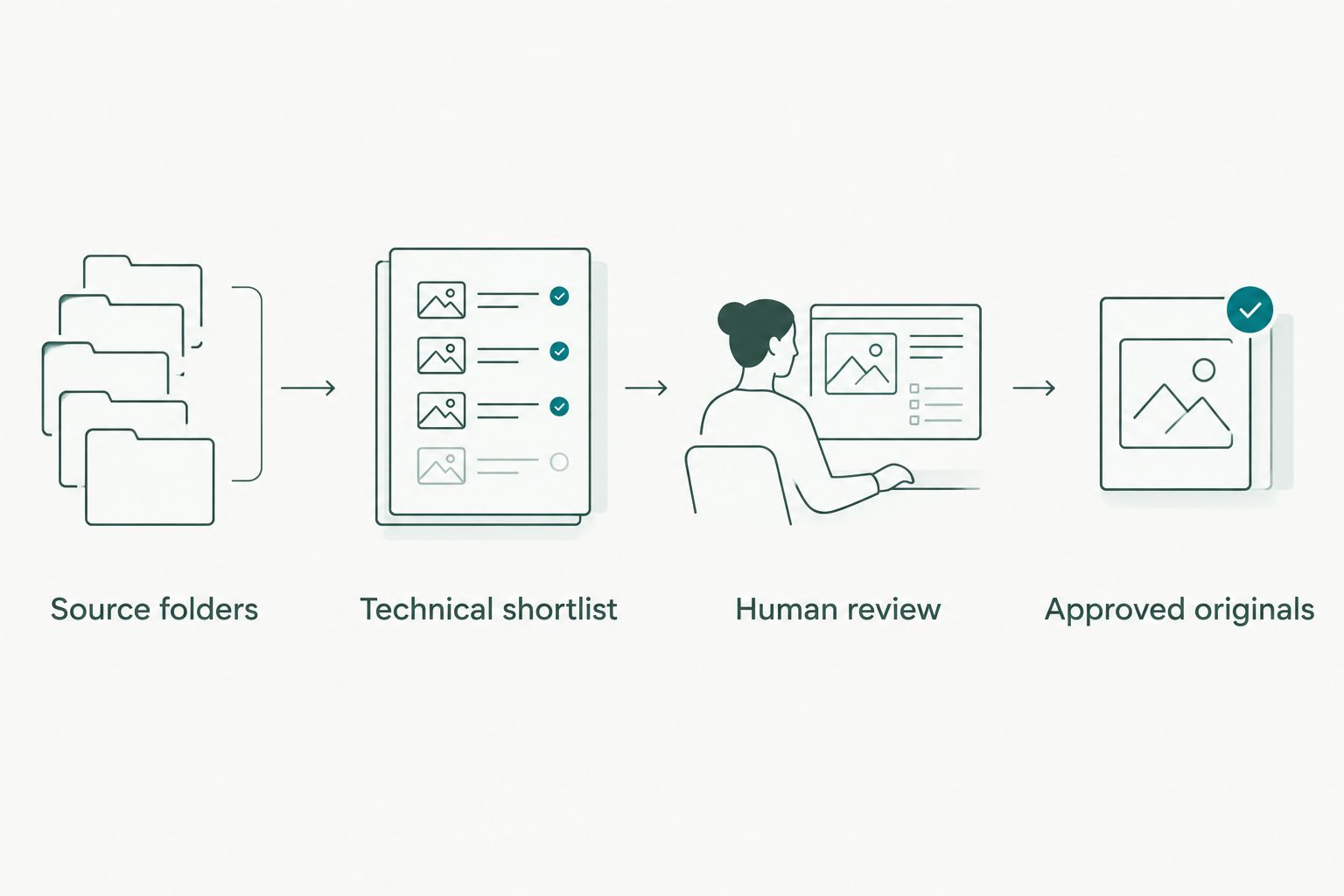
Human review sits between the technical shortlist and the files sent for editing.
The review boundary is the important part of this 2026 workflow. Finish selection before applying batch edits, so your editor works on photographs you intend to deliver.
Configure the Lightroom Classic import
Use a file-based handoff when you need an easy-to-check route. Fotoowl supports export to Lightroom, but this guide does not assume a particular export dialog, plugin, rating conversion or sidecar format.
- Copy the approved original files into your approved-originals destination using your file manager. Preserve the source copies and include any existing sidecars associated with those originals. If you use the application's Lightroom export instead, verify its output with the sample batch before proceeding.
- Open Lightroom Classic and select the intended catalog. In the Library module, click Import.
- Select the approved-originals folder in the Source panel. Check that the thumbnails correspond to your approved selection, not the entire shoot or a JPEG preview folder.
- Choose Add when the photographs are already in their permanent working location. This adds references to the catalog without copying the originals to another destination.
- Review Don't Import Suspected Duplicates in the File Handling panel. If Lightroom excludes photographs, check whether they are already in the catalog rather than immediately disabling the setting.
- Click Import. Compare the imported selection with your approved filenames, then open representative photographs in Develop.
Expected result: Lightroom Classic references the approved originals at a known location. You can open and edit them without a missing-file warning.
Do not move that folder through your file manager after importing. Lightroom Classic tracks file locations; use the Folders panel for subsequent folder moves within the catalog workflow.
Where each application fits
These applications serve different stages. Neither replaces the other's role in this guide.
| Application | Best for | Useful capability | Limit or check |
|---|---|---|---|
| Fotoowl AI Culling | Offline technical shortlisting before editing | Groups similars and ranks composition, exposure and blur | Requires a human second pass; do not assume decision metadata transfers |
| Lightroom Classic | Catalog-based editing of approved originals | References source files and applies non-destructive edits | Depends on accessible file locations; catalog entries are not backup copies |
Cull first, then edit the approved set. Keep that boundary clear even when the same photographer handles both stages.
Configure your edits and delivery export
Once the approved originals are in Lightroom Classic, stop revisiting the entire shoot for routine editing decisions. Work through the selected photographs in coherent lighting groups.
- In Develop, establish white balance, exposure and colour on a representative photograph. Separate daylight portraits, indoor rituals and stage lighting rather than treating the event as one lighting condition.
- Select photographs from the same lighting group and use Sync... to choose the settings to share. Review the selected settings before applying them; crops and local adjustments need image-specific judgement.
- Inspect the synchronised results individually. Check skin tones, highlights, noise and any photograph captured as the lighting changed.
- Select the finished photographs and open File > Export.... In Export Location, choose a delivery folder separate from your approved originals.
- Set File Settings, Image Sizing and Output Sharpening for the agreed deliverable. Do not substitute a generic export recipe for the client's actual requirements.
- Open exported files outside Lightroom. Check image appearance, filenames and coverage before uploading or handing them to another team member.
Expected result: You have an edited delivery set and preserved originals. The exported photographs are checked independently of Lightroom previews.
For the next stage, use the guide to integrating Lightroom with an event photo gallery. Treat delivery as a separate checkpoint, not proof that the culling decisions were correct.
When the photographs are already in Lightroom
An existing catalog needs a different handoff. Do not import another copy of the shoot just to reproduce the approved selection.
In a 2026 studio workflow, choose whether the existing catalog or a new approved-originals folder will remain the editing reference. Mixing both creates unnecessary uncertainty about which copies contain the active edits.
- Keep the existing catalog and file locations intact. Back up the catalog before changing a large selection.
- Complete the offline cull against the corresponding source photographs. Retain a record of approved filenames and camera folders.
- In Lightroom Classic, locate the matching existing photographs. Add them to a dedicated collection using Create Collection... in the Collections panel.
- Compare the collection against the approved record. Resolve repeated filenames using folder location, capture context and the image itself.
- Edit from that collection. Do not delete photographs outside it merely because they were excluded from the current selection.
Expected result: The existing catalog retains its file references and edits, while a collection defines the current approved set. This manual matching route avoids assuming that external ratings will overwrite or merge correctly.
Troubleshooting
Lightroom reports missing photographs
Reconnect the drive first. If the folder moved, right-click its entry in Folders and use Find Missing Folder... to locate it. Avoid reimporting as the first fix; the existing catalog entries hold your editing work.
The import contains previews instead of originals
Check the source folder and file types before editing. Return to the approved filename record, locate the corresponding originals and correct the handoff. A thumbnail that looks right does not establish that you imported the intended source file.
Ratings or flags do not match the shortlist
Treat the approved-file record as the reference. Confirm any supported metadata-transfer method on the sample batch before applying it across an event. Do not repeatedly read external metadata into an edited catalog without checking what it will change.
The selection misses a person or important moment
Return to the retained source photographs and review the relevant sequence. Add the recovered original to the approved set, then import it or include its existing catalog entry in the editing collection. Keep the delivery folder unchanged until the added photograph is edited and checked.
Matching filenames make the handoff ambiguous
Use the camera folder as part of the file identity. Keep matching filenames in separate subfolders, then verify photographs visually before combining selections. Never resolve an overwrite warning by guessing which camera's image matters.
Customize your workflow
For multi-function Indian weddings, give each function its own selection checkpoint. For sports, review the action sequence before reducing similar frames. For school work, verify participant coverage before approving the set for editing.
Your 2026 job notes should name the person responsible for the cull, the person approving coverage and the editor receiving the originals. A clear handoff prevents an application-generated shortlist from becoming an unreviewed delivery decision.
FAQ
What is the best AI culling Lightroom workflow for wedding photographers?
Use offline technical shortlisting, a human coverage review, an original-file handoff and Lightroom editing. Review rituals, family groupings and expressions before approving the selection.
Does Fotoowl AI Culling work offline?
Fotoowl AI Culling is an offline desktop application. It is not a browser-based or cloud culling feature.
Should I cull before importing photographs into Lightroom?
Cull before importing when you want the Lightroom editing set to contain only approved photographs. If the shoot is already catalogued, keep the existing references and organise the approved selection in a collection.
Will my AI culling ratings automatically appear in Lightroom?
Do not assume that ratings or flags transfer automatically. Test the supported handoff with a small batch and verify the result before processing the full event.
Should I choose Add or Copy when importing into Lightroom Classic?
Choose Add when the approved originals are already in their permanent working location. Choose Copy when Lightroom should copy source files to a destination you select, then verify that destination before importing.
Can I delete rejected photographs immediately after AI culling?
Keep rejected originals until you have checked coverage, backups and delivery. A technically weaker photograph can still preserve a required person or an otherwise missing moment.
Does AI culling replace Lightroom editing?
AI culling does not replace Lightroom editing. Culling selects photographs; editing adjusts the approved photographs before export and delivery.
One last thing
A Lightroom collection is not another copy of your photographs. It organises references to catalogued images, so deleting an original from storage still affects your ability to edit that image. Check the backup separately before clearing cards or retiring a working drive.