
Google Photos to face-search client galleries: complete 2026 workflow

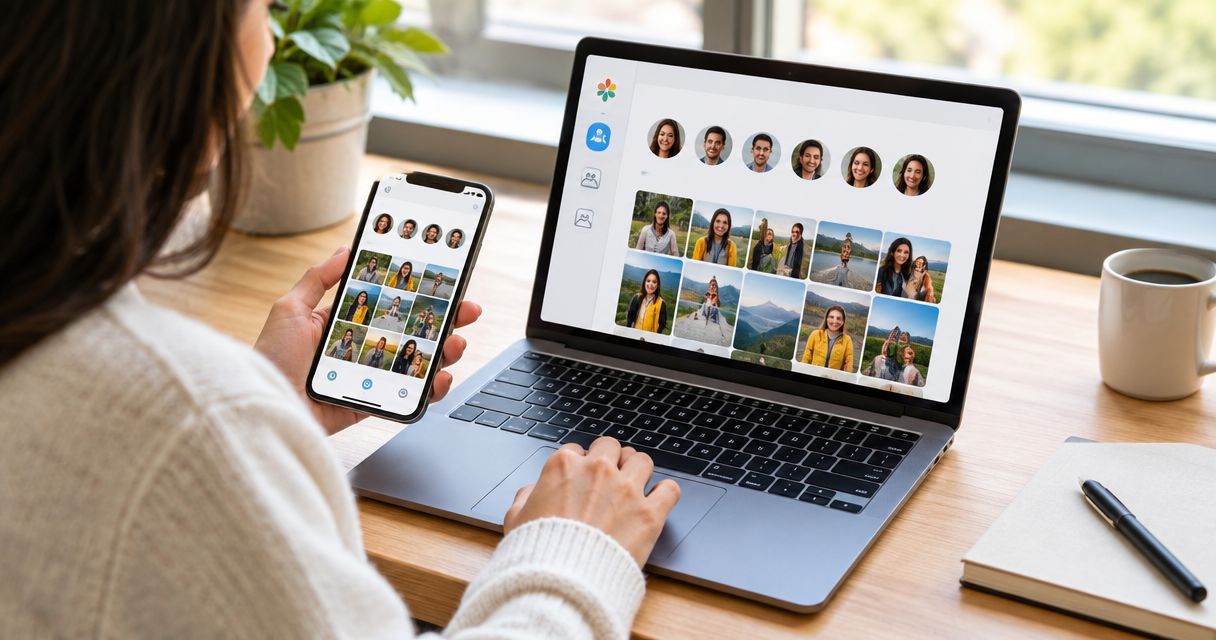
Instead of manually finding and forwarding each guest’s photographs, move your Google Photos files into a face-search client gallery: download the selected images, upload your approved delivery set, and test guest access before sharing. This 2026 workflow uses a file transfer, not an assumed connection between accounts.
TL;DR
- For a google photos to client gallery workflow, export approved files first; treat later additions as separate batches.
- Fotoowl AI Gallery suits professional event photographers who need face-recognition galleries for client delivery.
- Google Photos face groups are not a replacement for testing face search in the destination gallery.
- Check file quality, guest access and search results before sending the client gallery link.
Why this matters
A shared album and a finished client delivery serve different purposes. Your working collection can contain rejected frames, unfinished edits and photographs that the client has not approved for distribution.
Fotoowl AI Gallery is best for professional wedding and event photographers who need face-recognition client delivery. Its role in this workflow is the destination gallery, not an assumed automatic importer from Google Photos.
For an Indian wedding studio, decide whether the delivery covers the entire wedding or separate functions such as the mehendi, sangeet and reception. Make that decision before exporting. The guide to organising photos for multi-function Indian weddings explains the organisation task behind that choice.
The practical distinction in 2026 is simple: transfer the photographs, then configure and verify the client experience separately.
Before you start
- Accounts and access: Sign in to the Google account holding the event photographs and your destination gallery account. Confirm that you can download the source images and manage the destination event.
- Files and approval: Have local storage for the download, an upload connection and an approved delivery list. Keep your edited masters separate from the transfer folder.
- The non-obvious gotcha: Downloading photographs does not transfer Google Photos face groups, sharing permissions or album organisation into the destination. Do not assume those settings will follow the files.
Choose an event whose delivery scope you can check without mixing unrelated work. Do not start with your entire photographic archive.
Use a suggested test batch of 20 photos, including individual portraits, group photographs and difficult frames. This is a workflow recommendation, not a processing limit or an accuracy benchmark.
Choose the role of each platform
Google Photos and AI Gallery occupy different stages of this guide. Keeping those roles explicit prevents you from treating a successful download as a completed client delivery.
| Platform | Best for in this workflow | Advantage | Limitation or trade-off |
|---|---|---|---|
| Google Photos | Retrieving event photographs already held in your account | You can download selected photographs for transfer | The downloaded files do not carry a ready-configured client gallery |
| Fotoowl AI Gallery | Delivering event photographs through face-recognition galleries | Face recognition is part of the gallery delivery product | You still need to review files, upload them and test the recipient experience |
Keep the source until the destination passes your checks. A gallery that displays thumbnails is not proof that you uploaded the intended versions or configured the intended access.
For this 2026 handoff, record which account, event and local folder you are using. That short record helps another studio team member continue the delivery without guessing.
Source album and download
- Identify the delivery set. Open the event photographs in Google Photos. Check that the selection excludes unrelated personal photographs, reference images and unfinished versions.
- Select the approved photographs. On the desktop web interface, select the images you want to transfer. For the initial test, use the suggested 20-photo batch rather than the complete event.
- Download the selection. Open More options and choose Download. If the browser saves an archive, extract it before preparing the upload.
- Inspect the downloaded files. Open several images locally. Check the actual photographs, not just their thumbnails, and confirm that the files are the versions you intend to deliver.
- Separate source and delivery copies. Use 2 folders: a source download folder and an approved upload folder. Copy only reviewed files into the approved upload folder.
Expected result: You have a local set of approved photographs that opens correctly without relying on the Google Photos album link.
Check quality before transferring everything
Inspect a detailed image at full size. If the downloaded copy lacks the quality required for your delivery, return to your edited masters rather than repeatedly exporting the same unsuitable file.
Compare the download against your intended output, including crop, colour and orientation. A photograph being present in Google Photos does not establish that it is your final edit.
Keep filenames stable during this handoff wherever possible. Renaming the same image differently at every stage makes later duplicate checks and client queries harder to resolve.
For a multi-photographer event, identify filename collisions before combining files. Do not let one photographer’s image replace another photographer’s image simply because the names match.
Destination gallery and upload
- Prepare the destination event. In AI Gallery, create or open the gallery intended for this client. Use an event name that your studio can distinguish from test galleries and other bookings.
- Match the delivery scope. Decide whether this gallery contains the complete event or one approved function. Keep the same boundary you used when preparing the download.
- Upload the test batch. Use the gallery’s upload controls to add the approved local files. Do not paste a Google Photos sharing link as a substitute for uploading photographs.
- Verify uploaded content. Compare the visible photographs with the local test batch. Check for missing images, unexpected duplicates and incorrect versions before adding the rest.
- Upload the remaining approved set. Continue only after the test batch passes. Keep a record of the files included in each batch so you can identify what needs attention after an interruption.
Expected result: The intended photographs appear in the correct client gallery, with a clear record of what you uploaded.
The sequence is deliberately separate: prepare, upload, inspect, test, share. Completing an upload is a checkpoint, not permission to skip the remaining checks.
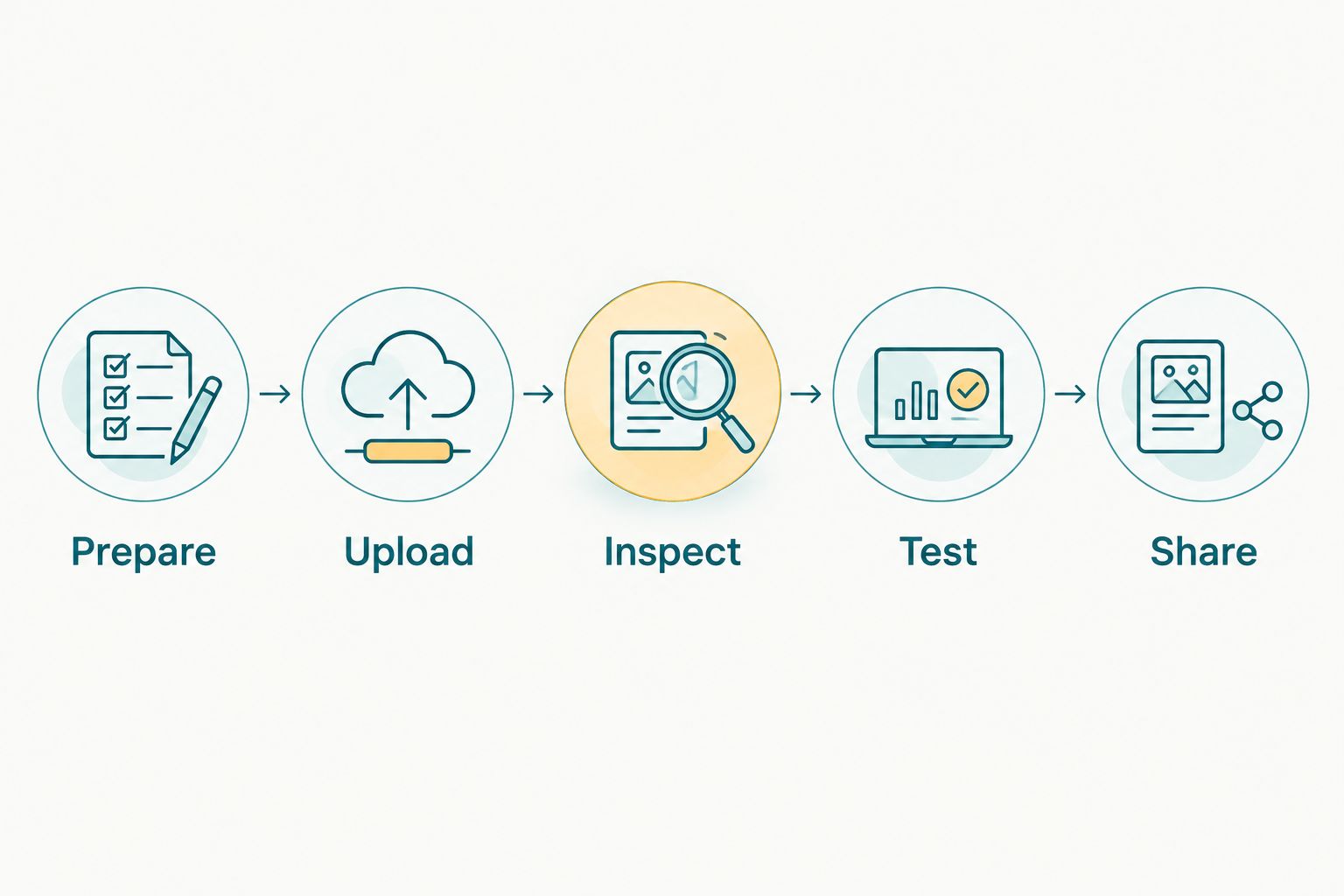
Inspect the upload and test the recipient experience before sharing.
Keep delivery separate from storage
Retain your local approved set while checking the gallery. If the connection drops, that folder becomes your reference for identifying incomplete work.
Do not delete the source photographs simply because the destination displays them. Keep deletion and archive decisions outside the migration task, under your studio’s own backup policy.
For 2026 deliveries, write down which gallery is the active client destination. Otherwise, an assistant can accidentally send an older Google Photos album while you are testing the new gallery.
Face-search validation and client handoff
- Review access before inviting guests. Check the gallery’s current access controls against the client’s instructions. Separate the question of who can enter from the question of how people find photographs.
- Test the recipient journey. Open the intended sharing link in a separate browser session that is not signed in as the gallery owner. Follow the actual visitor prompts instead of relying on the administrator view.
- Test face search with a consenting participant. Use someone whose photographs you can identify manually. Compare the returned results with the uploaded set, including individual and group photographs.
- Review difficult images. Include profiles, partially covered faces and crowded frames in your manual check. Do not promise that every photograph will appear in a face-search result.
- Send a clear handoff message. Identify the event, explain how recipients start searching, and tell them how to contact your studio if they cannot find a photograph.
Expected result: A recipient can reach the intended gallery and use its face-search journey, while your studio has checked both access and representative results.
Use 3 checks before release: content, access and search. These are release criteria, not claims about recognition performance.
A face match helps retrieve photographs; it does not establish permission to view them. For school assignments and photographs of children, agree the recipient and sharing rules with the commissioning organisation before distribution.
Your 2026 handoff message should also state whether the gallery is complete or whether further approved photographs will follow. That distinction prevents a partial delivery from looking like a failed upload.
Add newly approved photos to the same event
The adjacent workflow is an incremental update: download newly approved photographs from Google Photos, review them locally, and add that batch to the existing destination gallery.
Treat this as a repeatable manual process, not a live sync. Do not assume that adding, editing or deleting a photograph in the source changes the destination.
- Record the new batch. Keep a filename list or folder record of photographs added since the previous upload.
- Check revisions separately. If an image is a replacement edit, identify the earlier version before taking action in the gallery.
- Upload only approved additions. Avoid downloading and re-uploading the entire event just to add a small set.
- Repeat the recipient check. Confirm that the new photographs appear and that representative face-search results include the additions.
For Indian weddings delivered by function, this lets you release approved photographs without confusing the reception upload with the earlier ceremony delivery. The trade-off is administrative discipline: someone must own the batch record.
Troubleshooting
The downloaded archive will not upload
Extract the archive first and inspect its contents. Upload the photograph files through the destination’s supported upload process, rather than treating a compressed download as a gallery-ready collection.
Keep any accompanying non-image files out of the photograph upload unless the destination specifically requests them. If a photograph fails, inspect that file locally before retrying it.
Some photographs are missing after upload
Compare the local approved folder with the destination gallery. Check failed or incomplete uploads before sending the same batch again.
Retry the affected files rather than the entire event. Then verify that the retry has not introduced duplicate copies.
A guest cannot find a known photograph
First confirm that the photograph is actually in the intended gallery and accessible through the recipient journey. Then compare the search result with a manual review of that image.
Check whether the face is small, obscured or turned away. Offer a studio-assisted search for the missing photograph instead of presenting face recognition as an exhaustive record.
The wrong people can reach the gallery
Pause distribution and review the actual gallery access settings. A face-search interface does not, by itself, prove that access is restricted to the intended recipients.
Retest in a separate browser session after making changes. Contact your platform support channel if the available controls do not match the client’s requirements.
A revised edit appears beside the earlier version
Compare filenames and image content to identify both versions. Decide which version belongs in the final delivery before removing or replacing anything.
Do not assume that matching filenames automatically overwrite existing photographs. Verify the gallery’s actual behaviour with a non-critical test before applying a replacement process across the event.
Customize your workflow
Once the transfer works, improve the stages around it rather than adding more destinations. Assign one person responsibility for approving files and another clear responsibility for releasing the gallery; a small studio can give both roles to the same person.
For repeat assignments, keep a reusable delivery checklist covering the source account, approved folder, destination event and recipient test. Record exceptions, such as photographs held back for client approval.
For guest instructions, continue with the guide to helping guests find their photos using face search. Keep the instructions focused on what recipients must do, not on your studio’s internal file handling.
FAQ
How do I move Google Photos to a client gallery?
Download the approved photographs, inspect the local files, and upload them to your destination client gallery. Test recipient access and face search before distributing the gallery link.
Does this workflow automatically sync Google Photos with Fotoowl?
No. This workflow uses a manual download and upload, with separate batches for later additions. It does not rely on an automatic account connection.
Will my Google Photos face groups transfer to the client gallery?
Downloading photographs does not transfer Google Photos face groups into the destination gallery. Test the destination’s own face-search results after uploading.
Can I just paste a Google Photos album link into the gallery?
A sharing link is not a substitute for uploading image files in this workflow. Download the approved photographs and use the destination gallery’s upload process.
Will face search find every photograph of every guest?
Do not promise that face search will find every photograph. Check representative results manually and provide studio assistance when a recipient cannot locate an image.
Should I delete Google Photos after the gallery upload?
Keep the source while you verify the destination and confirm your backup arrangements. Treat deletion as a separate archive decision, not as an automatic final migration step.
How should I add more wedding photographs later?
Prepare a new approved batch and upload it to the intended event gallery. Record the additions, check for duplicate or revised files, and repeat the recipient test.
One last thing
The most useful final test is not another upload—it is opening the gallery without your owner login. An administrator view can hide the access problem your client encounters first.
Make that separate-session check a release requirement for every 2026 event. Keep your source files until the client journey works, not merely until the upload finishes.