
Best cloud storage platforms for photographers in 2026


Best overall for event photo delivery: Fotoowl AI Gallery. Best for studio file handoffs: Dropbox. Best for Google-based collaboration: Google Drive. Best for cloud editing: Adobe Lightroom. Best for computer backup: Backblaze Computer Backup. This 2026 guide separates client galleries, working-file storage and backup so you can choose the right platform for your photography studio.
TL;DR
- Fotoowl AI Gallery is the best cloud storage for photographers prioritising event delivery and face recognition.
- Choose Dropbox for file handoffs or Google Drive for collaboration around shared folders and documents.
- Adobe Lightroom fits cloud editing; Backblaze Computer Backup serves a separate recovery role.
- Keep original files independently backed up; a client gallery is not your complete archive.
Why this matters
Storage, delivery and backup solve different problems. A shared folder helps your editor receive files. A gallery helps clients find photographs. A backup helps you recover originals after a computer or drive failure.
For Indian wedding and event studios, the distinction matters across ceremonies, receptions, corporate assignments and school shoots. You need a clear route from camera files to edited photographs without confusing your internal archive with the collection clients receive.
Start with the underlying cloud storage workflow for photographers, then choose the platform that handles your main bottleneck. This ranking prioritises professional workflows in 2026, not storage capacity alone.
What makes the best cloud storage for photographers?
Judge each option against these six criteria before comparing features:
- Workflow fit: Decide whether you need client delivery, team collaboration, cloud editing or recovery. The strongest choice depends on that job.
- File integrity: Confirm that the workflow preserves the original files you need. An edited JPEG collection does not replace your RAW archive.
- Client experience: Test whether recipients can find and download their photographs without asking your studio for help.
- Upload control: Check how uploads behave on your actual connection. Camera uploads, desktop synchronisation and backup are different processes.
- Access management: Review who can view, change or download files. Separate internal working folders from client-facing collections.
- Recovery and exit: Check how you retrieve files after a mistake and how you export them when changing platforms.
Do not let a large storage allowance decide everything. If your main problem is guests finding their photographs, more folder space does not solve it. If your main problem is recovering a failed drive, an attractive gallery does not solve that either.
Best photography cloud platforms at a glance
| Platform | Best for | Standout feature | Key limitation |
|---|---|---|---|
| Fotoowl AI Gallery | Wedding and event photo delivery | Face recognition galleries with photo and video delivery | Does not replace a separately maintained original-file backup |
| Dropbox | Studio file handoffs | Shared folders and desktop file synchronisation | File sharing is not a dedicated event guest discovery workflow |
| Google Drive | Google-based studio collaboration | Shared files alongside Google documents | Folder organisation needs active management |
| Adobe Lightroom | Editing across devices | Cloud-connected photo library and editing | Not a complete home for all studio business files |
| Backblaze Computer Backup | Recovery after computer or drive failure | Automatic computer backup | Not a client gallery or collaborative editing workspace |
Read the table by task, not by position. The first option leads for event delivery; the final option serves the fundamentally different job of protecting files. None of these roles makes the others unnecessary.
1. Fotoowl AI Gallery: best for wedding and event delivery
AI Gallery lets professional photographers upload photographs and videos and deliver them through face recognition galleries. Its features include a portfolio builder, reel generator and Beam camera-to-cloud FTP uploads. The useful distinction is photo discovery: clients and event guests need a way to find relevant images, not just receive another folder.
Fotoowl AI Gallery is best for wedding and event photographers who need face recognition galleries for client delivery. For Indian studios covering multiple wedding functions, that makes it a delivery choice rather than a substitute for original-file protection.
Fotoowl AI Gallery pros
- Face recognition supports finding people within event photographs.
- Photo and video delivery sit within the gallery workflow.
- Beam provides a camera-to-cloud FTP upload route.
- Portfolio building and reel generation support presenting your work.
Fotoowl AI Gallery cons
- You still need an independent backup strategy for your originals.
- Cloud uploads require connectivity; camera-to-cloud delivery does not remove that dependency.
Keep the product roles clear. Photo Selection handles client proofing, while AI Culling is an offline, desktop-only application with a human review pass before export to Lightroom or the gallery. Neither should be described as a cloud storage feature inside AI Gallery.
Best for: Wedding, sports, corporate event, festival and school photographers prioritising client delivery.
Verdict: Buy for event delivery; maintain a separate original-file backup.
2. Dropbox: best for studio file handoffs
Dropbox stores files in shared folders and synchronises them between devices. It fits a studio workflow where photographers, retouchers and editors need access to organised project files. The core benefit is a consistent handoff location rather than a photography-specific guest experience.
For a wedding studio, separate source files, working edits and approved exports. Give each collaborator access to the folders their job requires. Folder synchronisation is useful, but it does not decide which edit is approved or which photographs belong in the final delivery.
Dropbox pros
- Shared folders provide a common location for project files.
- Desktop synchronisation fits familiar file-based workflows.
- You can organise photographs alongside other project materials.
Dropbox cons
- Shared folders need naming rules and clear ownership.
- A file link does not provide the same event discovery workflow as a face recognition gallery.
- Synchronised changes are not the same as an independently protected archive.
Before committing in 2026, run a real editor handoff. Upload a representative folder, open it on the receiving computer and confirm that filenames, folder structure and expected files remain intact. Test the work your studio actually performs.
Best for: Studios passing files between photographers, editors and retouchers.
Verdict: Buy for coordinated file handoffs; skip as your only client-delivery system.
3. Google Drive: best for Google-based studio collaboration
Google Drive stores and shares files alongside Google Docs, Sheets and other Google workspace tools. It suits photographers who organise assignments with shared documents and need photographs in the same collaboration environment. Folder-based sharing keeps the workflow familiar.
For corporate event assignments, that means you can organise image exports alongside a brief, shot list and delivery tracker. Keep internal notes separate from client folders. Familiarity does not replace a permissions check.
Google Drive pros
- Shared files and collaborative documents work within the same environment.
- Folders support straightforward project organisation.
- Viewer and editor access help distinguish recipients from collaborators.
Google Drive cons
- You must build and maintain your own photography folder structure.
- General file sharing is not a dedicated wedding or event gallery workflow.
- A synchronised folder should not be your only recovery copy.
Choose Google Drive because your team already works around Google documents, not because it resembles a professional gallery. Before sending a folder, open the recipient experience using the intended access method and check what the client can see.
Best for: Small studios coordinating files, briefs and delivery records through Google tools.
Verdict: Buy for document-led collaboration; skip when guest photo discovery is the main requirement.
4. Adobe Lightroom: best for cloud editing across devices
The cloud-based Adobe Lightroom workflow combines a photo library with editing across supported devices. It fits photographers who want photographs and edits available within the same editing environment. This recommendation concerns cloud-based Lightroom, not an assumption that every Lightroom Classic file is automatically backed up.
The distinction matters. Your editing library, exported client photographs and business documents have different purposes. Lightroom addresses the photography editing layer rather than every file a studio produces.
Adobe Lightroom pros
- Photograph organisation and editing share one environment.
- Cloud synchronisation supports an editing workflow across devices.
- Non-destructive edits preserve a distinction between the original image and editing instructions.
Adobe Lightroom cons
- Studio contracts, invoices and other business files need a separate home.
- Uploading an editing library is different from maintaining an independent backup.
- A cloud editing workflow does not automatically provide event guest face-search delivery.
For a 2026 evaluation, follow a photograph through import, editing, synchronisation and export. Confirm where the original lives and how you retrieve it outside your usual editing device. That is more useful than judging the application only by its editing tools.
Best for: Photographers whose priority is accessing and editing a cloud-connected photo library.
Verdict: Buy for cloud editing; hold if you only need file handoffs or event delivery.
5. Backblaze Computer Backup: best for automatic computer backup
Backblaze Computer Backup protects files on a computer through an automatic backup workflow. Its role is recovery, not presenting photographs to wedding guests or coordinating retouching. Choose it when your main concern is preserving a recoverable copy beyond the working machine.
A backup still needs inspection. Confirm that the folders and supported drives holding your originals are included, then practise restoring a file. A running backup application is not proof that every required photograph is recoverable.
Backblaze Computer Backup pros
- Automatic backup reduces dependence on remembering manual uploads.
- It serves a recovery role separate from client delivery.
- Backup can cover working files rather than only final JPEG exports.
Backblaze Computer Backup cons
- It is not a photography client gallery.
- It is not a shared editing workspace for your team.
- You need to review coverage and practise restoration.
Keep backup decisions separate from gallery decisions. A beautiful client collection cannot recover a missing RAW file that was never included in your backup workflow.
Best for: Photographers protecting computer-held originals and working files against loss.
Verdict: Buy for recovery; skip as a client-sharing platform.
Build a storage workflow that protects your photographs
Keep originals, working edits and client exports distinct. A practical workflow has these stages:
- Original files: Copy camera files into a clearly named project location before reorganising or editing them.
- Local backup: Create a separate recoverable copy rather than relying only on the working drive.
- Off-site backup: Keep protection beyond the studio computer and its immediate location.
- Edited exports: Publish approved photographs, not an unreviewed dump of every frame.
- Client delivery: Use a gallery or sharing method appropriate to the recipient.
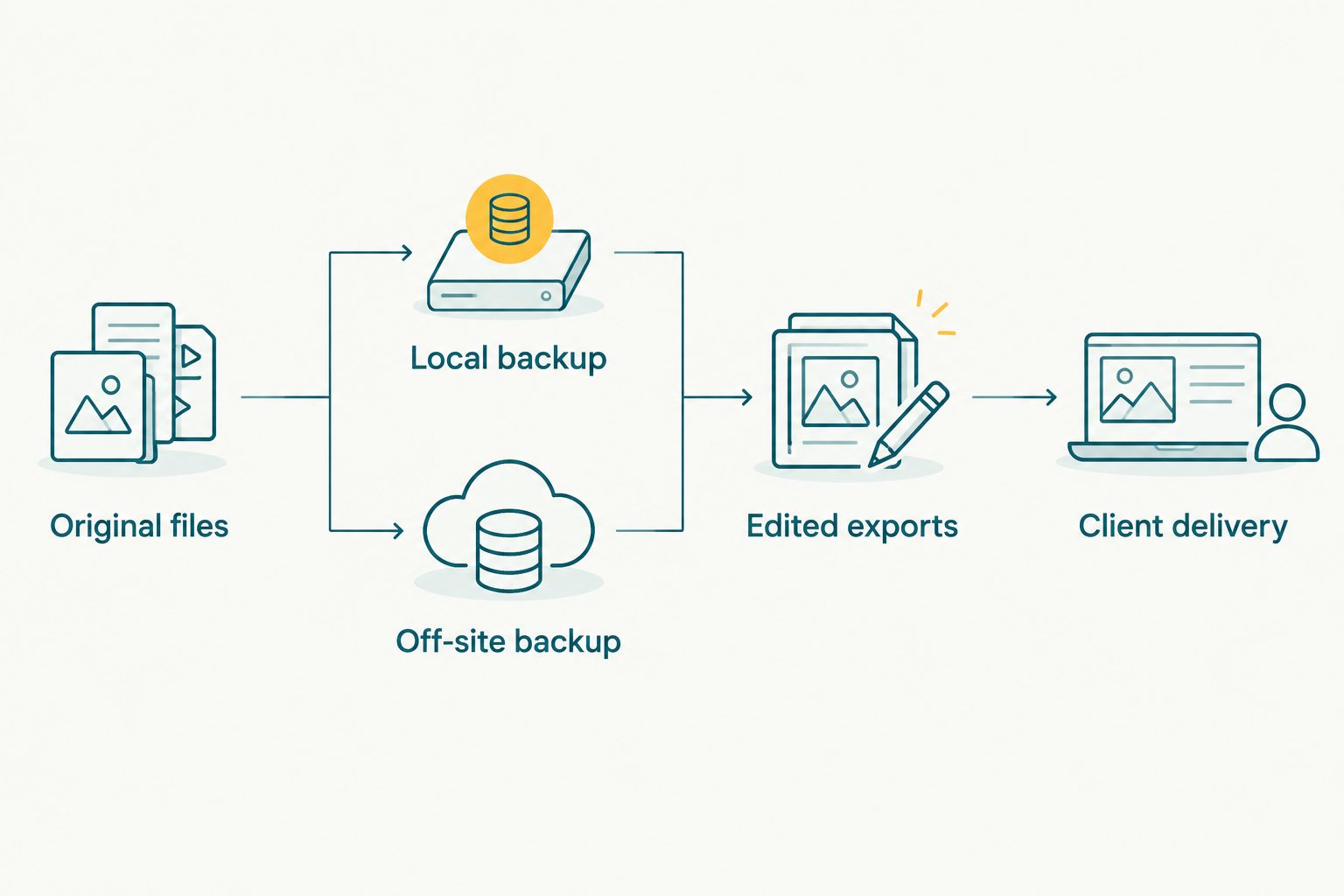
Protect originals independently before treating a client gallery as finished delivery.
Use the established 3-2-1 backup rule: 3 copies of your data, on 2 different media types, with 1 copy off-site. This is a planning principle, not a guarantee: you still need working recovery procedures and checks that the intended files are included.
For Indian wedding assignments, keep functions clearly named within the project. Separate the mehendi, sangeet, ceremony and reception before exporting delivery collections. For schools and sports, separate assignments and recipient groups rather than exposing one undifferentiated archive.
In 2026, test your chosen workflow on the connection you will actually use. Keep local files available while uploads complete, check completion rather than assuming it, and confirm delivery from the recipient's side. Do not promise upload timing based only on the software you select.
How the platforms are ranked
The ranking follows the criteria above: workflow fit, file integrity, client experience, upload control, access management and recovery. It is a use-case comparison, not a measured speed or reliability leaderboard.
AI Gallery leads for event delivery because its stated features include face recognition galleries and camera-to-cloud uploads. Dropbox and Google Drive occupy collaboration slots, Lightroom serves cloud editing, and Backblaze Computer Backup serves recovery. Each recommendation stays within that role.
Which cloud platform should you choose?
For professional event delivery, start with Fotoowl AI Gallery and keep original-file backup separate. Add a collaboration platform only when your team needs shared working folders; use Lightroom when cloud editing is the requirement.
If you are undecided, identify the failure you are trying to prevent. Guests struggling to find photographs calls for a gallery. Editors struggling to receive files calls for shared storage. Missing originals calls for backup and restoration—not another delivery link.
Your 2026 storage setup does not need every platform in this list. It needs a deliberate home for originals, a controlled editing workflow and a clear delivery experience.
FAQ
What's the best cloud storage for photographers delivering event photos?
Fotoowl AI Gallery is the best fit in this comparison for wedding and event photographers prioritising face recognition galleries and client delivery. Keep a separate backup of original files rather than treating the delivered gallery as your complete archive.
Is Google Drive or Dropbox better for a photography studio?
Google Drive fits studios collaborating around Google documents; Dropbox fits shared-folder file handoffs. Choose according to your team's workflow, then test permissions and file access with an actual collaborator.
Can I use a client gallery as my only photo backup?
No. A client gallery usually serves delivery, while your backup must protect the originals and working files you need to recover. Maintain independent copies and practise restoring files.
Is Adobe Lightroom cloud storage the same as Lightroom Classic backup?
No. Cloud-based Lightroom and Lightroom Classic have different storage workflows. Confirm where your originals live and what is synchronised before counting either workflow as protection.
What does the 3-2-1 backup rule mean for photographers?
The 3-2-1 rule means keeping 3 copies of your data, using 2 different media types, and keeping 1 copy off-site. Check backup coverage and restoration because having copies alone does not establish that recovery works.
Does camera-to-cloud uploading remove the need for local files?
No. Camera-to-cloud uploading still depends on connectivity and successful transfer. Keep local originals protected and confirm upload completion before removing any working copy.
Which platform should Indian wedding photographers choose in 2026?
Choose a gallery for client delivery and an independent backup workflow for originals. Add shared-folder storage when editors need project access, and organise delivery collections by wedding function.
One last thing
Test a restore before you need one. Download an original photograph from your backup, open it in your editing application and confirm that it is the file you expected. Then check a delivered photograph from the client's side.
Those checks answer different questions: can your studio recover its work, and can your client receive it? The right cloud setup must support both.