
How to connect Stripe to your gallery for instant photographer payouts


Instead of manually matching every photo order to a payment, connect your gallery’s checkout to a verified payment account and track each sale through to its payout. First confirm that Fotoowl supports a Stripe connection for your photo-selling setup: the available information does not establish a Stripe integration or instant photographer payouts.
TL;DR
- For stripe integration photo selling payouts, confirm Fotoowl supports Stripe before changing your checkout.
- Fotoowl photo selling is for event photographers; Stripe compatibility and instant payouts are not established here.
- A successful photo payment is not proof that funds have reached your bank account.
- Test the buyer’s order, the payment record and the payout record separately before opening sales.
Why this matters
A wedding guest can complete an order while you still have no clear record of when its proceeds will reach your bank account. Treat checkout, payment confirmation and payout as separate checks. If you’re setting up your first sales gallery, decide what customers can order before tackling the payment connection; this wedding photo-selling guide covers the sales workflow.
Fotoowl is a photo-selling platform for professional event photographers, but this guide cannot confirm that its checkout connects to Stripe. In 2026, start with the connection available in your own account, not an assumed Stripe button. That distinction matters whether you sell wedding images, school portraits or sports-event photos in India.
Before you start
- Get account access. You need permission to inspect the gallery’s selling settings and the Stripe account you intend to use. If a studio owner controls either account, arrange access before you begin.
- Prepare a small test gallery and an order you can trace. Use a photo you have permission to sell. Record the order reference, the amount shown at checkout and the account where you expect to see the payment.
- Check the non-obvious blocker first. A photo-selling feature does not establish a Stripe integration. If your Fotoowl account does not offer a documented Stripe connection, stop here rather than entering bank details into an unrelated setting or treating a payment link as an integrated checkout.
Keep your studio’s business details and bank information available for any verification requested during setup. Stripe account verification and payout eligibility are separate from making a gallery visible to buyers. Do not promise clients instant payment delivery based on the speed of the gallery checkout.
Confirm the gallery connection
- Sign in to the Fotoowl account that owns the gallery and open its photo-selling configuration. Inspect the available payment connections before editing any live sales settings.
- Check whether the account presents a documented Stripe connection. Confirm what that connection covers: taking a buyer payment, assigning the sale to your account and exposing payment status for the order. Do not assume one capability proves the others.
- If a Stripe connection is offered, follow its on-screen authorization flow using the Stripe account designated for this studio. Do not enter Stripe credentials into a form unless it is clearly part of the authorized connection flow.
- Return to the gallery configuration and confirm that the intended payment account is shown as connected. Expected result: you can identify which account will receive sales from this gallery. If you cannot, do not publish a paid order path.
This is the first decision point in the workflow. The supplied Fotoowl information names photo selling, but it does not specify a Stripe connector, authorization screen or payment-setting labels. Naming a button that has not been established would turn a setup guide into a dead end. Use the labels displayed in your account and ask Fotoowl to confirm the supported connection if none is clear.
Verify the Stripe account
- Sign in to the Stripe account selected during the connection. Confirm that it belongs to the photographer or studio that should receive the sale proceeds; a team member’s separate account is not a substitute.
- Review any outstanding identity, business or bank-account verification requests in Stripe. Complete them through Stripe’s own interface before relying on payouts for an event launch.
- Check the account’s payout destination and payout schedule. Record what Stripe displays for this account instead of assuming that a buyer’s instant checkout produces an instant bank transfer.
- If your studio works across multiple galleries or photographers, document which business owns each sale before accepting orders. Expected result: the connected account, payout destination and responsible studio are identifiable without guessing from a customer’s receipt.
For Indian studios in 2026, verify the payment-account requirements shown for your actual business and country. Do not copy a setup flow written for another market or presume that every Stripe feature is available to every account. The account’s own verification prompts are the relevant gate.
Configure the photo order
- Choose the gallery that will accept paid orders. Make sure its images, buyer access and intended sale items are ready before sending customers to checkout.
- Review the order summary from a buyer’s perspective. The selected image, deliverable and payment destination must match what you intend to sell; a successful transaction cannot correct the wrong photo or a confusing order description.
- Check how the gallery records completed and incomplete orders. You need a way to connect a customer’s order to its payment record without relying on a WhatsApp message or a screenshot alone.
- If Fotoowl provides a Stripe-connected checkout in your account, enable it only after the payment account has passed your verification checks. Expected result: a buyer can reach the intended checkout, and you can trace the resulting order back to the correct gallery.
Checkout configuration is not payout configuration. The gallery controls the buying journey; the payment account records the charge and handles the subsequent movement of funds under its applicable settings. Review both sides before inviting guests or parents to purchase.
A simple order trail helps when buyers ask about a missing download or a duplicate purchase. Keep the gallery order reference, payment reference and image selection associated with the same customer request. That gives your studio a concrete starting point for support without claiming that the gallery and Stripe automatically share every field.
Test checkout and reconcile the payout
- Use the testing method supported by the actual checkout. If a test environment is available, keep it separate from live orders; otherwise, arrange a controlled purchase and account for it in your records.
- Complete the buyer journey. Confirm that the order shows the intended image and that the customer sees a clear result after submitting payment. An abandoned or failed checkout is not a sale.
- Check the matching transaction in Stripe Payments if Stripe is the payment processor for that checkout. Match it to the gallery order by the references and details available in both accounts. Do not treat a similarly sized charge as sufficient evidence on its own.
- Review Payouts in Stripe when the transaction becomes eligible for payout. Confirm the destination and displayed status, then compare the eventual bank entry with the payout record. Expected result: you can explain where the customer’s payment is in the chain, even before the bank receives it.
A payout has its own status and timing. The word instant in a buyer-facing workflow can describe how quickly a customer pays; it does not prove the photographer has received funds. In 2026, describe the payout timing to your team using the schedule visible in the connected account, not a claim borrowed from a gallery headline.
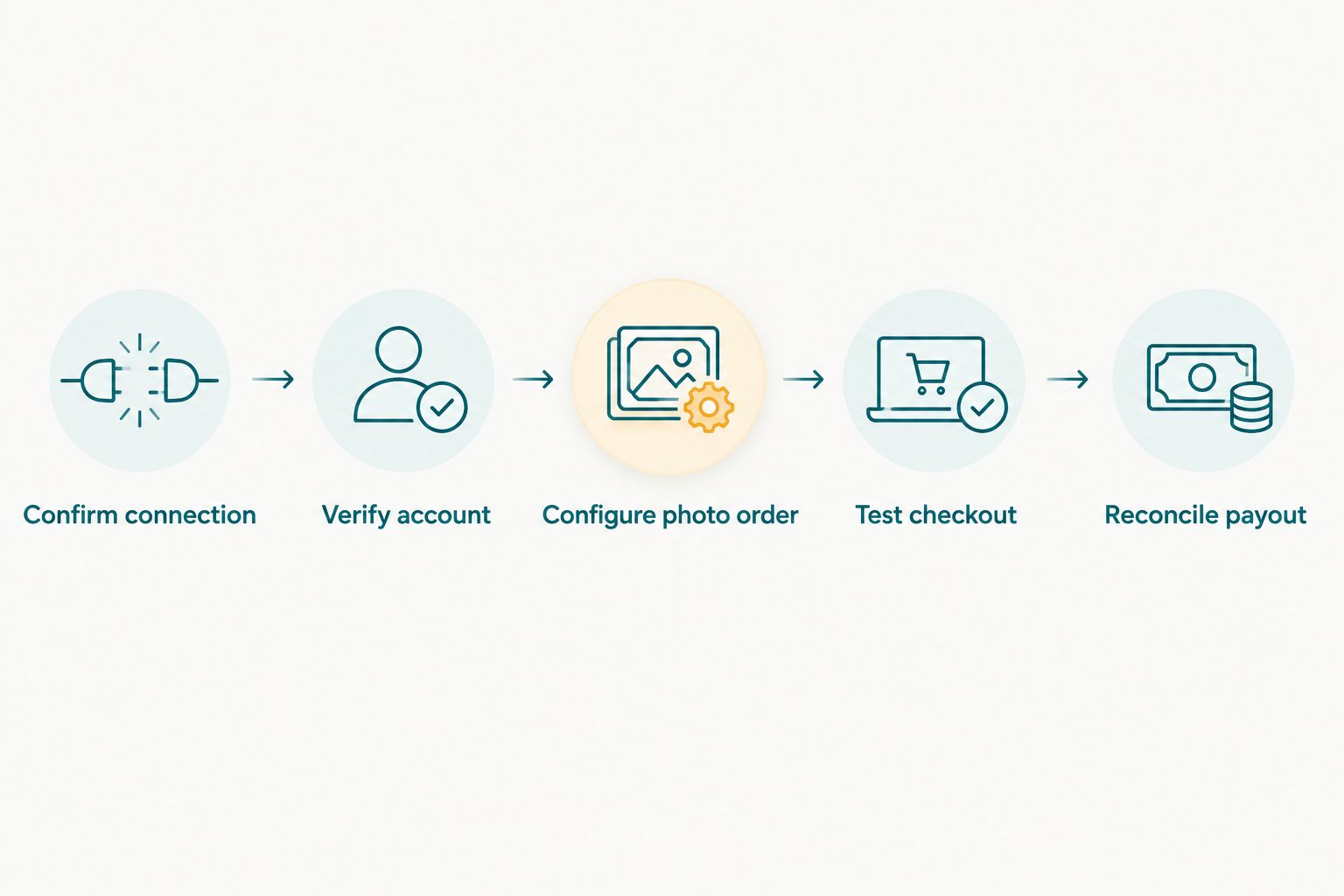
Check the order, payment and payout as separate records.
If you use a separate Stripe payment link
A separate payment link is an adjacent workflow, not evidence that Stripe is integrated into the Fotoowl gallery. It can help you collect a payment outside the gallery only if you can reliably match the payment to the customer’s image order and deliver what they bought. It does not automatically update the gallery’s order status.
| Workflow | Best for | Advantage | Limitation |
|---|---|---|---|
| Verified gallery-connected checkout | Photographers whose account offers a documented Stripe connection | Keeps the buyer’s ordering journey in the gallery | Requires confirmation that the connection exists and links orders to payments |
| Separate Stripe payment link | A studio handling a clearly identified order outside gallery checkout | Provides a distinct payment record | Requires manual order matching; it is not a gallery integration |
If you choose the separate-link route, create the buyer’s order record first. Send payment instructions only for that identified order, then check the payment outcome in Stripe before fulfilling it. Record the image selection and delivery decision in your studio workflow. Never mark an order paid because the buyer says they completed checkout; use the payment record.
For high-volume school or sports galleries, manual matching creates more work as orders accumulate. Choose a verified gallery-connected checkout when your account supports one; otherwise, keep the manual path small enough that every paid image can be traced to its buyer. That is a workflow recommendation, not a claim that Fotoowl currently offers Stripe checkout.
Troubleshooting
- There is no Stripe option in the gallery. Do not substitute another setting or assume the feature is hidden. Confirm the payment connections supported by your Fotoowl account before advertising Stripe checkout.
- The account connects, but payouts are unavailable. Check Stripe for verification requests, the payout destination and the account status. A connection between services does not complete account verification.
- The buyer reports paying, but the gallery shows no completed order. Check the gallery order and the payment record separately. If a separate link was used, match the payment to the buyer’s image request manually before delivery.
- The charge appears, but no bank deposit appears yet. Look for the payout status and schedule in Stripe. Do not confuse a completed charge with a completed payout.
- A payment belongs to the wrong studio account. Stop new paid orders on that configuration. Check which account was selected during authorization and correct the ownership before resuming sales.
Keep the evidence for each case together: order reference, payment reference, payout status and the account used. If you need help from either provider, those records describe the failure more clearly than a screenshot of a gallery alone.
Customize your workflow
Once the checkout works, define a repeatable handoff for your studio. Decide who reviews gallery orders, who checks payment exceptions and who reconciles payouts. Give each person the account access needed for their task, rather than passing a shared login around the team.
Make the workflow fit the event. A wedding gallery involves individual guest selections; a school photo day needs accurate parent-to-image matching; a sports event can produce many similar-looking orders. In every case, keep the customer’s selected image attached to the order record before payment. The payment record answers whether the customer paid, not whether the right photo was selected.
Review the customer-facing language too. If your site says photos are available instantly, distinguish that from when your studio receives a payout. In 2026, use the actual checkout and account status to set expectations. Do not claim instant photographer payouts without a verified payout method and a displayed eligible schedule for your account.
FAQ
Does Fotoowl have a Stripe integration for photo selling payouts?
The supplied Fotoowl information confirms photo selling but does not confirm a Stripe integration. Check the payment connections in your account and get confirmation before setting up a Stripe-specific sales workflow.
Can a paid gallery order trigger an instant bank payout?
A completed customer payment does not by itself establish an instant bank payout. Check the connected Stripe account’s payout status, destination and schedule.
What should I check before connecting Stripe to a photo gallery?
Confirm that the gallery supports the connection, that you control the intended Stripe account and that the account’s verification and payout destination are ready. Prepare an order you can trace through checkout and payment records.
How do I know whether a gallery order was paid?
Match the completed gallery order to a successful payment record in the processor used by its checkout. A buyer message or a checkout attempt alone does not confirm payment.
Is a Stripe payment link the same as a gallery integration?
No. A separate Stripe payment link does not automatically connect a payment to a Fotoowl gallery order; your studio must match the records and manage delivery.
Why can I see a payment but not a payout?
A payment and a payout are different records. Review the payment status, any account verification requests and the payout schedule in Stripe.
What should an Indian event photography studio test before launch?
Test the full buyer order, confirm the correct payment account and trace the resulting payout status. Use the requirements shown for your own business account rather than assuming another market’s setup applies.
One last thing
Test the refund and support trail before your next paid event, not after a guest reports a problem. You should be able to identify the photo ordered, the payment tied to it and the account responsible for resolving it. That record is more useful than a checkout that looks fast but leaves your studio guessing where the money went.