
How to Connect Claude and ChatGPT to DaVinci Resolve (2026)

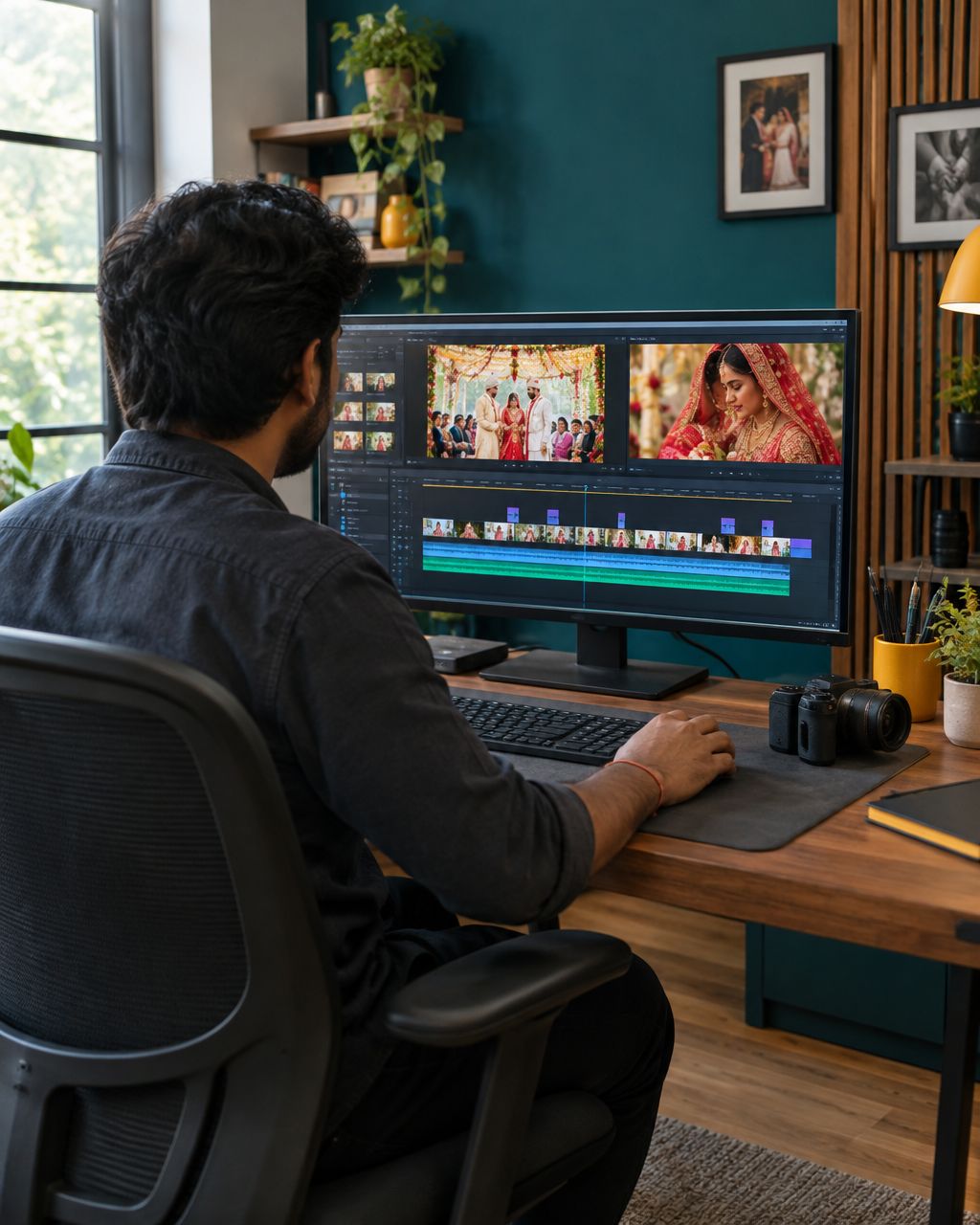
Instead of organising every bin and preparing every timeline by hand, connect Claude or ChatGPT to DaVinci Resolve through an MCP server—a small software bridge that gives the assistant access to editing tools. This 2026 guide covers Claude Desktop and OpenAI’s local Codex route, explains why ChatGPT in a browser needs a different setup, and keeps your original footage out of the experiment.
TL;DR
- Connect Claude to DaVinci Resolve through Claude Desktop and a local MCP server.
- ChatGPT’s local Codex tools support a different setup from ChatGPT in a browser.
- Use DaVinci Resolve Studio for the direct external-scripting workflow described here.
- Verify the connection with a read-only question before allowing timeline changes.
- Keep editorial decisions, client privacy, and final delivery under human control.
Why this matters for wedding and event studios
An Indian wedding project can include separate footage for the haldi, mehendi, sangeet, ceremony, and reception. An assistant connected to Resolve can help with supported preparation tasks, such as inspecting project structure, organising media, adding review markers, and preparing an assembly.
That is different from asking a chatbot for editing advice. A connected assistant can call tools that inspect or change your project; an ordinary conversation cannot automatically see your timeline.
Editing is also separate from delivery. Fotoowl’s AI Gallery handles photo and video delivery; this guide does not describe a Fotoowl integration with Resolve.
Before you start
- Prepare Resolve and a disposable project. The direct route uses DaVinci Resolve Studio with external scripting enabled. Duplicate a project and use non-sensitive sample media before connecting an assistant.
- Prepare the assistant and dependencies. Install Claude Desktop or a local OpenAI Codex client. Samuel Gursky’s community-maintained davinci-resolve-mcp project documents Python 3.10 or newer; its installation guide identifies Python 3.10–3.12 as the lower-risk choice. The quick installer also needs Node.js and npm available during setup.
- Check the edition before troubleshooting. The free edition does not support the same direct external-scripting route. The repository documents a version-dependent in-app bridge, but its README warns that Python scripting changed in Resolve 21.1. Do not assume an older bridge tutorial applies to your installation.
Important: These instructions are based on documentation checked on 17 October 2026, not a hands-on test on your workstation. The bridge is a community project using Resolve’s scripting interface, not a Blackmagic-provided Claude or ChatGPT connector.
Claude, ChatGPT desktop, or ChatGPT web: choose your route
| Route | Best for | Connection method | Main advantage | Main limitation |
|---|---|---|---|---|
| Claude Desktop | Editors who want to work through Claude | Local MCP server registered by the installer | Local tools can inspect the running Resolve project | Dependencies and local-server permissions need setup |
| ChatGPT desktop with local Codex tools or Codex CLI | Editors who prefer OpenAI’s local tools | Local MCP server using Codex configuration | Supports a server running on the editing computer | A normal browser chat does not inherit this configuration |
| ChatGPT web with a custom MCP app | Teams with technical help and workspace permissions | Remote MCP connection, with secure access to the editing computer | Supports a managed web-based workflow | Requires additional transport, authentication, and permission checks |
Claude Desktop and local Codex clients are practical starting points for a single editing workstation; ChatGPT web is a separate deployment task. Both local routes depend on what the installed bridge and Resolve version actually support.
Resolve connection settings
Complete this section once before configuring either assistant.
- Open DaVinci Resolve Studio and load your test project.
- Open Preferences, then find General in the system preferences.
- Set External scripting using to Local.
- Save the preference and restart Resolve if requested.
- Reopen the test project and leave Resolve running.
Expected result: Resolve permits another program on the same computer to use its external scripting interface.
Use Local, not Network, for this workstation-only workflow. Network access is unnecessary here and adds security responsibilities. Never expose editing control to the internet simply to make a connection test pass.
Before continuing, write down your operating system, Resolve edition and version, and chosen assistant. If something fails, those details are more useful than repeatedly reinstalling everything.
How to connect Claude to DaVinci Resolve
1. Install the Resolve bridge
Open your computer’s terminal application. Run the quick-start command documented by the davinci-resolve-mcp project:
npx davinci-resolve-mcp setupReview the package and installation prompts before approving them. This installs third-party software and configures access to your editing application; treat it like any other production-workstation installation.
Choose Claude Desktop when the installer offers supported clients. The installer detects Resolve paths, creates a dedicated Python environment, and writes the client configuration.
Expected result: Setup completes without an unresolved dependency or connection error, and Claude Desktop has a registered Resolve MCP server.
Do not add unrelated analysis packages yet. First prove that the basic connection works. Transcription, beat detection, and other analysis features introduce additional requirements.
2. Restart Claude and check the tools
- Fully quit Claude Desktop and open it again.
- Start a new conversation.
- Use the + button, then Connectors, to inspect connected servers and tools, as described in Claude’s help documentation.
- If the server is missing, check Developer settings under Desktop app for connection status and logs.
This installer-based route is not the same as installing a packaged extension from Claude’s extension directory. Do not assume the community Resolve server appears there or has been reviewed by Anthropic.
Expected result: Claude shows the Resolve server and its available tools, rather than only answering general questions about video editing.
3. Prove Claude can read the project
Send this prompt:
Use the connected DaVinci Resolve tools to report the current project name and current timeline name. Do not create, edit, save, delete, or render anything. If no timeline is open, say so.
Compare the response with Resolve. A convincing explanation of how projects work is not a successful connection test: Claude must return information from the actual project.
Then try a second read-only request:
List the bins in the current project. Do not move or rename any media.
Expected result: The returned project, timeline, and bin information matches what is visible in Resolve. Only then move to a small, reversible write on the duplicate project.
How to connect ChatGPT to DaVinci Resolve
1. Use the local desktop/Codex route
For the local workflow in this 2026 guide, use OpenAI’s desktop environment with local Codex tools, or Codex CLI. OpenAI documents local MCP support and shared Codex configuration; ChatGPT web does not simply read those local settings.
Install your chosen client and complete its sign-in process before registering the bridge. Check your account’s current access rather than assuming that one subscription grants every desktop, web, and workspace feature.
Expected result: You can start a local assistant session on the same computer that runs Resolve.
2. Register the Resolve server for Codex
Run the same bridge setup command used for Claude and select Codex CLI from the installer’s supported clients. The project documents that this writes the server entry into Codex configuration.
If you are configuring through the ChatGPT desktop interface instead, OpenAI’s MCP documentation gives this sequence:
- Open Settings, then MCP servers.
- Select Add server.
- Enter a descriptive name and choose STDIO, which runs the server as a local process.
- Enter the command and arguments supplied by the bridge installer’s manual configuration output.
- Save, then select Restart.
Choose one registration method rather than adding duplicate entries. Do not guess the Python location or copy another editor’s computer-specific paths.
Expected result: The Resolve server appears in the local client’s MCP configuration and starts successfully.
3. Check the live connection
In a supported local Codex session, use the MCP server view to confirm the server is connected. OpenAI documents /mcp for inspecting connected servers in its supported local interfaces.
Ask:
Use the DaVinci Resolve connection to report the current project name, current timeline name, and number of video tracks. Read only. Do not change project settings or timeline contents.
Compare every answer with Resolve. If the assistant cannot access the tools, stop there; asking for a more detailed edit will not repair the connection.
Expected result: OpenAI’s assistant returns actual project information through the bridge.
What if you specifically want ChatGPT in a browser?
ChatGPT web requires a different connection path from a local desktop server. OpenAI’s documentation describes remote MCP apps and Secure MCP Tunnel for supported products accessing servers on private machines.
A web deployment needs a compatible server transport, authentication, appropriate account or workspace permissions, and a verified route back to the editing computer. The Resolve repository documents networked transports, but that alone does not prove compatibility with every ChatGPT app setup.
For a studio without technical support, use the local route first. Do not publish an unauthenticated editing endpoint, and do not expect a local address pasted into ChatGPT web to reach your workstation.
Your first safe editing workflow
In 2026, start with assistant-editor tasks, not a request to finish a client film autonomously. Use a sample project with 5 clips, then progress from reading to one approved change.
Inspect before changing
Inspect this test project and report the current bins, timelines, and missing-media warnings available through your tools. Do not change anything. State what you cannot verify.
Propose a structure
Propose bins named Haldi, Mehendi, Sangeet, Ceremony, and Reception. Do not create them yet. Do not infer an event from a filename unless you explain the assumption.
Approve a bounded change
Create only the approved bins in this duplicate project. Do not move clips, rename source files, change project settings, or alter existing timelines. Read back the bin list afterwards.
For a first assembly, specify a new timeline name, the exact media to use, the intended order, and settings that must remain unchanged. Ask the assistant to present its plan before executing it.
Human review remains essential. A fluent transcript does not identify the most meaningful reaction shot, and a technically valid assembly is not a finished wedding film.
Troubleshooting the connection
The assistant shows no Resolve tools
Fully restart the assistant after registration. Confirm the installer configured the client you actually use. On Windows, the repository warns that Claude Desktop’s packaged installation can use a virtualised configuration location; its installer detects that location, while a manually edited file can be ignored.
Tools appear, but Resolve cannot be reached
Confirm Studio is running, a project is open, and External scripting using is Local. Run the repository’s documented environment check:
npx davinci-resolve-mcp doctorResolve the reported problem before attempting any write. If an older Resolve build cannot load a newer Python interpreter, use the repository’s documented compatibility guidance.
ChatGPT web cannot see the local server
That is not the same failure as a broken desktop installation. Browser-based ChatGPT does not inherit local Codex configuration. Use the local client or arrange a properly authenticated remote connection with technical help.
Transcription or beat analysis fails
A working connection does not install every analysis dependency. The repository identifies separate packages for transcription and music-beat analysis. Install required packages into the server’s own environment, not an unrelated Python installation.
For Indian wedding footage, manually verify names, Hindi or regional-language speech, code-switching, and ceremony terms before using transcripts as edit instructions.
The assistant says an edit succeeded, but nothing changed
Compare the actual timeline or project state, not just the response. Ask for readback of the changed item and inspect it in Resolve. Stop if the requested operation is unsupported or unverified; do not let the assistant substitute a destructive workaround without approval.
Privacy and delivery after the edit
A local bridge does not mean every part of the AI workflow stays offline. Depending on tools and settings, project names, paths, transcripts, extracted frames, and tool results can enter the assistant conversation. Review provider policies and client permissions before processing private footage.
Keep camera originals protected and use independent project backups. Refuse broad instructions to overwrite grades, delete media, or replace existing timelines during initial testing.
Fotoowl’s photo and video delivery workflow belongs after editing and approval. For the photography side of a mixed shoot, Fotoowl’s AI Culling is a separate offline desktop application—not a Resolve plugin or video-editing bridge.
FAQ
Can Claude actually control DaVinci Resolve?
Claude can call supported Resolve tools through a configured MCP server. The community bridge uses Resolve’s scripting interface; Claude does not gain project access from an ordinary chat alone.
Can I connect ChatGPT to DaVinci Resolve without using a browser app?
Yes. A local Codex client supports local MCP servers, and OpenAI documents MCP configuration in its desktop environment. Verify that your installed client and account expose those tools.
Does this work with the free version of DaVinci Resolve?
The direct external-scripting route described here uses Studio. The community repository documents a separate, version-dependent free-edition bridge and warns about Python scripting changes in Resolve 21.1.
Do I need both Claude and ChatGPT installed?
No. Choose one assistant and verify its connection first. The bridge supports configuration for multiple clients, but both are not required.
Will connecting an assistant keep wedding footage completely offline?
No. A local connection does not guarantee that transcripts, frames, metadata, or tool results stay on the workstation. Review the assistant provider’s data handling and your client permissions.
Can AI finish a wedding film automatically?
Do not treat a connected assistant as a replacement for the editor. The bridge documents preparation and first-pass workflows, while creative judgement and final approval remain human responsibilities.
Is Fotoowl required to connect Claude or ChatGPT to Resolve?
No. Fotoowl is separate from the community Resolve bridge. Its AI Gallery supports photo and video delivery, not the assistant connection described in this guide.
One last thing
The best first prompt asks for a project name, not a finished film. In a 2026 AI-editing workflow, accurate readback is the difference between a real connection and a chatbot describing what it would do.
Documentation behind this guide
Sources checked on 17 October 2026:
- Samuel Gursky’s davinci-resolve-mcp repository: bridge requirements, supported workflows, and edition limitations.
- Installation and Configuration: installer options, dependencies, and client registration.
- Anthropic’s local MCP server guide: checking tools and connection status in Claude Desktop.
- OpenAI’s MCP documentation: local server support and desktop configuration.
- OpenAI’s developer mode and MCP apps guide: browser-based apps, permissions, and remote connectivity.
Recheck those sources before updating a production workstation, because client interfaces and bridge compatibility change.