
Top 5 Free LUTs for Photographers in 2026: Expert Picks & Usage Guide

Top 5 Free LUTs for Photographers in 2026
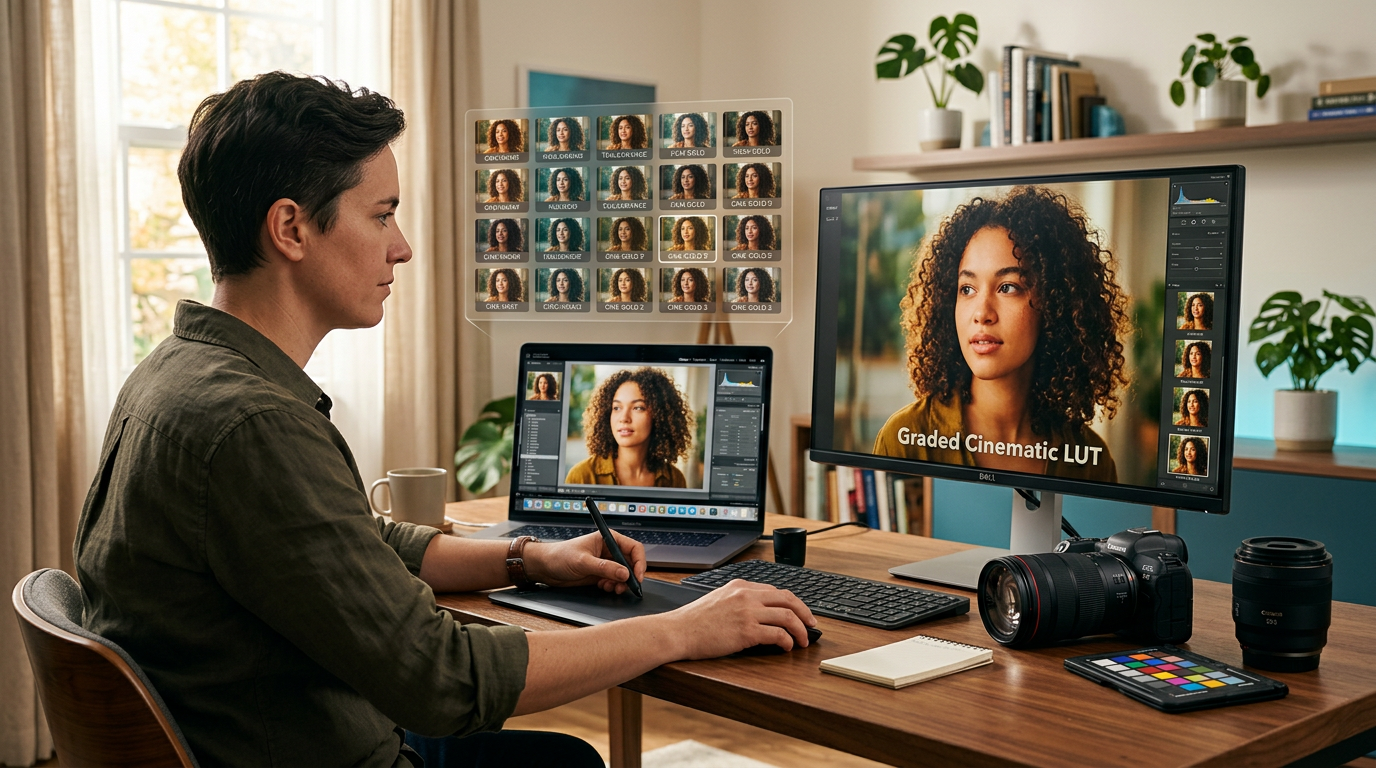
Looking for the best free LUTs for photographers in 2026 to enhance your images with beautiful color grading? You've come to the right place. In this guide, we're sharing our expertly tested list of the top 5 free LUT packs that professionals love this year — plus a clear walkthrough on how to download, install, and use them in Lightroom, Photoshop, and Premiere Pro.
In This Article:
- Why Use Free LUTs for Your Photography?
- Our Top 5 Free LUT Picks for 2026
- How to Download and Install Free LUTs
- How to Use LUTs in Your Editing Software
- Tips for Beautiful Color Grading with LUTs
- Frequently Asked Questions
Why Use Free LUTs for Your Photography?
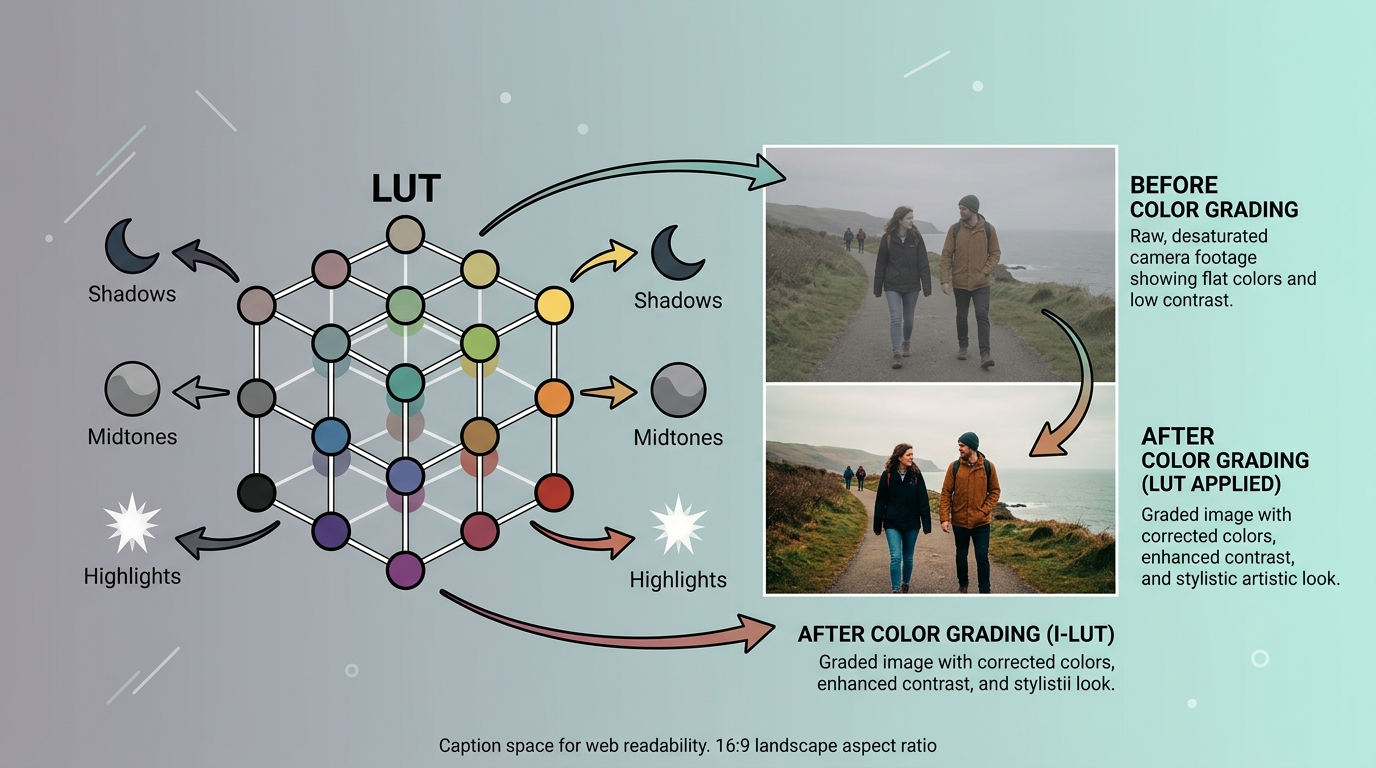
LUTs, or Look-Up Tables, are like instant filters — but far more precise. They apply complex color transformations to your photos or videos with a single click, adjusting shadows, midtones, and highlights simultaneously for that cinematic or polished finish. Free LUTs are ideal if you're building a portfolio, working within a tight budget as a freelancer, or simply want faster, more consistent edits. Unlike expensive preset packs, these free cinematic LUTs for 2026 deliver professional-grade results without the subscription cost — and they're an excellent way to study how color theory actually affects your images in practice.
Our Top 5 Free LUT Picks for Photographers in 2026
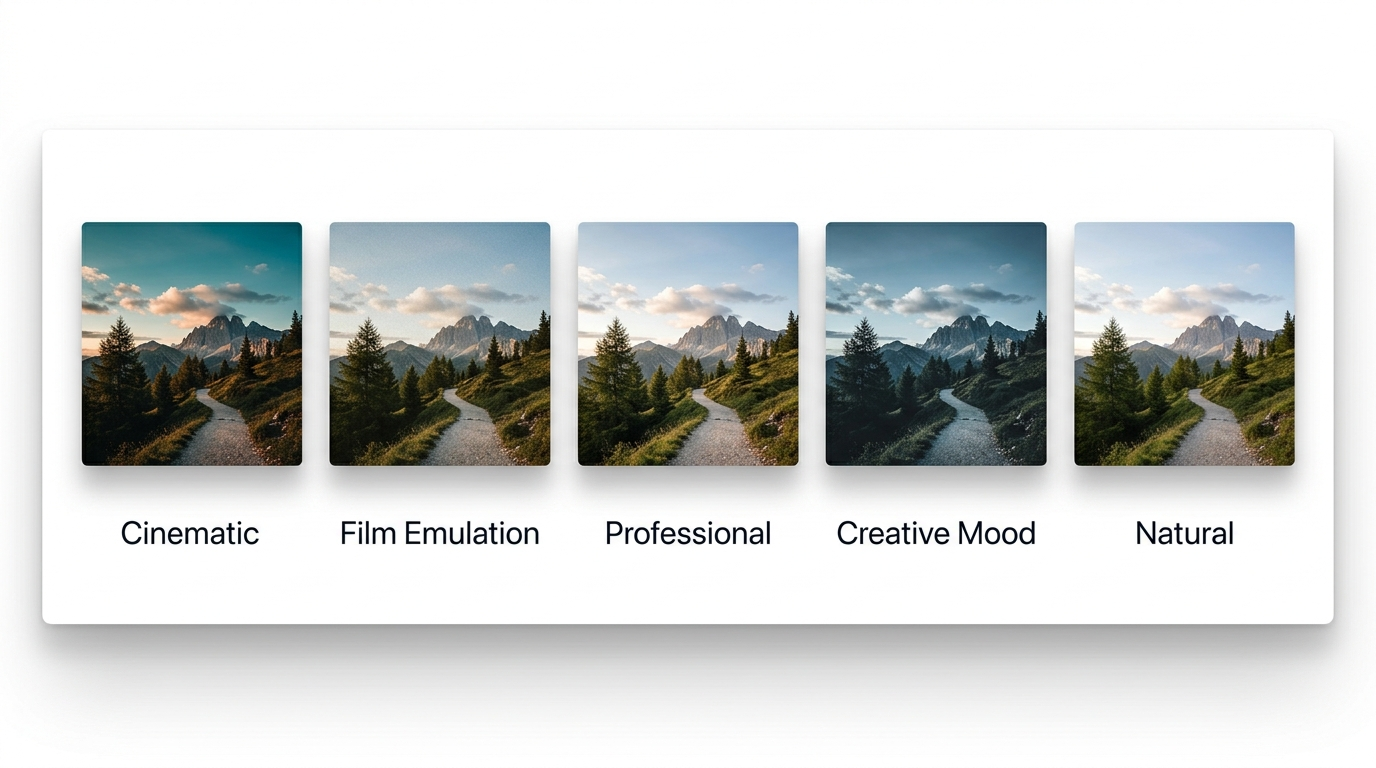
After testing numerous free LUT packs for photographers in 2026, these five stood out for quality, versatility, and ease of use.
1. Cinematic LUT Pack by FilterGrade
- Includes: 12 film-inspired LUTs
- Best for: Portraits, weddings, lifestyle shoots
This pack brings warm golden hour hues, moody blues, and carefully tuned skin tones that give portraits emotional depth — a genuine film look translated to digital. The subtle grain effect adds authenticity without overshadowing the subject. Among the five packs here, this is the strongest choice if skin tone accuracy and warmth are your primary concerns.
2. Film Emulation LUTs from Cine Designer Community
- Includes: 8 LUTs replicating classic film stocks like Kodak Portra and Fuji Pro
- Best for: Street photography, documentaries, artistic shots
Ideal for photographers who want the timeless analog aesthetic without shooting on film. These LUTs are built around accurate color science and natural grain textures. Where FilterGrade leans warm and emotive, this pack leans faithful — making it the better choice when historical or documentary accuracy matters.
3. Professional Color Grading Suite by Photography Toolkit
- Includes: 15 clean, versatile LUTs
- Best for: Commercial, product, and architectural photography
Focused entirely on accuracy and polish, this suite is designed for client work where natural, sharp color grading is non-negotiable. It offers the largest selection of the five packs and covers the widest range of shooting conditions — making it the most practical all-rounder for working professionals.
4. Creative Mood Collection by Visual Artists Collective
- Includes: 10 expressive, bold LUTs
- Best for: Fashion, creative portraits, artistic exploration
Built for photographers who want to make a visual statement rather than replicate reality. The tonal shifts here are dramatic by design. This is the only pack in the list that prioritizes creative expression over neutrality — if the other four feel too restrained for your aesthetic, start here.
5. Natural Enhancement Pack by Landscape Photographers United
- Includes: 6 subtle, nature-inspired LUTs
- Best for: Nature, outdoor portraits, environmental photography
Designed to gently lift colors while preserving a natural, unprocessed feel. This is the most understated pack of the five — which is exactly the point. For outdoor and environmental work where heavy grading would feel artificial, it is the cleanest option available.
Quick Comparison
| Pack | # of LUTs | Style | Best Use Case |
|---|---|---|---|
| Cinematic by FilterGrade | 12 | Warm, emotive | Portraits, weddings |
| Film Emulation by Cine Designer | 8 | Analog-accurate | Street, documentary |
| Professional Suite by Photo Toolkit | 15 | Clean, neutral | Commercial, product |
| Creative Mood by Visual Artists | 10 | Bold, expressive | Fashion, artistic |
| Natural Enhancement by LPU | 6 | Subtle, natural | Landscape, outdoors |
How to Download and Install Free LUTs
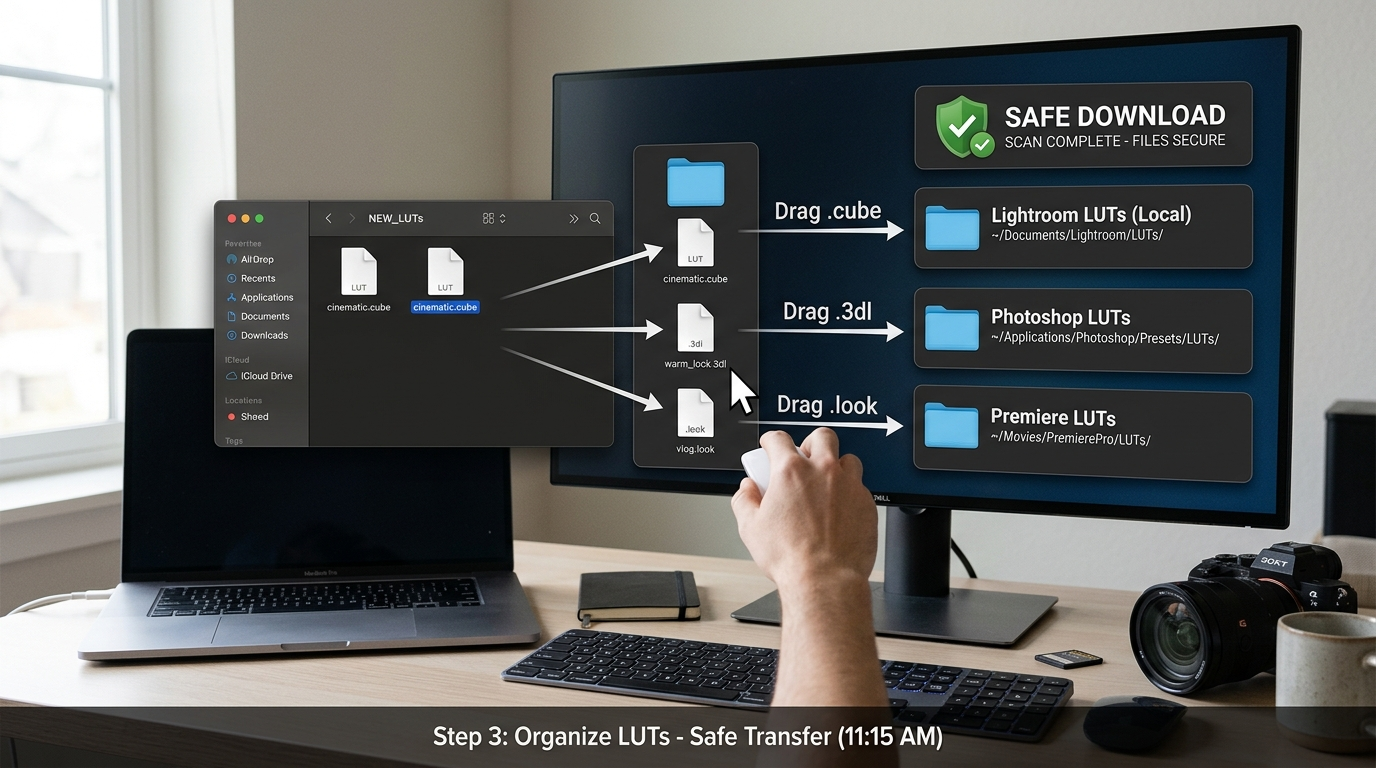
Downloading LUTs safely is important for both your system and your workflow. Here are reliable sources offering quality free LUT downloads:
- FilterGrade — filtergrade.com: Curated, high-quality LUT collections with clear licensing
- Adobe Community — community.adobe.com: Official contributions verified by Adobe users
- Retro Film Emulation — filmsimulation.com: Focused specifically on analog film stock emulation
- Ground Control — groundcontrolcolor.com: Professional-grade free LUT packs used widely in video production
- Creative Commons Libraries — creativecommons.org: Open-source professional tools with clear usage rights
Before installing, scan downloaded files with antivirus software. Verify that the LUT format (.cube, .3dl, or .look) is compatible with your editing application. Back up your original files before applying anything new.
How to Use LUTs in Your Editing Software
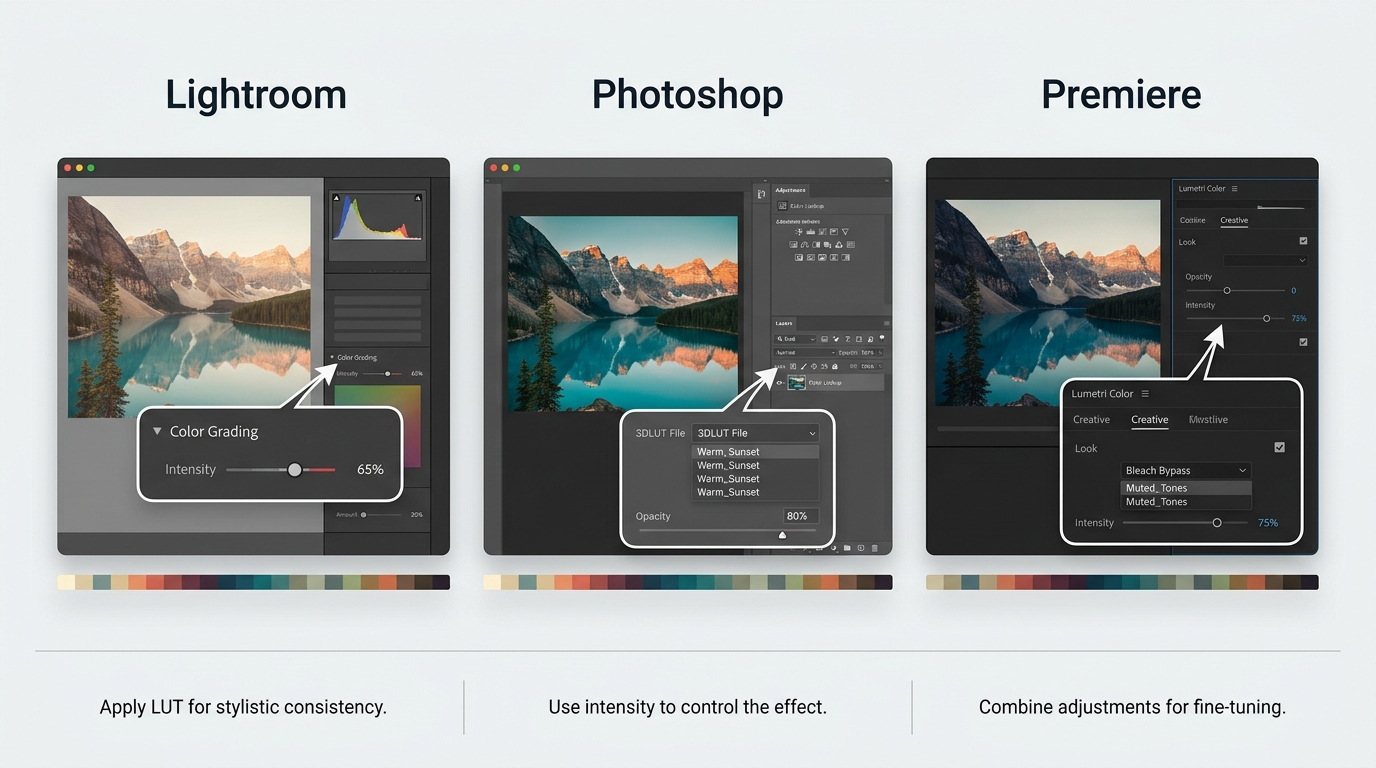
Lightroom Classic
- Save your LUT files in a dedicated folder on your system.
- Open Lightroom Classic and switch to the Develop module.
- Scroll to the Color Grading panel.
- Click the dropdown near the 3-Way section and select Browse (location may vary slightly by version).
- Navigate to your downloaded LUT files and import.
- Apply and adjust intensity using the Tone Curve or HSL panel as needed.
Best practice: Apply LUTs after doing basic exposure and white balance corrections. Use them as a starting point, then fine-tune with HSL and Tone Curves. Create presets from your favourite LUT combinations to speed up batch editing.
Photoshop CC
- Extract LUT files into:
Adobe\Adobe Photoshop CC\Presets\3DLUTs - Restart Photoshop.
- Add a Color Lookup adjustment layer.
- In the Properties panel, load the LUT you want from the dropdown.
- Adjust the layer opacity to dial in subtlety — 60–80% often works better than 100%.
Best practice: Use masks on the Color Lookup layer to restrict the effect to specific areas of the image. This gives you far more control than applying the LUT globally.
Premiere Pro
- Place LUT files in:
Adobe\Adobe Premiere Pro\Lumetri\LUTs\Creative - Restart Premiere Pro.
- Apply the Lumetri Color effect to your clip.
- In the Creative tab, choose your LUT from the Look dropdown.
- Adjust intensity using the Intensity slider (50–100% is a good range to start).
Best practice: Apply LUTs via an adjustment layer above your footage rather than directly to clips. This keeps your grade non-destructive and makes it easy to update across multiple clips at once.
Tips for Beautiful Color Grading with LUTs
Start at 50% intensity. LUTs are designed at full strength, but most real-world applications benefit from pulling them back. Set intensity around 50% first, then increase only if the image calls for it. Subtlety usually reads as more professional.
Correct before you colour. Always fix exposure and white balance before applying a LUT. A LUT applied to an incorrectly exposed image will amplify the problem, not mask it. Think of LUTs as the finish coat — the base needs to be right first.
Use a calibrated monitor. Colour grading on an uncalibrated display produces results that look different on every other screen your client views them on. Invest in a proper hardware calibration tool, or at minimum use a display profile and work in a controlled lighting environment.
Study histograms and scopes. Learning to read waveforms and vectorscopes turns LUT application from guesswork into an informed decision. You'll immediately see when a LUT is clipping highlights or crushing shadows, and you'll know exactly how to compensate.
Layer LUTs deliberately. Advanced editors often stack two LUTs at reduced opacity — one for a base tone and one for a creative mood. Experiment with layering, but keep total opacity across both layers at or below 100% to avoid blown-out colour.
Frequently Asked Questions
What is the difference between LUTs and presets? LUTs apply mathematical colour transformations that work across multiple editing applications, regardless of which software generated them. Presets adjust individual sliders within a specific application and aren't transferable across different editing tools. If you work across Lightroom, Premiere, and Photoshop, LUTs offer far more flexibility.
Why do LUTs look different on different devices? Variations in display calibration and colour space profiles affect how colours render on screen. Using a hardware-calibrated monitor and working in a consistent colour space (such as sRGB for web delivery) will significantly reduce these discrepancies between devices.
Are free LUTs as good as paid ones? Many free LUTs rival premium packs when used thoughtfully and combined with manual adjustments. The main advantage of paid LUT collections is consistency across a larger set and, often, better documentation. For most use cases, a well-chosen free pack is entirely sufficient.
Can I use free LUTs for commercial work? It depends on the licence attached to the specific LUT pack. Most reputable free LUT sources (like FilterGrade) clearly state whether their free packs are cleared for commercial use. Always check the licence before using any LUT in client work.
What LUT file format should I download?
.cube is the most universally compatible format and works in Lightroom, Photoshop, Premiere Pro, DaVinci Resolve, and most other professional tools. Download .cube files whenever available. Use .3dl only if your specific workflow requires it.
Do LUTs work on RAW files? Yes — in Lightroom and Capture One, LUTs are applied as part of the develop process after RAW conversion. In Photoshop, LUTs work on the rendered image, so apply them after converting from RAW. Either way, LUTs are fully compatible with RAW-based workflows.
Great photos deserve a great delivery workflow
Once your color grade is done, Foto Owl AI gets every photo to every guest automatically — face recognition, personalized galleries, and WhatsApp delivery in minutes.
Start Free Trial10,000 photos per year · No credit card required
The right LUT, applied with intention, is the fastest path from a raw file to a finished image that speaks for itself. Download a few from the packs above, work through the installation steps for your preferred software, and give yourself time to experiment — colour grading is a skill that improves meaningfully with each session.