
How to Import Google Drive Photos to Foto Owl AI

From Google Drive to every guest's phone — automated in minutes with Foto Owl AI
Quick Answer
To import Google Drive photos into Foto Owl AI, open your event gallery, click Upload → Google Drive, paste your public Google Drive link, and click Check Import Status. Foto Owl AI's AI face recognition takes over from there — automatically matching and delivering photos to every guest.
In This Article:
- Why photographers use Google Drive before Foto Owl AI
- What you need before you start
- Step-by-step: Import Google Drive photos to Foto Owl AI
- What Foto Owl AI does after import
- Pro tips for a smooth import
- Common mistakes to avoid
- Why this workflow beats manual sharing
- Conclusion
You just wrapped a 600-guest corporate event. Five thousand photos are sitting in Google Drive — culled, backed up, ready to go. But now comes the part every photographer dreads: sharing them. Name the folder, send the link, answer 40 WhatsApp messages from guests who can't find their photos, repeat.
There is a better way. Foto Owl AI connects directly to your Google Drive folder, pulls your photos into an AI-powered event gallery, and does the rest automatically — matching faces, building personalized galleries, and delivering photos to each guest via WhatsApp. No manual sorting. No guesswork. No follow-up.
This guide walks you through exactly how to import Google Drive photos to Foto Owl AI — step by step, with screenshots.
1. Why Photographers Store on Google Drive
Google Drive is the default backup tool for most photographers. It is fast, familiar, and integrates easily with the devices already in your workflow. After a shoot, uploading to Drive is the path of least resistance — and there is nothing wrong with that.
The limitation is not storage. The limitation is delivery. Google Drive gives every guest a single shared link to thousands of photos. There is no face recognition, no personalized gallery, no WhatsApp delivery, and no way for a guest to quickly find photos of themselves without scrolling through hundreds of images taken by someone else.
Foto Owl AI solves that last mile. Your Google Drive workflow stays exactly the same. You just add one step at the end — and the platform handles everything from there.
2. What You Need Before You Start
Before importing, confirm the following:
- A Foto Owl AI account sign up free at dashboard.fotoowl.ai
- An active event created inside your Foto Owl AI dashboard
- Your photos uploaded and organized in a Google Drive folder
- The Google Drive folder set to public access (anyone with the link can view) — Foto Owl AI only supports public links for import
- A paid Foto Owl AI plan — Google Drive import is available on paid tiers (Skater and above)
If your folder is currently set to restricted, open Google Drive, right-click the folder, click Share, and change access to "Anyone with the link."
3. Step-by-Step: How to Import Google Drive Photos to Foto Owl AI
Step 1 — Open Your Event and Click Upload
Log in to your Foto Owl AI dashboard and navigate to the event you want to populate with photos. From the event gallery page, click the Upload button in the top-right corner of the screen.
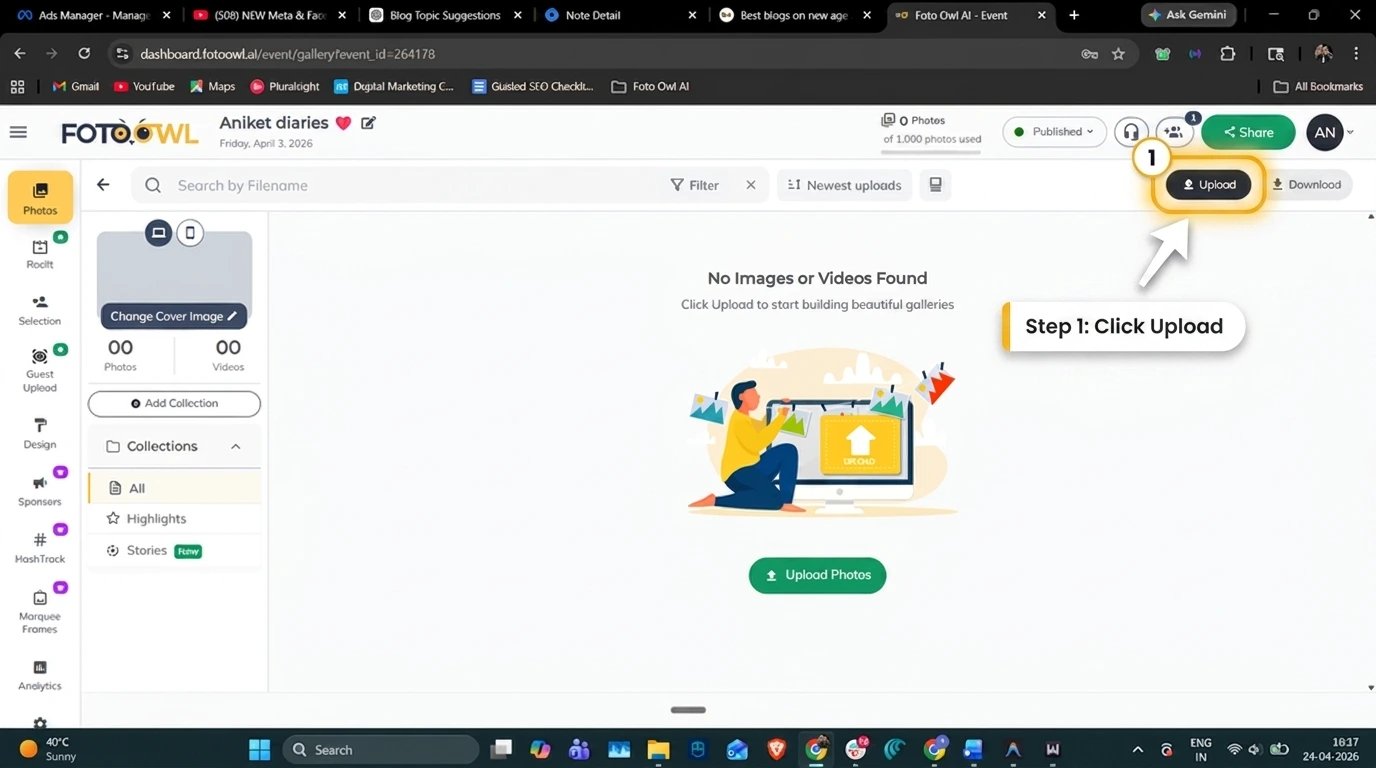
Step 1 — Open your event gallery and click the Upload button in the top right corner
If this is a new event, your gallery will show the empty state screen with an Upload Photos prompt. Both routes take you to the same upload panel. You can also select a specific Collection first — for example, uploading your Google Drive photos directly into a Highlights collection rather than the default All collection.
Step 2 — Select Google Drive from the Import Section
The upload panel opens with several options on the left sidebar. You will see two sections: Upload (for direct files, videos, and folders) and Import. Under the Import section, you will find Cloud and Google Drive. Click Google Drive.
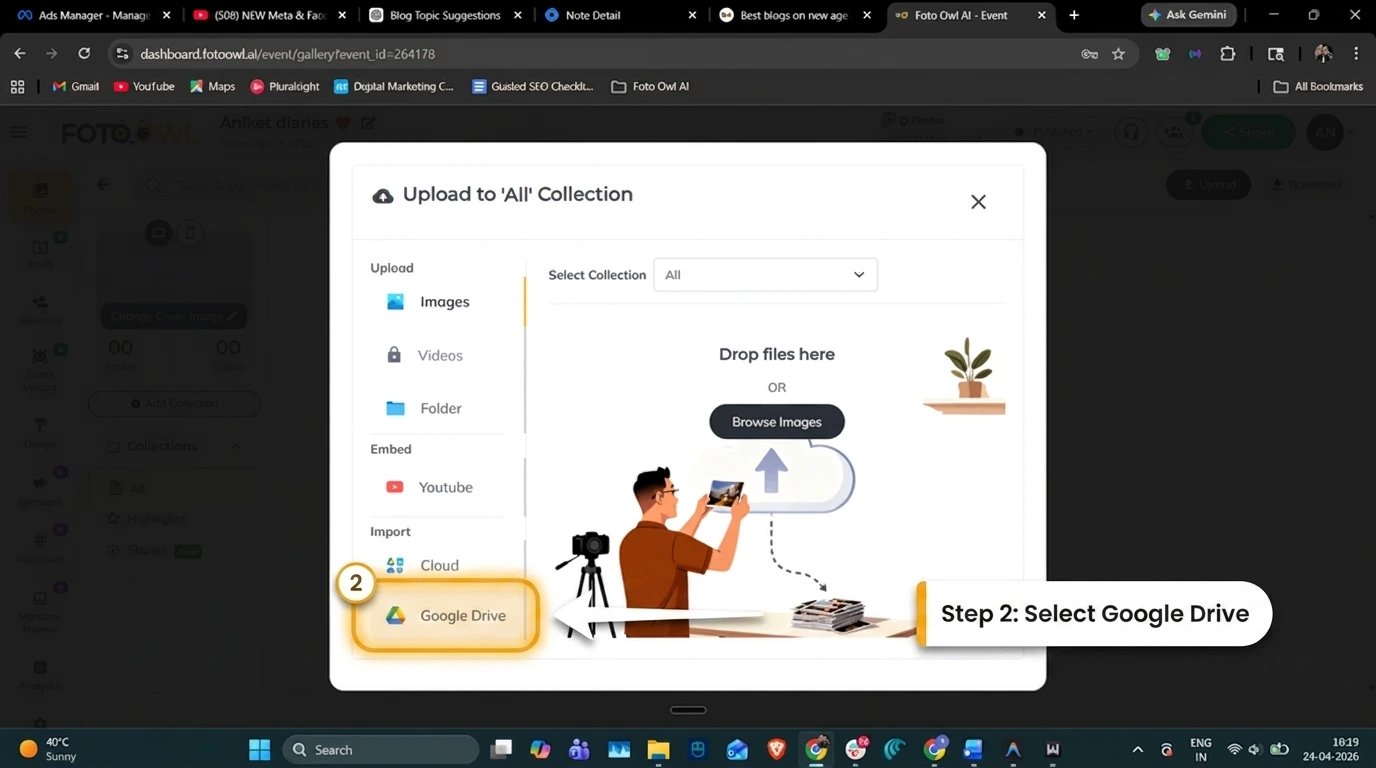
Step 2 — In the upload panel, scroll to the Import section on the left and click Google Drive
Note the other import options available here. The Cloud option supports direct cloud storage links. The folder upload lets you drag entire local directories. For photographers who shoot tethered or use Beam for real-time camera-to-cloud upload, the workflow is even faster — photos land in Foto Owl AI directly from the camera without a Drive step at all.
Step 3 — Paste Your Google Drive Public Link and Import
With Google Drive selected, the panel shows a text input labelled Google Drive Public File Link. Paste your folder's public share link here. The field accepts only public access links — if your link is restricted, the import will not proceed.
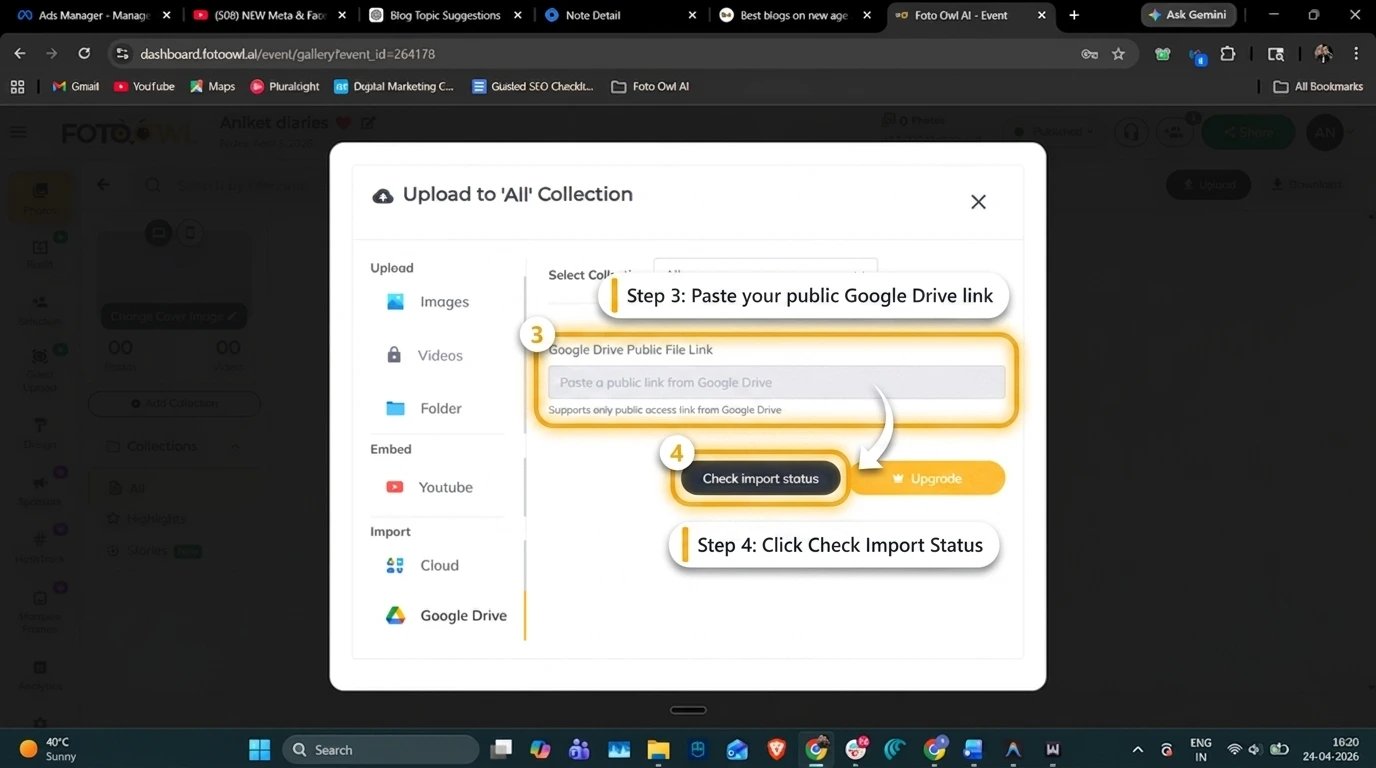
Step 3 — Paste your public Google Drive folder link and click Check Import Status to begin
Once the link is pasted, click Check Import Status to initiate the import. Foto Owl AI will begin pulling photos from your Drive folder into the selected event gallery. Import time depends on the number of photos — for a 2,000-photo event, this typically takes a few minutes.
If you are on the free Rider plan, the Upgrade button on this screen will take you directly to the plan comparison page so you can unlock Google Drive import along with other premium features.
Step 4 — Confirm the Import and Let AI Take Over
Once the import begins, return to your event gallery. Photos will appear in the gallery as they are pulled in from Drive. You do not need to stay on the page — the import runs in the background.
As soon as photos populate the gallery, Foto Owl AI's AI face recognition activates automatically. It scans every face across every photo, builds a face index, and stands ready to match each guest to their images the moment they register via QR code.
From this point forward, your Google Drive photos are no longer just files in a folder. They are a fully searchable, personalized, AI-powered event experience.
4. What Happens After You Import
This is where the workflow becomes genuinely different from anything Google Drive can offer.
Once your photos are inside Foto Owl AI, the platform runs the full automated delivery sequence:
Face indexing — Every face in every imported photo is detected, measured, and stored in a searchable face index. This happens in the background, requiring no input from you.
QR code registration — Guests scan the event QR code (displayed on a screen, printed on a table card, or shared via WhatsApp), take a selfie, and Foto Owl AI instantly matches their face to every photo of them in the gallery.
Personalized gallery delivery — Each guest receives a unique encrypted gallery link containing only their photos — not a dump of 5,000 images, but their specific moments. The platform also uses ReelIt to automatically generate a personalized video reel for each guest, which they can share directly to Instagram or WhatsApp.
WhatsApp notification — Guests receive a WhatsApp message the moment their gallery is ready. No app download required. No shared password. No hunting through someone else's photos.
For photographers using Photo Selling, guests can also purchase their favorite photos directly from their personal gallery — turning every imported Drive photo into a potential revenue opportunity.
5. Pro Tips for a Smooth Google Drive Import
Use a folder link, not a file link. Foto Owl AI imports from a folder-level public link. Linking to an individual image will not trigger a bulk import.
Set public access before you paste the link. Pasting a restricted Drive link is the single most common reason an import fails. Double-check access settings in Drive before returning to Foto Owl AI.
Organize photos into a single folder. If your event photos are spread across multiple sub-folders in Drive, consolidate them into one parent folder before importing. Sub-folder imports are not supported.
Import before guests arrive, not after. The face indexing process takes a few minutes for large batches. Starting the import 30–60 minutes before your event ends gives the AI enough time to process so guests receive their galleries while they are still at the venue.
Use Collections to organize imports. If you are importing multiple shoots from the same event — ceremony, reception, after-party — use separate Collections inside your event gallery to keep them organized without affecting the face matching.
6. Common Mistakes to Avoid
Importing from a restricted link — As noted above, Foto Owl AI only accepts public Google Drive links. Always confirm access is set to "Anyone with the link" before importing.
Uploading compressed previews instead of full-resolution files — Face recognition accuracy improves significantly with full-resolution images. Avoid sharing Drive links to compressed or auto-converted files. Export originals directly to Drive from your editing software.
Creating a new event after importing — If you import photos and then realize you need to start a new event, your previously imported photos will not carry over. Always create the event in Foto Owl AI first, then import.
Leaving face recognition disabled — Check your event settings to confirm AI face recognition is turned on before guests begin scanning. It is enabled by default, but verify after any event setup changes.
7. Why This Beats Manual Photo Sharing
Let's be direct about what manual Google Drive sharing actually costs photographers.
When you share a Drive folder link, every guest receives the same link to the same folder. Finding personal photos means scrolling through thousands of images, most of which belong to other people. Many guests give up after a few minutes. Photo engagement rates for shared Drive links typically sit below 20%.
With Foto Owl AI, that number flips. Because each guest receives only their photos, delivered directly to their WhatsApp, engagement rates consistently run above 80%. Guests who actually see their photos share them, which creates word-of-mouth visibility for the photographer. And because Photo Selling is built directly into the gallery, a percentage of those engaged guests become paying customers — often generating revenue that covers the platform cost many times over.
The Google Drive import is the bridge. It lets photographers keep the backup and organization workflow they already use, and then step up to a delivery experience that actually serves guests.
Ready to turn your Google Drive photos into personalized guest experiences?
Join 200,000+ photographers and event organizers who trust Foto Owl AI
Start Free Trial10,000 photos per year · No credit card required
8. Conclusion
Connecting Google Drive to Foto Owl AI takes under two minutes and unlocks a completely automated event photo delivery experience. Upload to Drive as you always have, paste the public link into your Foto Owl AI event gallery, and let the platform handle the rest — face matching, personalized galleries, WhatsApp delivery, and AI-generated reels for every guest.
The photos are already in Drive. The only question is whether they stay there as a shared folder link, or become a personalized experience every guest actually opens, shares, and remembers. With Foto Owl AI, that upgrade costs two minutes and four steps.
Have questions about importing photos from Google Drive or another cloud storage platform? Drop them in the comments below — the Foto Owl AI team is here to help.